Working with debiting retry attempts
An article about working with the automatic debiting retries as part of processing a recurring purchase.
Overview
Introduction
If a scheduled automatic debiting is declined, for example, in case when the customer's account has insufficient balance, initiating this debiting can be attempted again in the Ecommpay payment platform after a certain time period. You can add this capability for specific projects and for a specific group of payment methods upon agreement with your Ecommpay account manager. Note that the merchant is responsible for notifying the customers that this functionality is being used, specifically when a scheduled debiting was declined and retry attempts have been set up.
If retry attempts are not used for COF purchases, when a scheduled debiting in the series is declined, the next scheduled debiting is expected to be processed in the payment platform according to the schedule (details). Whether an additional debiting should occur or whether the series of debitings should be cancelled is decided by the merchant.
Special aspects
When working with the debiting retries, consider the following:
- For each project you can implement a specific retry schedule: either a default one by Ecommpay or a custom one.
- Debiting retries can be used for a limited number of the globally accepted payment methods: Apple Pay, Google Pay, and standard card payments.
- Debiting retries can be used only for regular COF purchases when the debiting schedule is stored on the side of the payment platform (type
R). - Debiting can be retried only if the previous debiting attempts were declined by the issuer or the payment system.
- Using the functionality of debiting retries does not guarantee that the funds will be withdrawn eventually. If the allowed number of retries does not result in debiting, then this debit operation is deemed declined (it is assigned the
declinestatus), and the COF purchase in question is subsequently processed in the platform according to its debiting schedule.
Use
The specifics of using debiting retries can be illustrated with the following examples.
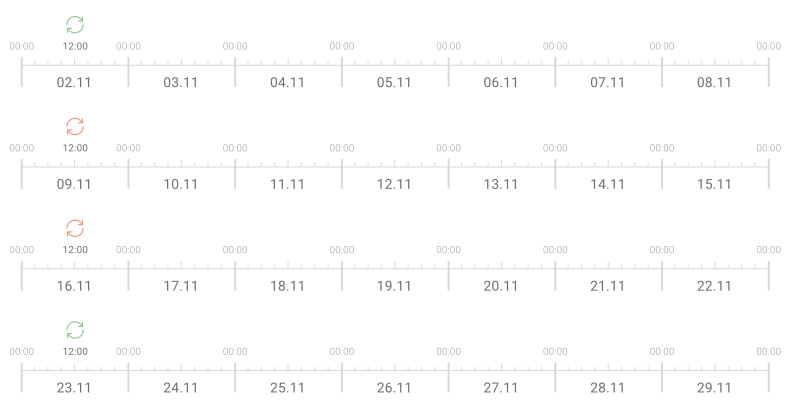
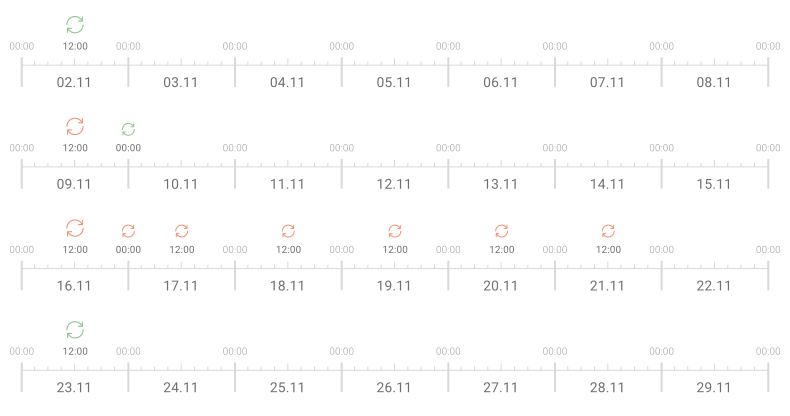
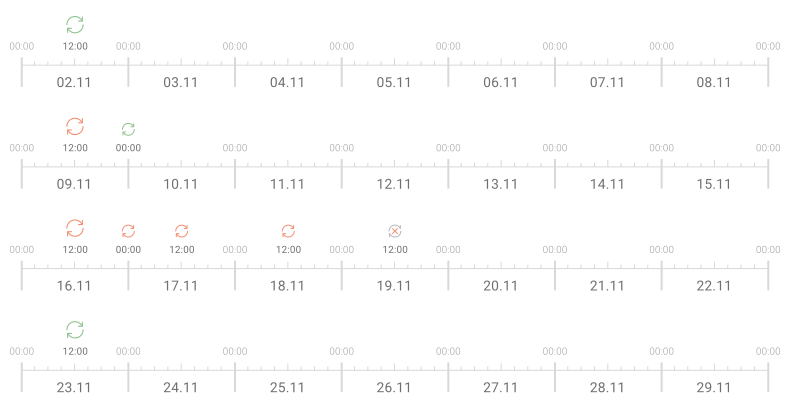
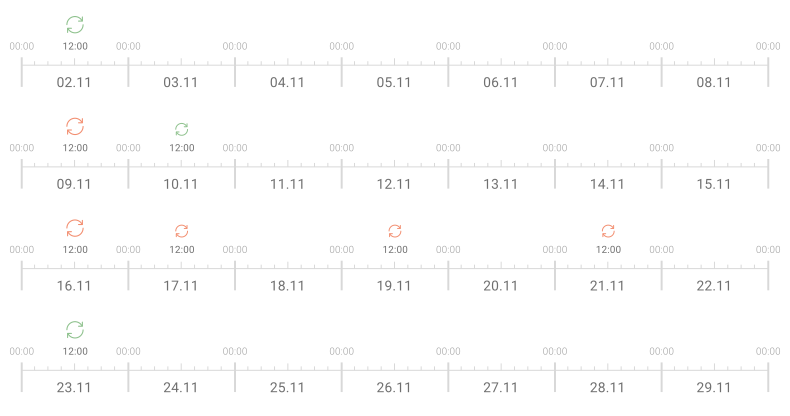
Suppose within a specific COF purchase automatic debitings are initiated on Monday at 12:00 and, according to the schedule, are to be performed on November 02, 09, 16, and 23, but on November 09 and 16 scheduled debitings do not occur, then the options to respond to this situation can be as follows:
- If the functionality of debiting retries is not available for this purchase, then regardless whether the scheduled debiting was completed or declined after the declined scheduled debiting, the next scheduled debiting will be performed.
- If a default retry schedule from Ecommpay is used, then after the initial scheduled debiting is declined, the platform will retry it as many times as determined by the schedule follows: the first two attempts will occur with a delay of 12 hours between them, the following attempts will occur every 24 hours, and the attempts will be stopped at least 24.5 hours before the next scheduled debiting on Monday.
- If a default retry schedule from Ecommpay is used, and the web service requests to stop subsequent debiting retries after three attempts are declined one after another, then if the initial debiting is declined, the platform will retry it up to three times in a row.
- If a custom retry schedule is used, then after the initial scheduled debiting is declined, the platform will retry it as many times as configured with a delay of 24 hours between consecutive attempts, and the attempts will be stopped at least 24.5 hours before the next scheduled debiting on Monday.
Since schedules of both regular COF purchases and debiting retry attempts can be flexibly configured, these scenarios can be used in a wide range of situations. However, it is also important to monitor statuses of all operations and maintain appropriate communication with customers depending on the operation statuses and retry schedule.
Workflow
The steps of the debiting retry procedure are as follows:
- When a scheduled debiting is initially declined by the payment system or the issuer, the Ecommpay payment platform checks if there is a possibility to retry the debiting once again. If this possibility is confirmed, the web service is sent a callback that contains the information about the declined debit operation with the
declineoperation status as well as the scheduled date and time of the retry attempt. - At the scheduled time, the debiting retry attempt is performed automatically.
- Depending on the attempt result, the following steps are executed:
- If the attempt results in debiting the funds from the customer to the merchant, a callback containing the debiting result information (with the
successoperation status ) is sent to the web service. The COF purchase series continues according to the existing schedule. - If the attempt results in decline and the payment platform confirms the possibility to perform another attempt, a callback containing the information about the debiting decline (with the
declineoperation status and the scheduled date and time of the next retry attempt) is sent to the web service. Then step 2 is repeated. - If the attempt results in decline and the payment platform does not confirm the possibility to perform another attempt, a final callback containing the information about the debiting decline (with the
declineoperation status and without information about the next attempt) is sent to the web service. The COF purchase series continues according to the existing schedule. In this case, whether an additional debiting should occur or whether the series of debit operations should be cancelled must be decided by the merchant.
- If the attempt results in debiting the funds from the customer to the merchant, a callback containing the debiting result information (with the
The general workflow of this procedure is as follows.
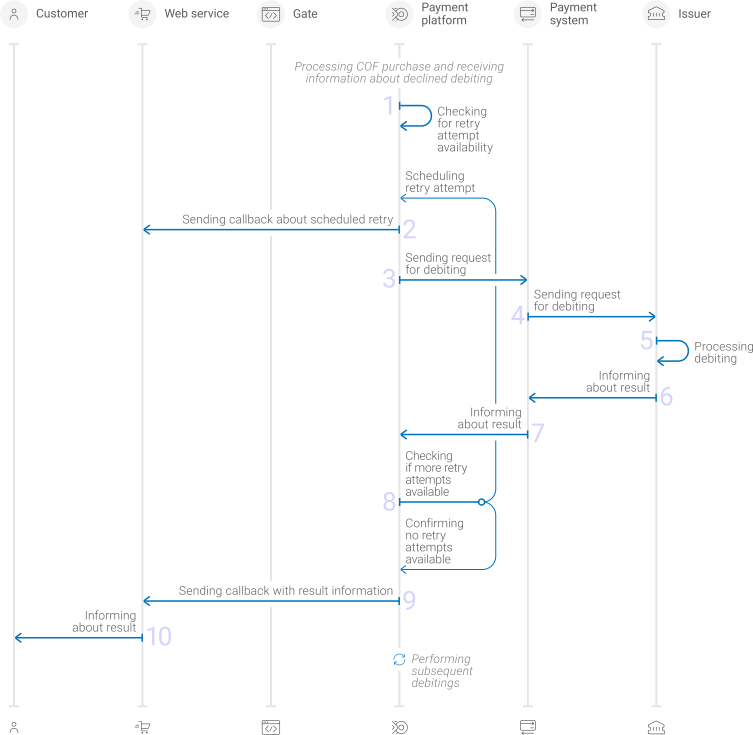
- If a scheduled debiting has not initially resulted in transferring of funds, the payment platform checks if there is a possibility to retry debiting.
- The payment platform sends a callback to the web service containing the information about the debiting decline (with the
declineoperation status ) and the scheduled date and time of the retry attempt. - The web service informs the customer that the debit operation was declined and a retry attempt is scheduled.
- The payment platform sends a request to perform a debit operation to the payment system on the scheduled date and time.
- The payment system processes the request and forwards it to the issuer.
- The issuer processes the debit operation.
- The issuer sends a notification about the debiting result to the payment system.
- The payment system sends the notification about the debiting result to the payment platform.
- The payment platform checks if the retry attempt is needed and available. If necessary, the payment platform initiates subsequent retry attempts, and for each attempt, steps 2 through 8 are repeated.
- The payment platform sends a debiting result callback to the web service: with the
declineoperation status if none of the retries resulted in debiting orsuccessif one of the retries resulted in debiting. - The web service informs the customer about the debit operation result.
- From this point forward, the payment platform can initiate subsequent scheduled debit operations, with each following steps 1 through 11.
The format of callbacks used in this workflow is described below.
Setup
To set up the functionality of debiting retries:
- With your Ecommpay account manager, discuss and agree upon setting up this functionality and whether testing is necessary.
- If you need testing, get notified by the Ecommpay specialists that the functionality is ready for being used in test mode, test this functionality, and inform Ecommpay that everything is ready to launch.
- Get notified by the Ecommpay specialists that the functionality has been added and fully set up.
Managing retry schedules
Overview
The payment platform allows you to implement one schedule of debiting retries for a specific project. The schedule applies to all regular COF purchases within this project. To set up, you can send requests via Gate (more on this below) or use the tools of the Dashboard interface (details). It can be a default schedule from Ecommpay or a custom schedule that you can set up on your own depending on the specific project: it can be either a default schedule from Ecommpay, or a custom schedule configured by the merchant.
The main characteristics of these schedule types can be compared as follows.
- In case of a default schedule, for each scheduled debiting there can be no more than 7 retry attempts carried out within 6 days.
The time interval between an initial debiting and the first retry attempt as well as between the first and the second retry attempts equals 12 hours. If, according to the debiting schedule, the next debiting is to occur less than 12.5 hours after the retry attempt, the retry attempt is not performed. The remaining five retry attempts are carried out every 24 hours, with the restriction that the next scheduled debiting is to occur at least 24.5 hours after the retry attempt.
- In case of a custom schedule, for each scheduled debiting there can be 1 to 10 retry attempts carried out within 10 days.
The time interval between the retry attempts can vary, but it must be a multiple of 24 hours, and there is a restriction that the next scheduled debiting is to occur at least 24.5 hours after the retry attempt. For example, if the debiting is scheduled once a month, the four retry attempts can be set with the increasing time interval of 24, 48, 72, and 96 hours (occurring on the first, third, sixth, and tenth day, in compliance with an overall 10 day time limit for retries and the restriction that the next scheduled debiting is to occur at least 24.5 hours after the retry attempt).
| Default | Custom | |
|---|---|---|
| Maximum number of retry attempts |
7 |
1…10 |
| Time limit for performing retry attempts |
6 days |
10 days |
| Time intervals between retry attempts |
twice—12 hours, |
a multiple of 24, (N × 24 hours), in arbitrary order |
| Minimum time before the next scheduled debiting |
first two attempts—12.5 hours, |
in any case—24.5 hours |
| Possibility to customise the number and time of retries |
– |
+ |
The schedule implemented for any project can be customised by modifying its specific parameters or by resetting them to default. Keep in mind that a retry attempt that was scheduled before the retry schedule was customised is performed according to the initially set date and time (according to the previous schedule). However, if any of these attempts is declined after the schedule was modified and it is possible to perform the next attempt of this debiting retry in the payment platform, then the new attempt is scheduled and performed according to the updated schedule. In either case, the information about each subsequent retry attempt is sent to the web service in the callback notifying that a debiting attempt was declined (details).
When working via the Gate API, keep in mind that requests for modifying retry schedules are processed according to the synchronous model of interaction between the web service and the payment platform. This implies that each request is fully processed within one HTTP session and uses only the resources of the payment platform. The response to the correct request contains an HTTP response status code (200) and the required data without detailed request processing information. If the request is incorrect, or there have been issues with its acceptance and processing, then the response contains an HTTP response status code, request processing status error, and the detailed description of the error that occurred. The description of the response format can be found here.
Keep in mind that requests for modifying retry schedules are processed according to the synchronous model of interaction between the web service and the payment platform. This implies that each request is fully processed within one HTTP session and results in relevant response (details).
Configuring a custom schedule
To customise a retry schedule via the Gate API for a specific project:
- Send an HTTP-POST request to the /v2/recurring/retry-custom-schedule/save endpoint.
- Receive a synchronous response communicating that the schedule was updated in the platform.
The request must contain the following objects and parameters:
general—object with the general identification informationproject_id—project identifier obtained from Ecommpay during integrationsignature—request signature generated after all required parameters are specified (details can be found in the article Signature generation and verification) (details)
interval_days—array with the ordinal numerals indicating the days on which retry attempts are to be performed, counted from the day when the initial debiting was declined and specified as an ascending sequence of numbers from 1 to 10, with comma used as a delimiter (for example,[1,5,9])
Thus, a correct request must contain the project identifier, signature, and the interval_days array. In the following example, the retry attempts are scheduled on the first, fifth, and ninth day after the initial debiting was declined.
{
"general":{
    "project_id": 42,
    "signature": "K5D/aZAsdsg ... R+YyilEtbS="
    },
"interval_days": [1,5,9]
}
{
"general":{
    "project_id": 42,
    "signature": "K5D/aZAsdsg ... R+YyilEtbS="
    },
"interval_days": [1,5,9]
}
When the request to configure a retry schedule is processed, the payment platform sends a response with the code 200 OK to the web service. If the request is declined, the response contains a request processing status error and the description of the error that occurred, for example, Recurring retry not enabled.
Checking the schedule
To check the schedule of debiting retry attempts for a specific project via the Gate API:
- Send an HTTP-POST request to the /v2/recurring/retry-custom-schedule/info endpoint.
- Receive a synchronous response with information about the schedule.
The request must contain the following objects and parameters:
general—object with the general identification informationproject_id—project identifier obtained from Ecommpay during integrationsignature—request signature generated after all required parameters are specified (details can be found in the article Signature generation and verification) (details)
Thus, a correct request must contain the project identifier and signature.
{
  "general":{
    "project_id": 42,
    "signature": "K5D/kyky...il8l="
  }
}
{
  "general":{
    "project_id": 42,
    "signature": "K5D/kyky...il8l="
  }
}
When the request to check a retry schedule is processed, the payment platform sends a response with the code 200 OK and required information to the web service. If the request is declined, the response contains a request processing status error and the description of the error that occurred. The response body contains the projects identifier and the schedule object.
If the retry schedule was customised for a specific project in the platform, the schedule object includes the following parameters:
interval_days—array with the ordinal numerals indicating the days on which retry attempts are to be performed, counted from the day when the initial debiting was declined and specified as an ascending sequence of numbers from 1 to 10, with comma used as a delimiter (for example,[1,5,9])status—indicator specifying whether the custom schedule is activated (contains the valueactiveif the custom schedule has been configured and not deactivated for the project)
If a default retry schedule from Ecommpay is used for a specific project, the schedule object will be empty.
In the following example, the response communicates that for project 42 a custom schedule was configured, with the retry attempts set on the first, fifth, and ninth day after the initial debiting was declined.
{
  "project_id": 42,
  "schedule": {
    "interval_days": [1,5,9],
    "status": "active"
  }
}
{
  "project_id": 42,
  "schedule": {
    "interval_days": [1,5,9],
    "status": "active"
  }
}
In the following example, the response does not contain any data in the schedule object, which means that for project 42 a default schedule is used.
{
  "project_id": 42,
  "schedule": {}
}
{
  "project_id": 42,
  "schedule": {}
}
Resetting the schedule to default values
To reset the retry schedule to default values for a specific project via the Gate API:
- Send an HTTP-POST request to the /v2/recurring/retry-custom-schedule/disable endpoint.
- Receive a synchronous response communicating that the request has been processed.
The request must contain the following objects and parameters:
general—object with the general identification informationproject_id—project identifier obtained from Ecommpay during integrationsignature—request signature generated after all required parameters are specified (details can be found in the article Signature generation and verification) (details)
Thus, a correct request must contain the project identifier and signature.
{
 "general":{
    "project_id": 42,
    "signature": "K5D/aZAMdeR+YyilUwS="
 }
}
{
 "general":{
    "project_id": 42,
    "signature": "K5D/aZAMdeR+YyilUwS="
 }
}
When the request to reset the schedule to default values is processed, the payment platform sends a response with the code 200 OK to the web service. If the request is declined, the response contains a request processing status error and the description of the error that occurred.
Monitoring debiting retries
The debiting retries are performed automatically in the payment platform, according to a specific schedule and the processing workflow. On the side of the web service, you need to monitor the retries and maintain appropriate communication with customers depending on the debiting operation results.
To monitor the schedule and execution of each retry attempt, you can use callbacks sent from the platform (details). In cases when retrying automatic debitings is enabled for the project, callbacks include the recurring_retry object that can include some or all of the following parameters:
trigger_operation_id—identifier of the debit operation that was retried. Specified when at least one retry attempt was performed.retry_count—the number of the retry attempts already used up (an integer from 1 to 7 in case of the default schedule and from 1 to 10 in case of the custom one). Specified when at least one retry attempt was performed.next_retry_exists—an indicator that shows whether the next scheduled attempt is available. This parameter is set totrueif the debiting resulted in decline and there is an available retry attempt (the number of attempts and the time allocated for making them are not used up). In all other cases this parameter is set to orfalse. Specified in all cases.next_retry_date—the scheduled date and time of the next retry attempt. Specified when the next retry attempt has been scheduled.
The following example of a callback contains information that no retry attempts were performed or scheduled for one of the debit operations in the series. Such callbacks are sent if the debiting resulted in funds transfer when it was first initiated or retry attempts cannot be performed.
"recurring_retry": {
            "next_retry_exists": false
            }
The following example of a callback contains information that the declined debiting can be retried and the first retry attempt has been scheduled ("next_retry_exists": true). In this case, the identifiers of the debit operation and the retry attempt are not specified because no retry attempts have been performed yet.
"recurring_retry": {
            "next_retry_exists": true,
            "next_retry_date": "2026-01-21T16:58:02+0000"
            }
The following example of a callback contains information that the first attempt ("retry_count": 1) to retry debit operation 344589675 was declined and, as a result, the second attempt ("next_retry_exists" : true) has been scheduled for this debit operation at 2026-01-25T16:58:02+0000.
"recurring_retry": {
            "trigger_operation_id": 344589675,
            "retry_count": 1,
            "next_retry_exists": true,
            "next_retry_date": "2026-01-25T16:58:02+0000"
            }
The following example of a callback contains information that the second attempt ("retry_count": 2) to retry debit operation 344589675 have been completed and no subsequent retry attempts have been scheduled ("next_retry_exists" : false). This can be either the case that the funds were transferred from the customer to the merchant (then the operation status should be success), or that there are no available retry attempts left as they have been used up without actual transfer of funds (then the operation status should be decline).
"recurring_retry": {
            "trigger_operation_id": 344589675,
            "next_retry_exists": false,
            "retry_count": 2
            }
Cancelling retries
To cancel retrying a specific debiting via the Gate API:
- Send an HTTP-POST request to the /v2/recurring/retry_stop endpoint.
- Receive a synchronous response communicating that performing the subsequent retry attempts has been cancelled.
Keep in mind that these requests are processed according to the synchronous model of interaction between the web service and the payment platform. This implies that each such request is fully processed within one HTTP session. The response to the correct request contains the required data (details). The description of the response format can be found here.
The full sequence of processing request to cancel retry attempts is provided below.
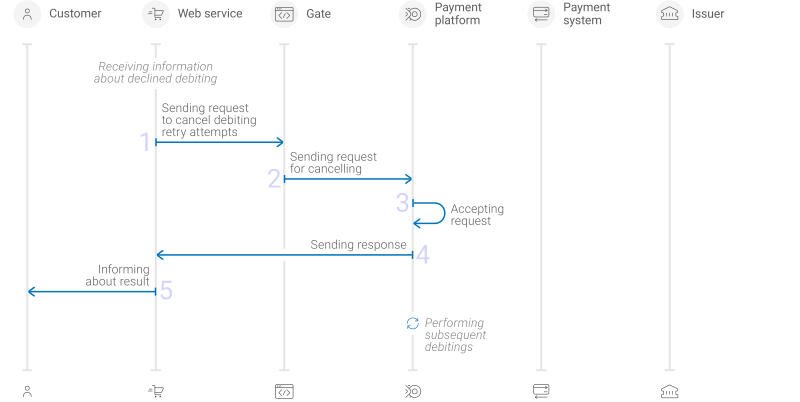
- The web service sends to the Ecommpay URL a request to cancel the retry attempts scheduled in the payment platform for the declined debiting.
- The request enters the payment platform.
- The payment platform processes the request and ceases to retry this debiting.
- The payment platform sends a response with the request processing result to the web service.
- The web service informs the customer about the debiting result.
- The payment platform initiates subsequent debit operations according to the existing COF purchase schedule.
Each request to cancel retrying the specific debiting must include the following objects and parameters:
general—object with general request identification information:project_id—project identifier obtained from Ecommpay during integration.signature—request signature generated after all required parameters are specified (details—in the article Signature generation and verification). (details)
recurring—object with the COF payment information:id—identifier of the debit series received in the callback with the COF purchase registration data or assigned when the COF purchase information was migrated from another acquirer.
trigger_operation_id—identifier of the recurring debit operation for which you need to cancel retries.
Thus, a correct request to cancel retries must contain the project identifier, signature, and the identifiers of the debiting series record and the relevant debit operation.
{
  "general":{
    "project_id":42,
    "signature":"K5D/anjn7fv+YyilUwS=="
  },
  "recurring":{
    "id":1079
   },
  "trigger_operation_id":092384
}
{
  "general":{
    "project_id":42,
    "signature":"K5D/anjn7fv+YyilUwS=="
  },
  "recurring":{
    "id":1079
   },
  "trigger_operation_id":092384
}
When the request to cancel debiting retries is processed, the payment platform sends a response with the code 200 OK to the web service. If the request is declined, the response contains a request processing status error and the description of the error that occurred.
Useful links
The following articles can be useful when working with debiting retry attempts:
- Monitoring and performing payments—about working with payments via Dashboard, including working with regular COF purchases and managing attempts to retry debit operations executed as part of regular COF purchases.
- COF purchase with automatic debiting—about processing regular COF purchases via Gate, including general information, description of processing workflows and data formats for working with standard card payments.
- Interaction concepts—about interacting with the payment platform via the Gate API, including description of interaction workflows and general requirements to data formats.
- Handling callbacks—about working with callbacks that allow receiving up-to-date information significant for processing of each payment, including description of callback types and data formats.
- Signature generation and verification—about the procedure of generating and verifying signatures in requests and callbacks in the process of interacting with the platform.