Automated onboarding
Introduction
Integration with any payment platform requires solving a lot of organisational, legal, and technical issues. To simplify this process, ecommpay offers a number of specialised solutions including Onboarding Pass—a solution is a specialised solution that allows small businesses registered in the United Kingdom and previously without an account with ecommpay to start working with the payment platform.
Onboarding Pass is an automated onboarding solution that allows you to sign up and submit all necessary information, carries out all necessary verification and compliance checks, following which you can sign an agreement via Dashboard, without the need for continuous direct interaction with the ecommpay specialists. Onboarding Pass is intended for clients whose business is compact enough that it does not require full scale onboarding with the involvement of account managers and other specialists. As a self-service onboarding solution, it provides small businesses with an access to a range of functional capabilities and key payment methods, which allows for efficient operation and development of their payment services.
To start onboarding with ecommpay via Onboarding Pass, the company must meet the following eligibility criteria:
| Country of registration | the United Kingdom |
|---|---|
| Nature of business | included in the ecommpay approved list of eligible low risk industry sectors |
| Number of employees | fewer than 10 |
| Annual turnover | up to £1.5 million |
| Trading history | at least 12 months after the company was registered with Companies House |
- Advertising
- Camera and Photographic Supply Stores
- Children Clothes
- Department Stores
- Digital Entertainment
- Electronic Stores
- Family Clothes
- Furniture and other made-to-order goods
- Groceries
- Gym memberships
- Hobby, Toy, and Game Shops
- Home Furnishings
- Home Supply
- Household Utilities
- Job listings
- Men Clothes
- Online Education and Training
- Pet Shops, Pet Foods and Supplies Stores
- Product Subscriptions
- Professional Digital Services
- Reviews and Recommendations
- Shipping, Delivery and Logistics
- Space Hire (Hall, Meeting Room, Office, etc)
- Sporting Goods
- Sports and Riding Apparel Stores
- Takeaways and Restaurants
- Telecommunications
- Warehouse Stores
- Wholesalers
- Women Clothes
If any questions occur in the process of onboarding via Onboarding Pass, refer to this documentation and the AI assistant of the Dashboard interface. In cases when you need more assistance, contact the ecommpay specialists at help@ecommpay.com, an email specifically set up for answering questions related to Onboarding Pass.
Onboarding steps
When onboarding via Onboarding Pass, you should keep in mind that this solution automates organisational and legal issues related to integration, and you are in charge of the technical integration of your web service with the ecommpay payment platform.
The procedure of automated onboarding includes the following steps:
- Apply for the automated onboarding on the ecommpay website by checking eligibility criteria, submitting an application, and receiving an invitation to proceed (more).
To do so, check if your company is eligible, submit your application at the ecommpay website, and receive an invitation to start the automated onboarding via Dashboard (more below).
- Submit the company information (details) along with supporting documentation (details) to Dashboard.
To do so, add the company details, stakeholders, and a bank account in the appropriate tabs (details) and upload necessary documents (details).
- Sign an agreement between your company and ecommpay in Dashboard after you have read the terms (details).
To do so, read the terms of the ecommpay agreement and sign it to confirm the intent to be legally bound. This step is described further on.
- Complete technical tasks to integrate with the payment platform, so you can get access to available features and functionalities (details).
Once the agreement is signed, you can proceed to technical integration. The automated onboarding via the Dashboard interface provides access to the essential set of features and functionalities that merchants can implement (details).
Completing an application
Completing and submitting an application form is the first step of onboarding via Onboarding Pass. At this step, it is important to keep in mind that the decision on the application is made automatically. If the application is declined, ecommpay reserves the right not to reconsider this decision. To increase the chances of approval, the company must meet the specified requirements, and the information on the application must be correct and accurate. However, it is also worth noting that if the application is approved, the information you provided can be edited and corrected later when you are working with the Dashboard interface.
To apply for the automated onboarding with the ecommpay platform:
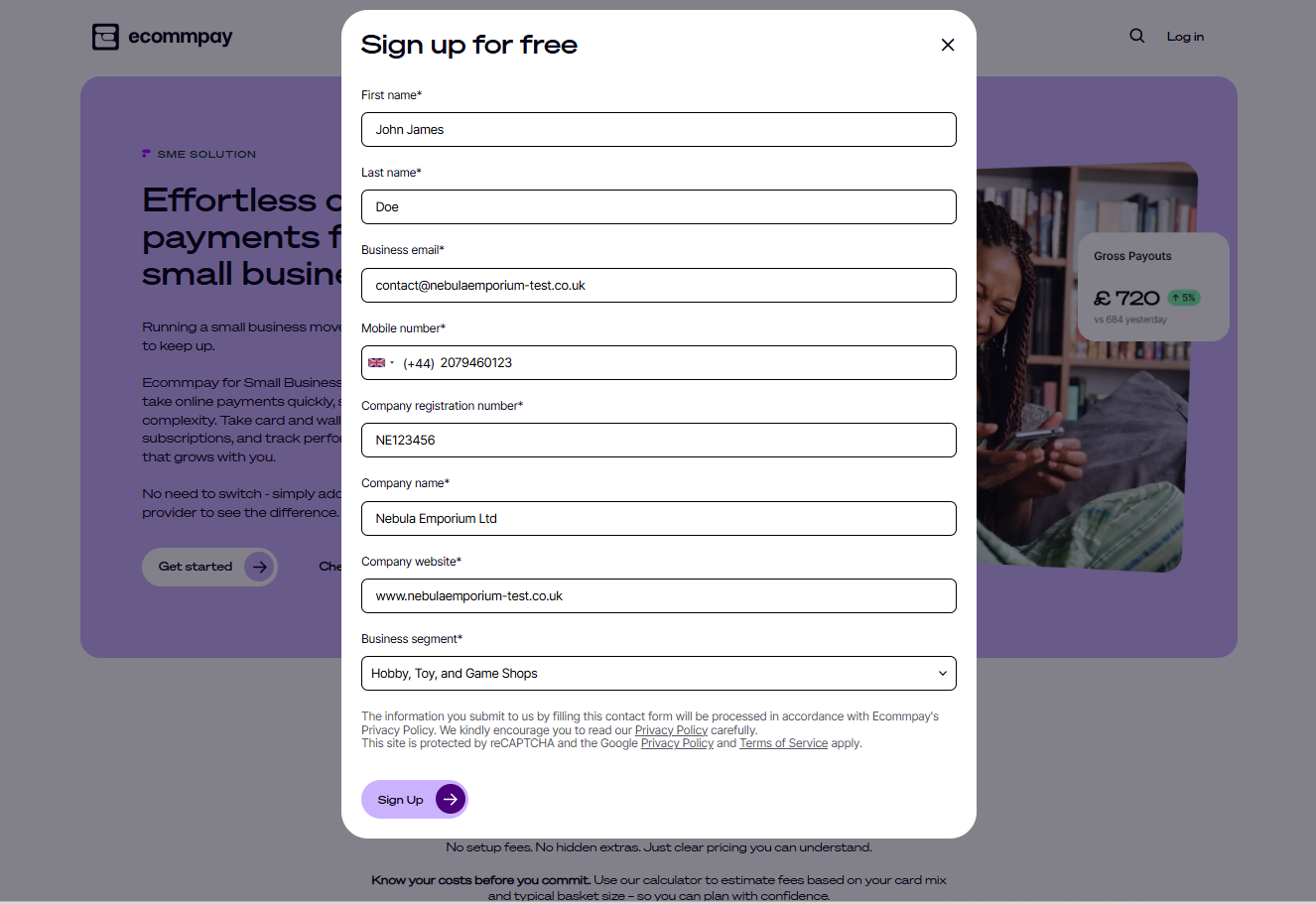
- Open an application form by clicking the link and then the Get started button.
- Specify the company details:.
To do so, fill in the following fields:
- First name—the first and middle names of the company's contact person (exactly as they appear on an identity document).
- Last name—the last name of the company's contact person (exactly as it appears on an identity document).
- Business email—the email address to contact the company and sign up for the Dashboard account.
- Mobile number—the telephone number to contact the company (in the international format).
- Company registration number—the company registration number, CRN (an 8-character identifier found in the Certificate of Incorporation from Companies House).
- Company name—the name of the company (as specified in the Certificate of Incorporation).
- Company website—the URL of the company's website (in the URL format; third-party resources, such as social media profiles or partnership pages, are not accepted).
- Business segment—the category of the company's economic activity according to the list of eligible industry sectors from ecommpay (select the most relevant category).
Note: If you are unable to fill in at least one of the fields (or you cannot find a fitting business segment in the list of the ecommpay eligible sectors), you can apply for standard onboarding instead. - Make sure that the specified information is correct and click Register your interest to submit the application.
- Make sure the application is submitted successfully by confirming that you are redirected to a page with a
Thank youmessage.You should be redirected to the page with a
Thank youmessage. - Make sure that you receive the result of the application review from ecommpay in the email that will contain either an invitation to start the automated onboarding or a decline notification.
As a rule, the review of the application is performed automatically and takes about one minute. However, if there are questions and there is a need for involvement of specialists, this process can take up to three business days. Once ecommpay reviews your application, you will receive an email. If you are approved, the email will contain an invitation to start the automated onboarding via Dashboard, otherwise, the email will state that the application has been declined. If you have any questions about your application, contact the ecommpay specialists at help@ecommpay.com.
Submitting company information
General description
At the second step of onboarding via Onboarding Pass, you need to submit information that will be reviewed for eligibility and compliance. There are three categories of information to be added: general information about the company, the company's stakeholders, and the company's bank account that will be used for settlements with ecommpay. You have to submit information for each category, in the order categories are listed on the registration navigation panel: you can move on to the next category only after you have received the confirmation that the information you have submitted previously has been reviewed and approved. Once all of the required information has been submitted and reviewed,Once all required information has been submitted, you need to upload supporting documentation (for example, the certificate of registration and HM Revenue and Customs (HMRC) tax notices). To prevent inconsistencies, make sure to specify the company information as stated in the official documents.
Adding company details
The first category of information that you need to submit for onboarding is the general information about the company. Some of these details will be prefilled with the information you have provided on the application form and you will be able to edit them if needed. Also note that the information you provide in this tab cannot be saved as a draft. All required information must be entered within one Dashboard session.
The company details must match the information provided in the documents that contain the list of shareholders and the company's address. When filling in the fields, keep these documents at hand to ensure that the company details are provided as stated in the official documents.
To add information about the company:
- Open the tab for adding company details.
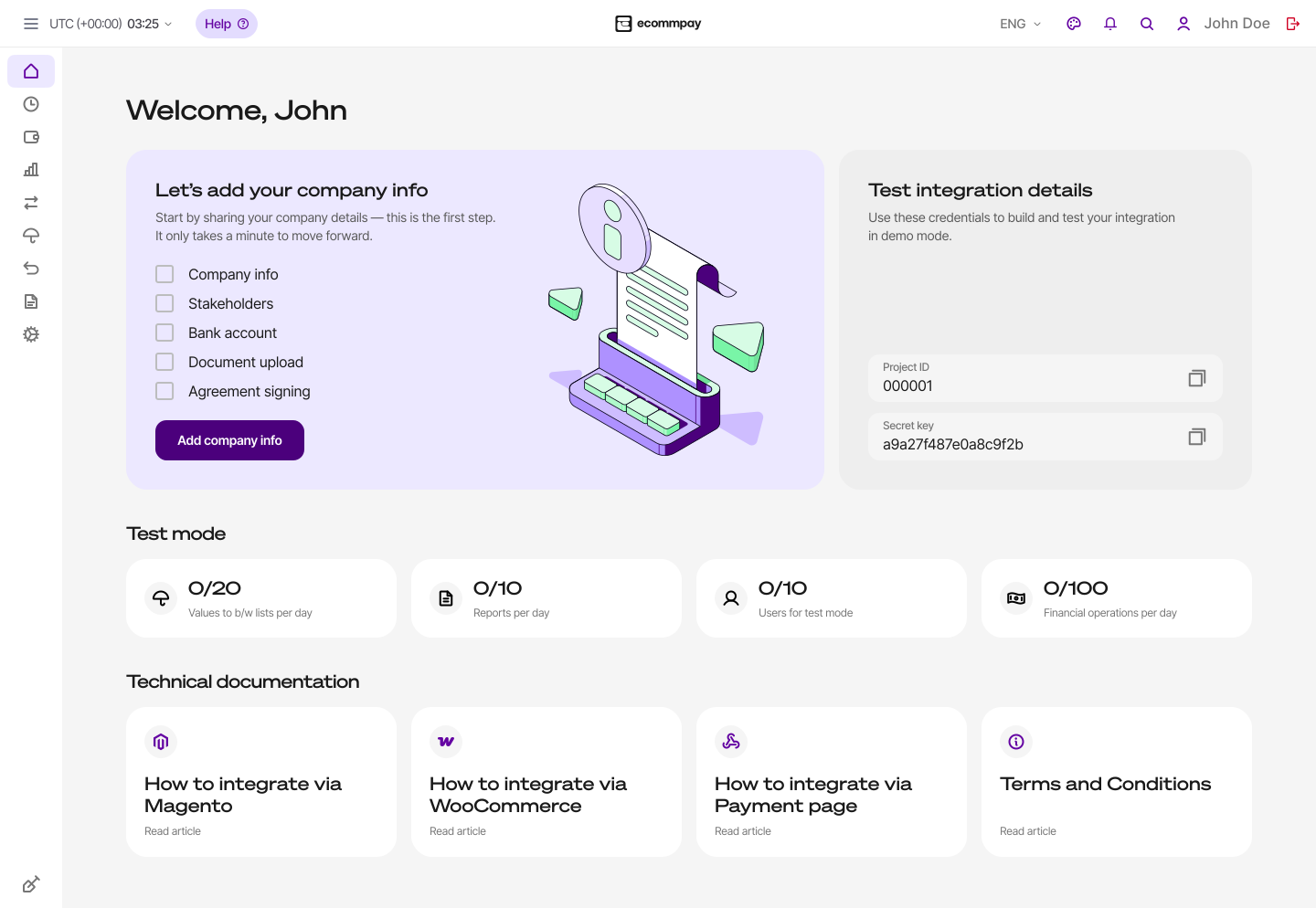
To do so, go to the Get started section of the Dashboard interface and click Add company info on the registration navigation panel.
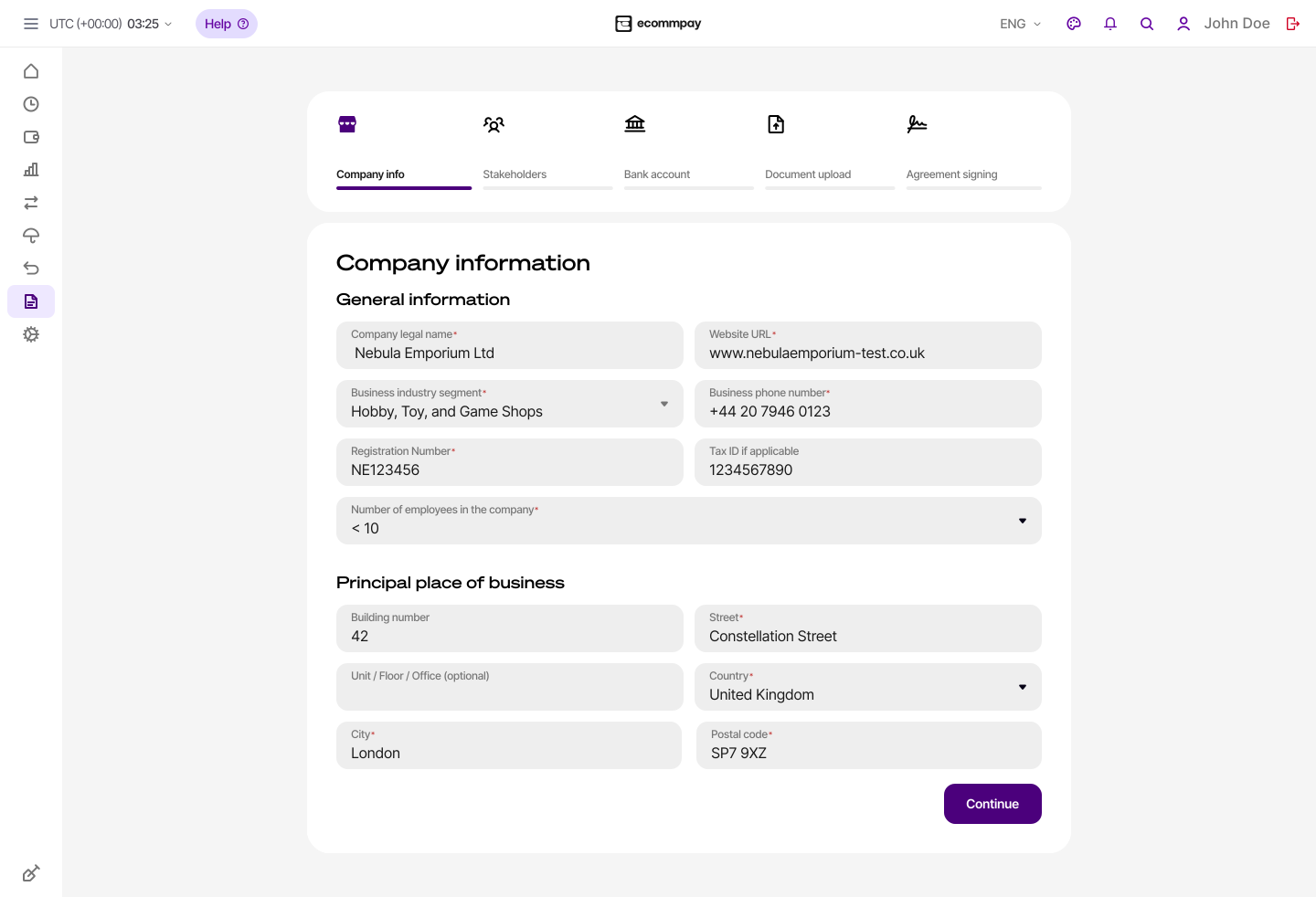
- Specify the company details:: review the information that you have provided
on the application form, edit it if necessary, and add any data that is
missing.
To do so, fill in the following fields:
- Company legal name—the name of the company (as specified in the Certificate of Incorporation; this field is prefilled according to the original application and editable).
- Website URL—the URL of the company's website (in the URL format; third-party resources, such as social media profiles or partnership pages, are not accepted; this field is prefilled according to the original application and editable).
- Business industry segment—the category of the company's economic activity according to the list of eligible industry sectors from ecommpay (select the most relevant category; this field is prefilled according to the original application and editable).
- Business phone number—the telephone number to contact the company (in the international format; this field is prefilled according to the original application and editable).
- Registration Number—the company registration number, CRN (an 8-character identifier found in the Certificate of Incorporation from Companies House; this field is prefilled according to the original application and editable).
- TAX ID (if applicable)—the Corporation Unique Taxpayer Reference (a 10 or 13-digit identifier found on the HMRC correspondence or in your HMRC Business Tax Account).
- Number of employees in the company—the number of people employed by your company on the date when you are submitting the application via Dashboard (cannot be more than 10 employees).
- Building number—the number of the building in the company's registered address (can be found on the HMRC tax notice, lease agreement, or another supporting document; this field is optional).
- Street—the name of the street in the company's registered address (can be found on the HMRC tax notice, lease agreement, or another supporting document; this field is optional).
- Unit / Floor / Office (optional)—the number of the unit, floor, or office in the company's registered address (can be found on the HMRC tax notice, lease agreement, or another supporting document; this field is optional).
- Country—the name of the country in the company's registered address (can be found on the HMRC tax notice, lease agreement, or another supporting document; must be selected from the list).
- City—the name of the city in the company's registered address (can be found on the HMRC tax notice, lease agreement, or another supporting document; must be selected from the list that becomes available after the country is selected).
- Postal code—the postcode in the company's registered address (can be found on the HMRC tax notice, lease agreement, or another supporting document).
- Make sure that the specified information is correct and submit it for review by ecommpay.
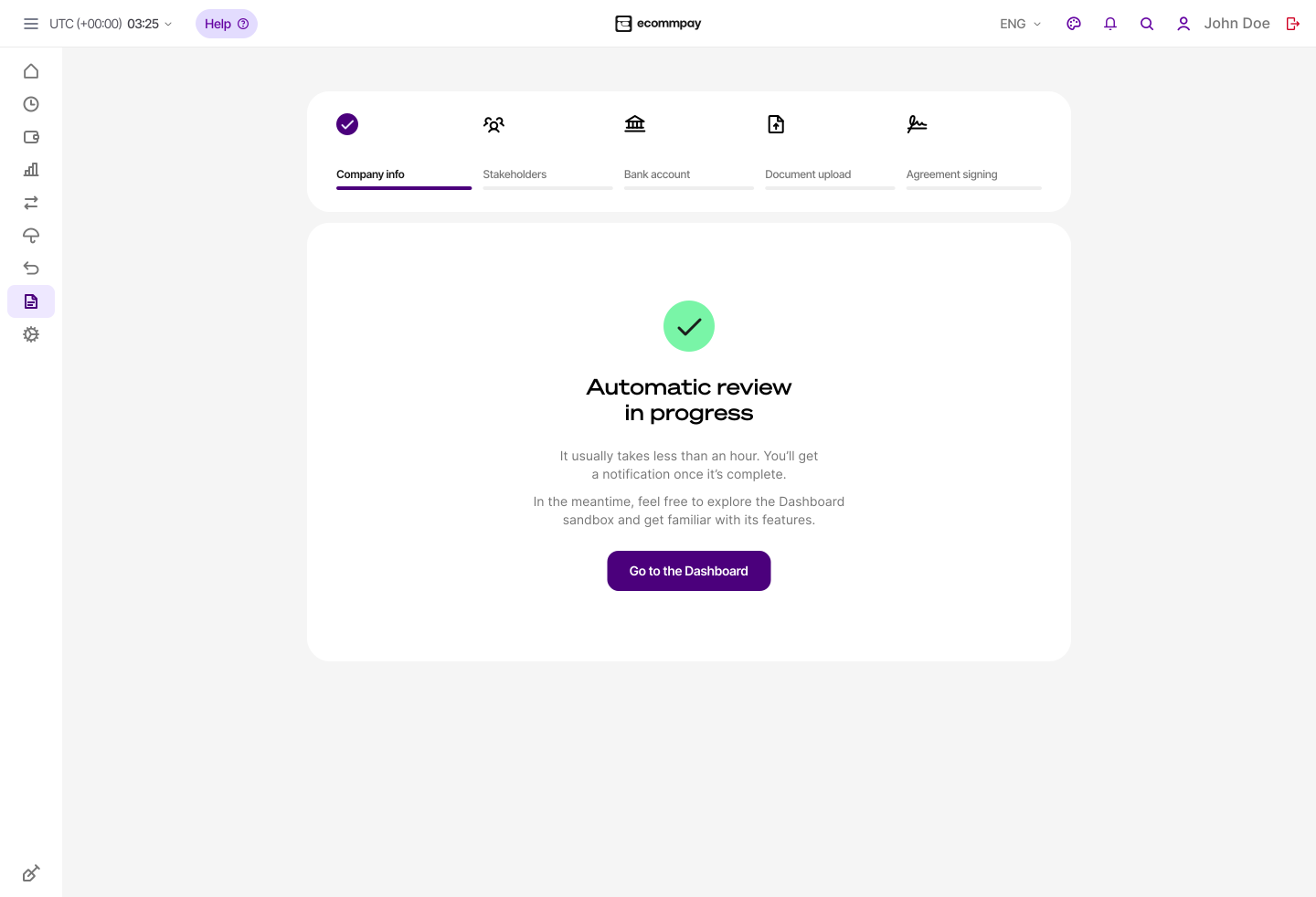
To do so, compare the information you have entered with the official documents of your company, click Continue in the bottom right corner of the tab and then Submit in the modal window that opens, following which make sure you are shown a notification that the information is under review.
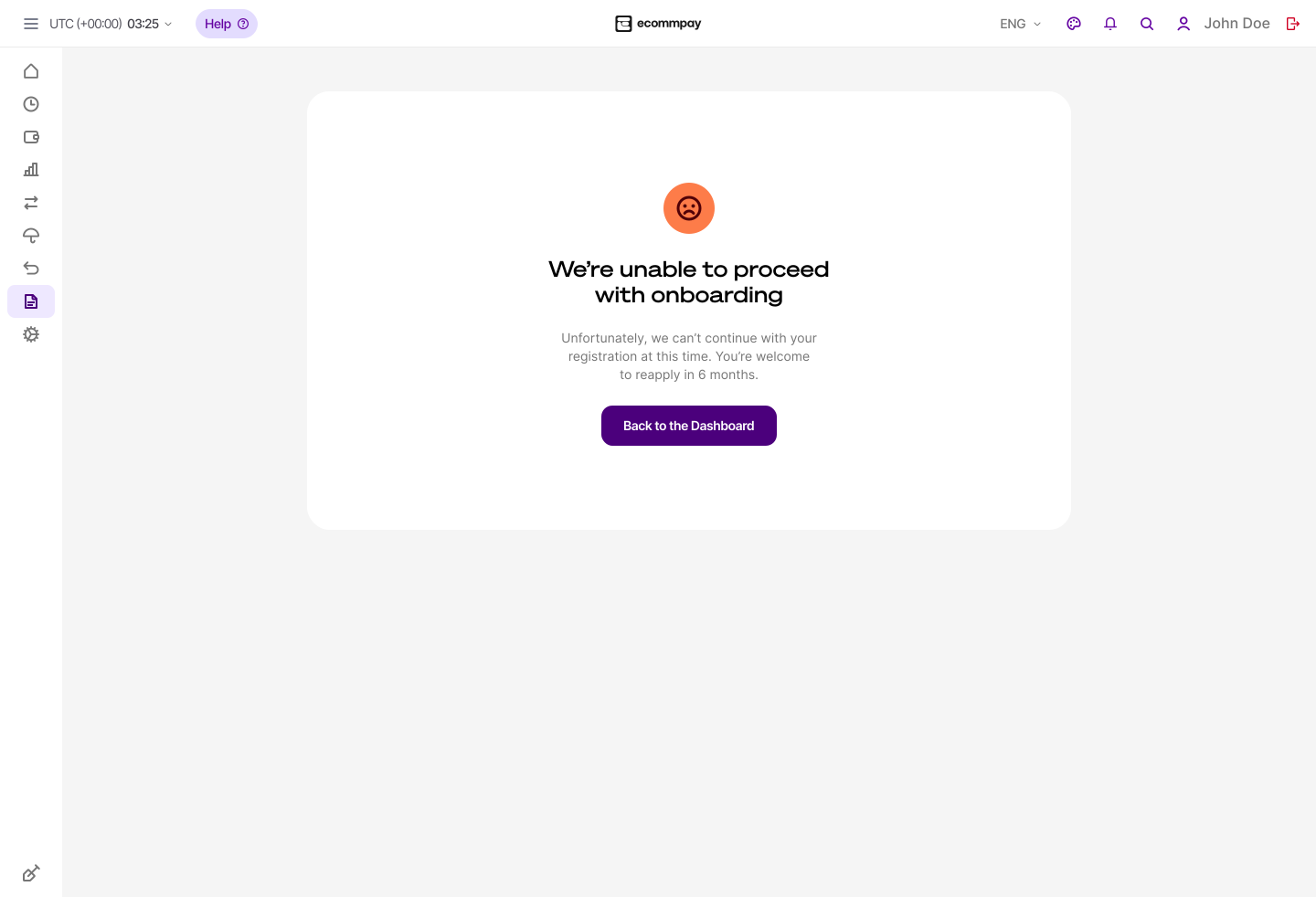
- Make sure that you receive the result of the review from ecommpay on the homepage of the Dashboard interface. As a rule, the review takes about half an hour.
As a rule, the review takes about half an hour. If the information provided at this step is accepted, you will be able to proceed to adding information about the company stakeholders, whereas if it is declined, you will be shown a message that you will not be able to continue onboarding via the Dashboard interface. Also, in some cases, ecommpay may contact you to discuss switching to the standard onboarding and integration process, with specialist consultations.
Adding stakeholders
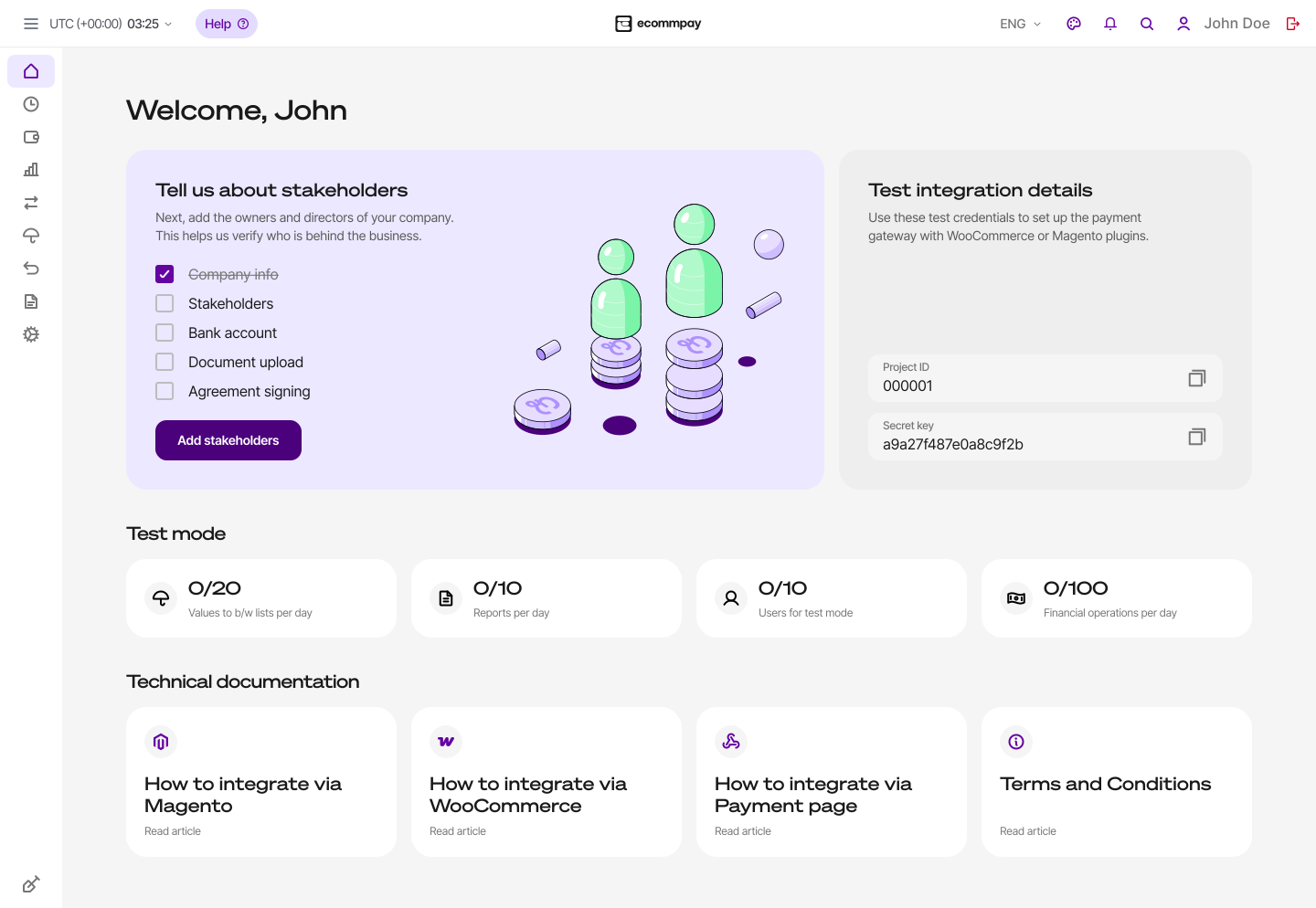
The second category of information that you need to submit for onboarding is the information about the company's stakeholders that include:
Ultimate beneficial owner—each person who owns more than 25% of the company's shares.Director—an officially listed company director with the signing authority.Signatory—a person who has legal authority to sign agreements for the company.Contact person—a person who completes the onboarding application form and acts as a main contact for the company.
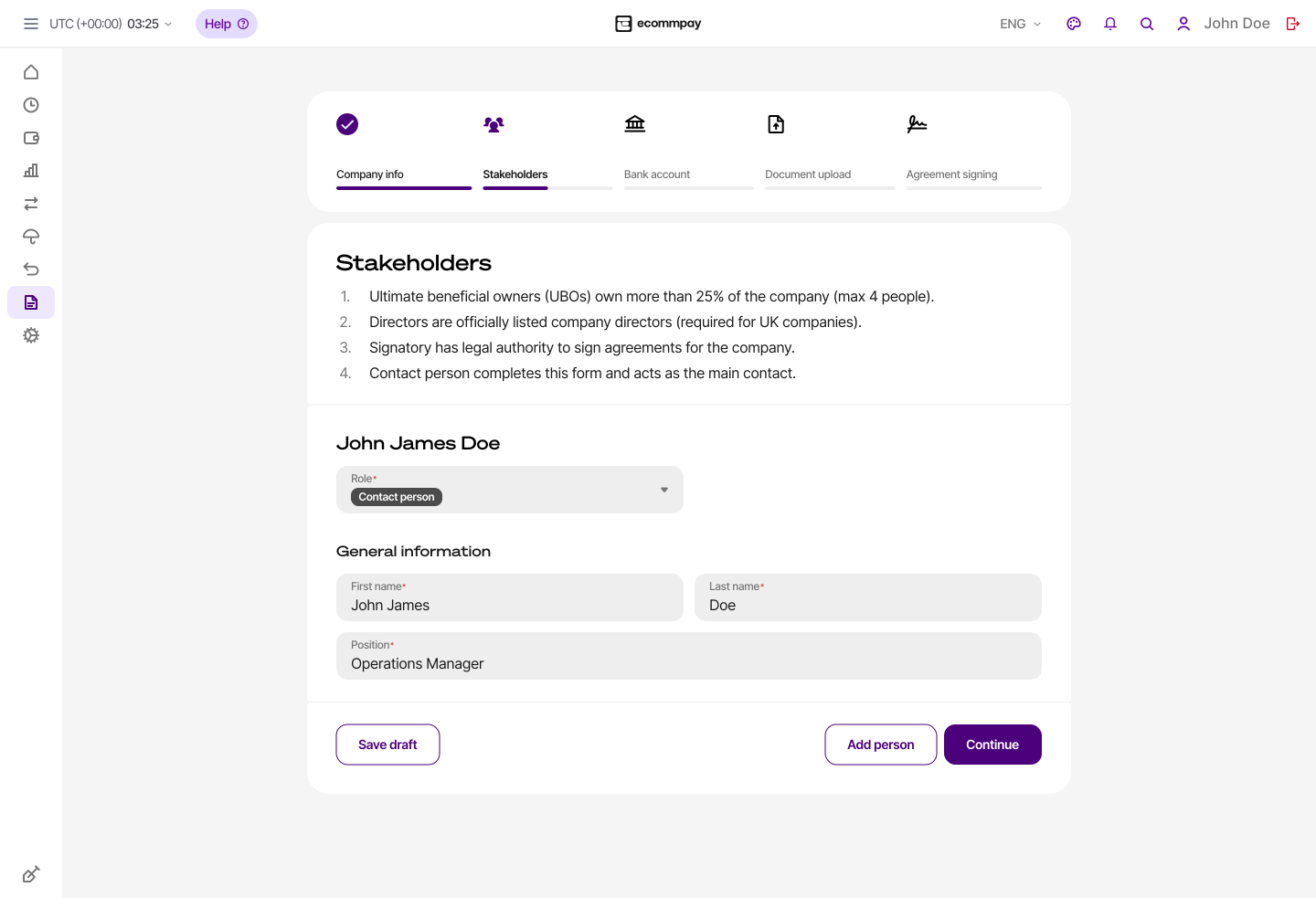
Depending on the company, the same person can be assigned one or more stakeholder roles. For the contact person, specifying their name and position in the company is enough, while for other stakeholder roles you need to provide more details including personal information, sources of income, and residential address (you do not have to enter this information repeatedly if the same person is assigned several stakeholder roles). Also note that the stakeholder information can be saved as a draft using the Save a draft button (with the option to return to editing the draft later via the Dashboard homepage).
The information about the company stakeholders must match the information provided in the documents that contain the list of shareholders, personal identification of stakeholders, and their residential addresses. When filling in the fields, keep these documents at hand to ensure that the information is provided as stated in the official documents.
To add information about the company stakeholders:
- Open the tab for adding the stakeholders.
To do so, go to the homepage of the Dashboard interface and click Add stakeholders on the registration navigation panel.
- Specify the details of all company stakeholders.
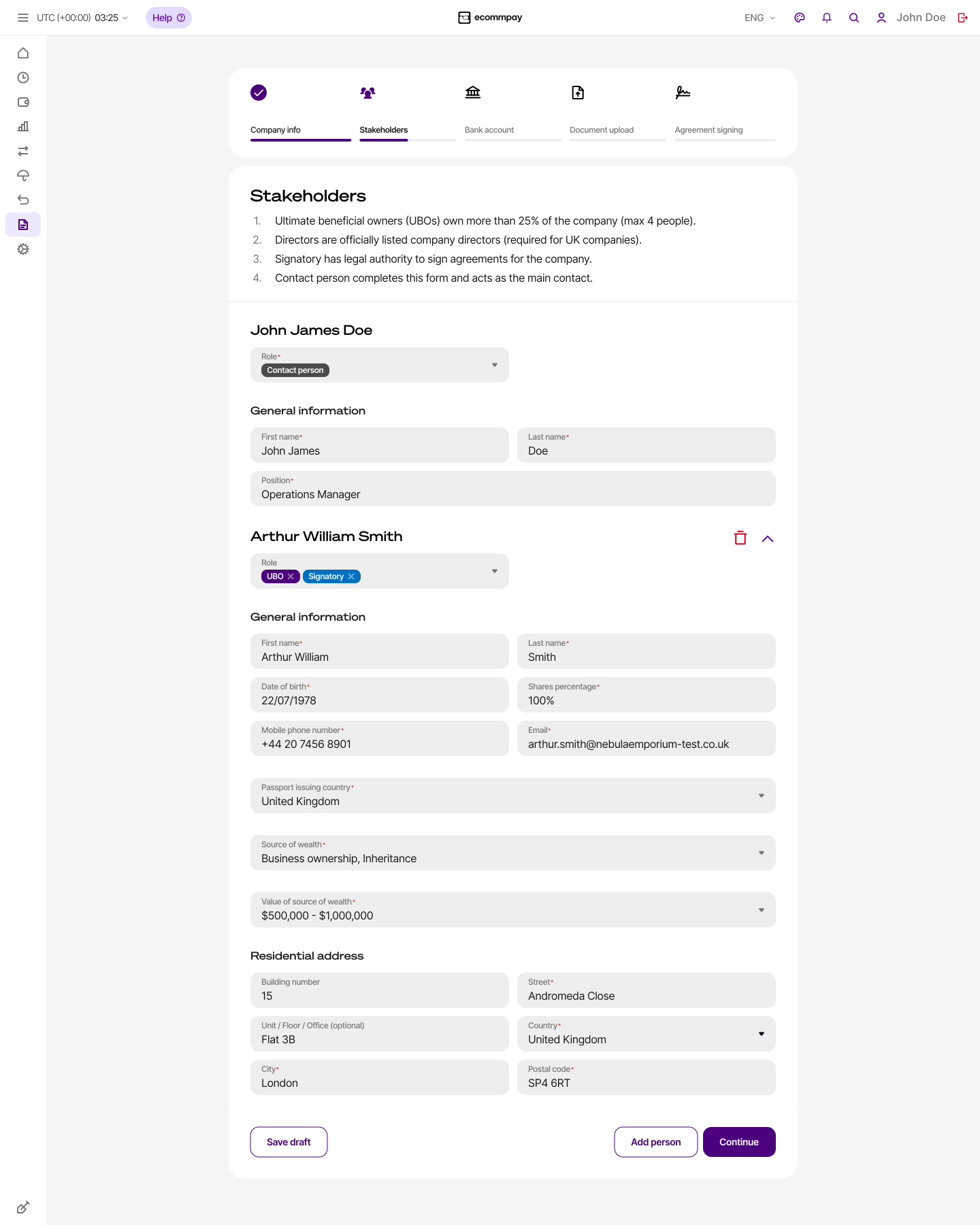
Note that for the first stakeholder specified, some fields will be prefilled with the information you have provided on the application form, and you can edit these fields. For subsequent stakeholders, prefilling is not used, and you will have to fill in all fields manually. To add information about the next stakeholder, click Add person in the bottom right corner of the tab.
As a rule, the first stakeholder you specify is the contact person for whom it is sufficient to enter the first name, last name, and job title. For other individuals, you must provide the following information:
- Role—all roles assigned to the stakeholder (
Contact person,Director,Signatory, andUltimate beneficial owner). - First name—the stakeholder's first and middle names (exactly as they appear on an identity document).
- Last name—the stakeholder's last name (exactly as it appears on an identity document).
- Date of birth—the stakeholder's date of birth (exactly as it appears on an identity document).
- Mobile phone—the telephone number to contact the stakeholder (in the international format).
- Email—the email address to contact the stakeholder.
- Share percentage—the proportion of the company's total outstanding shares owned by the stakeholder (percentage, exactly as it appears on a corporate document).
- Source of wealth—the origin of total accumulated assets describing how the stakeholder has accumulated their overall net worth over time (must be selected from the list).
- Value of source of wealth—the value of total accumulated assets of the stakeholder (must be selected from the list of ranges in US dollars).
- Building number—the number of the building in the stakeholder's residential address (can be found on the HMRC tax notice, lease agreement, or another supporting document; this field is optional).
- Street—the name of the street in the stakeholder's residential address (can be found on the HMRC tax notice, lease agreement, or another supporting document; this field is optional).
- Unit / Floor / Office (optional)—the number of the unit, floor, or flat in the stakeholder's residential address (can be found on the HMRC tax notice, lease agreement, or another supporting document; this field is optional).
- Country—the name of the country in the stakeholder's residential address (can be found on the HMRC tax notice, lease agreement, or another supporting document; must be selected from the list).
- City—the name of the city in the stakeholder's residential address (can be found on the HMRC tax notice, lease agreement, or another supporting document; must be selected from the list that becomes available after the country is selected).
- Postal code—the postcode in the stakeholder's residential address (can be found on the HMRC tax notice, lease agreement, or another supporting document).
- Role—all roles assigned to the stakeholder (
- Make sure that the specified information is correct and submit it for review by ecommpay.
To do so, compare the information you have entered with the official documents of your company and stakeholders, click Continue in the bottom right corner of the tab and then Submit in the modal window that opens, following which make sure you are shown a notification that the information is under review.
- Make sure that you receive the result of the review from ecommpay on the homepage of the Dashboard interface. As a rule, the review takes about half an
hour.
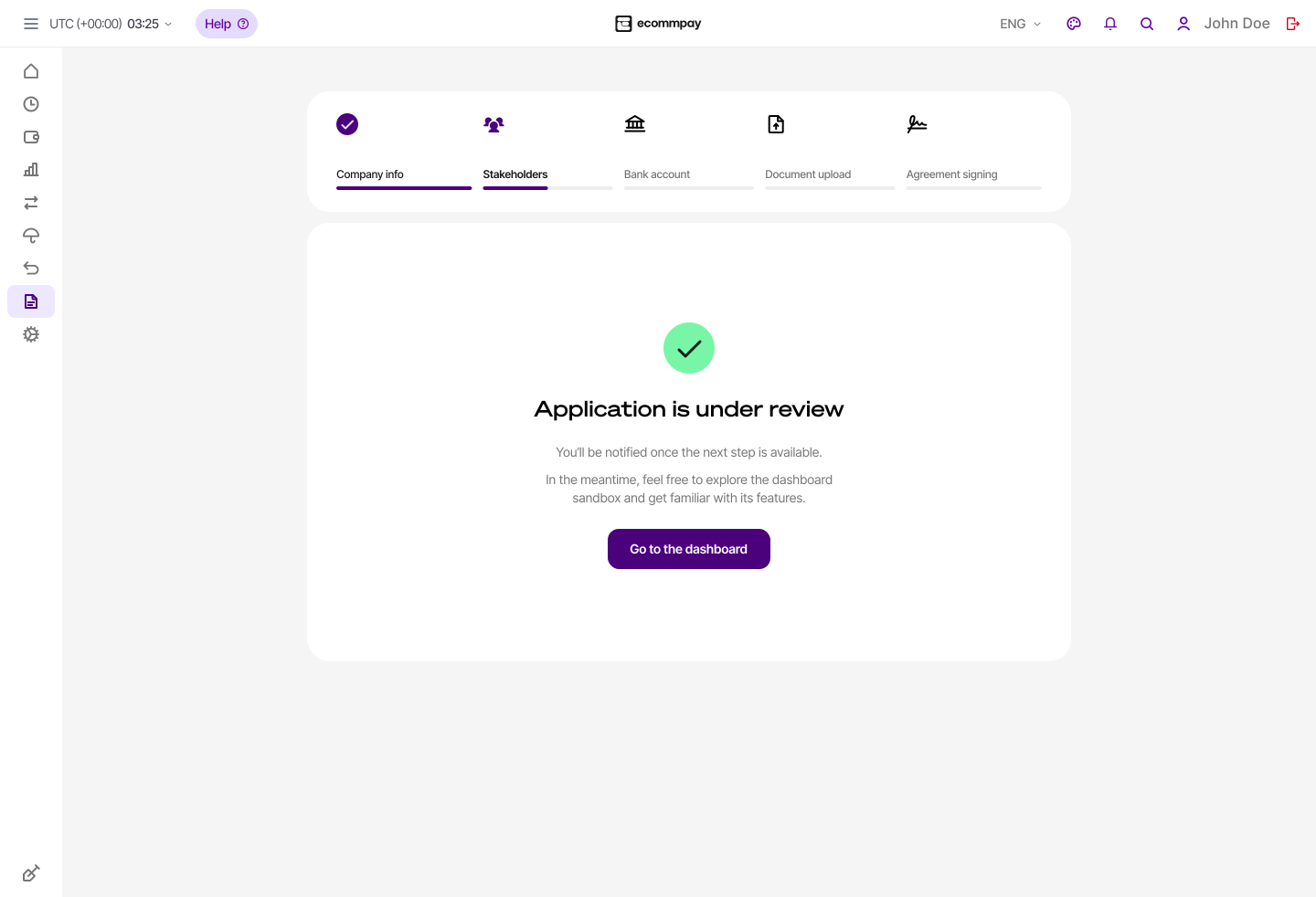
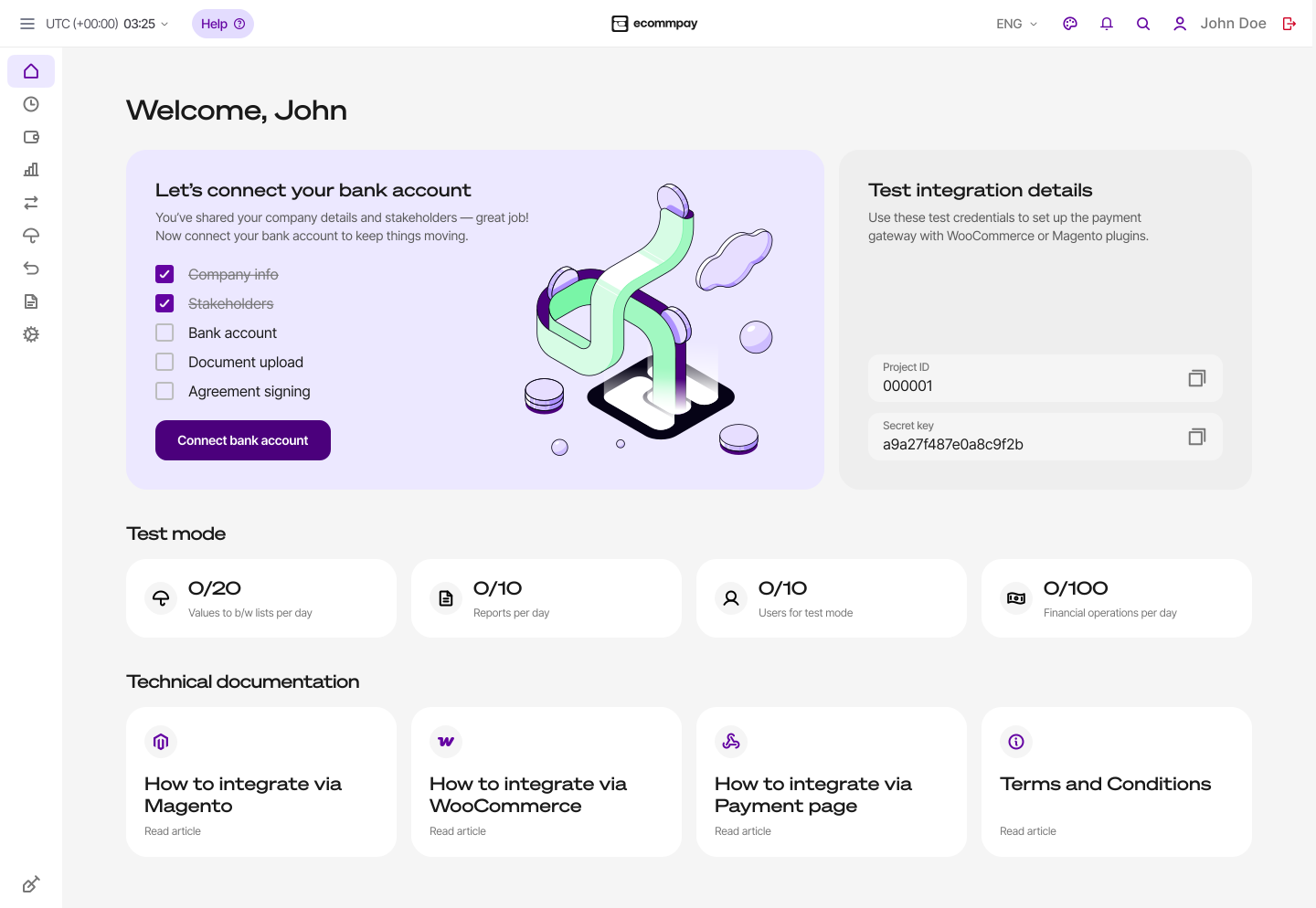
As a rule, the review takes about half an hour. If the information provided at this step is accepted, you can proceed to providing information about the company's bank account, whereas if it is declined, you will be shown a message that you will not be able to continue onboarding via the Dashboard interface. Also, in some cases, ecommpay may contact you to discuss switching to the standard onboarding and integration process, with specialist consultations.
Adding a bank account
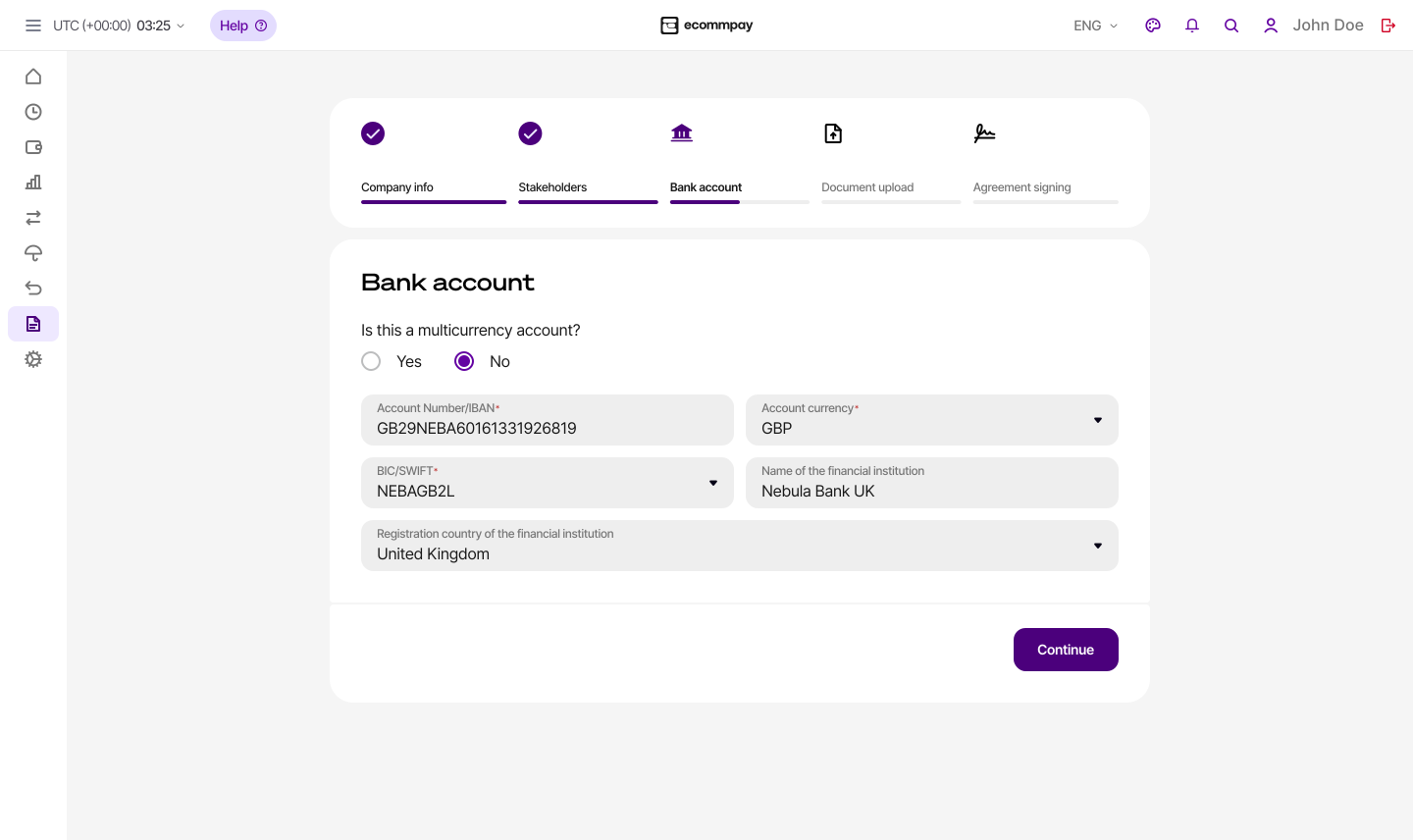
The third category of information that you need to submit for onboarding is the information about the company's bank account to set up settlements with ecommpay. As a rule, providing an account number and a SWIFT code is sufficient, since the name of the bank and the country are determined automatically. Keep in mind that at this step you can provide only one account, single currency or multicurrency, and the information about this account will be used to perform compliance checks. You can add more bank accounts at a later date, after the process of onboarding is complete. Also note that the information you provide in this tab cannot be saved as a draft. All required information must be entered within one Dashboard session.
The bank account details must match the information provided in the financial supporting documents. When filling in the fields, keep these documents at hand to ensure that the account details are provided as specified by the bank.
To add information about the company's bank account:
- Open the tab for adding a bank account.
To do so, go to the homepage of the Dashboard interface and click Connect bank account on the registration navigation panel.
- Specify the bank account details.
To do so, fill in the following fields:
- Is this a multicurrency account?—an indicator
showing that the multicurrency operations are supported by the bank for this account (select
YesorNo). - Account Number / IBAN—an international bank account number.
- Account Currency—the currency code (for the single currency bank account).
- BIC/SWIFT—an international identification code of the bank where the account is held (BIC or SWIFT; when you are filling in this field, you can use the dropdown list that becomes available if at least three characters have been entered).
- Name of the financial institution—the name of the bank where the account is held (prefilled according to the specified bank code, not editable at this step).
- Registration country of the financial institution—the country where the bank is registered (prefilled according to the specified bank code, not editable at this step).
- Is this a multicurrency account?—an indicator
showing that the multicurrency operations are supported by the bank for this account (select
- Make sure that the specified information is correct and submit it to ecommpay.
To do so, compare the information you have entered with the official documents of your company, click Continue in the bottom right corner of the tab and then Submit in the modal window that opens, following which make sure that you are redirected to the tab for uploading supporting documentation.
Uploading supporting documents
General procedure
After all necessary information has been submitted, you need to upload supporting documentation in order to prove that the information you provided is valid. You can find the comprehensive list of documents in this section.
At this step of onboarding via Onboarding Pass, you need to do the following:
- Prepare all required documents for uploadbearing in mind the requirements:.
To do so, check if you have supporting documents for each category of information described in this section and prepare a file for each document. The file must meet the following requirements:
- Type of the document: an electronic original or a digital copy of a printed original (as a scanned image with clear, easy-to-read text).
- Language of the document: English (as the only language or one of the languages used in the document simultaneously).
- Date of the original document: within the allowed time range specific to each category of documents (usually, not older than 12 months).
- File format: PDF, PNG or JPG. Other formats, including archive formats, are not supported.
- File size: no more than 25Mb.
- Open the tab for uploading documents in Dashboard.
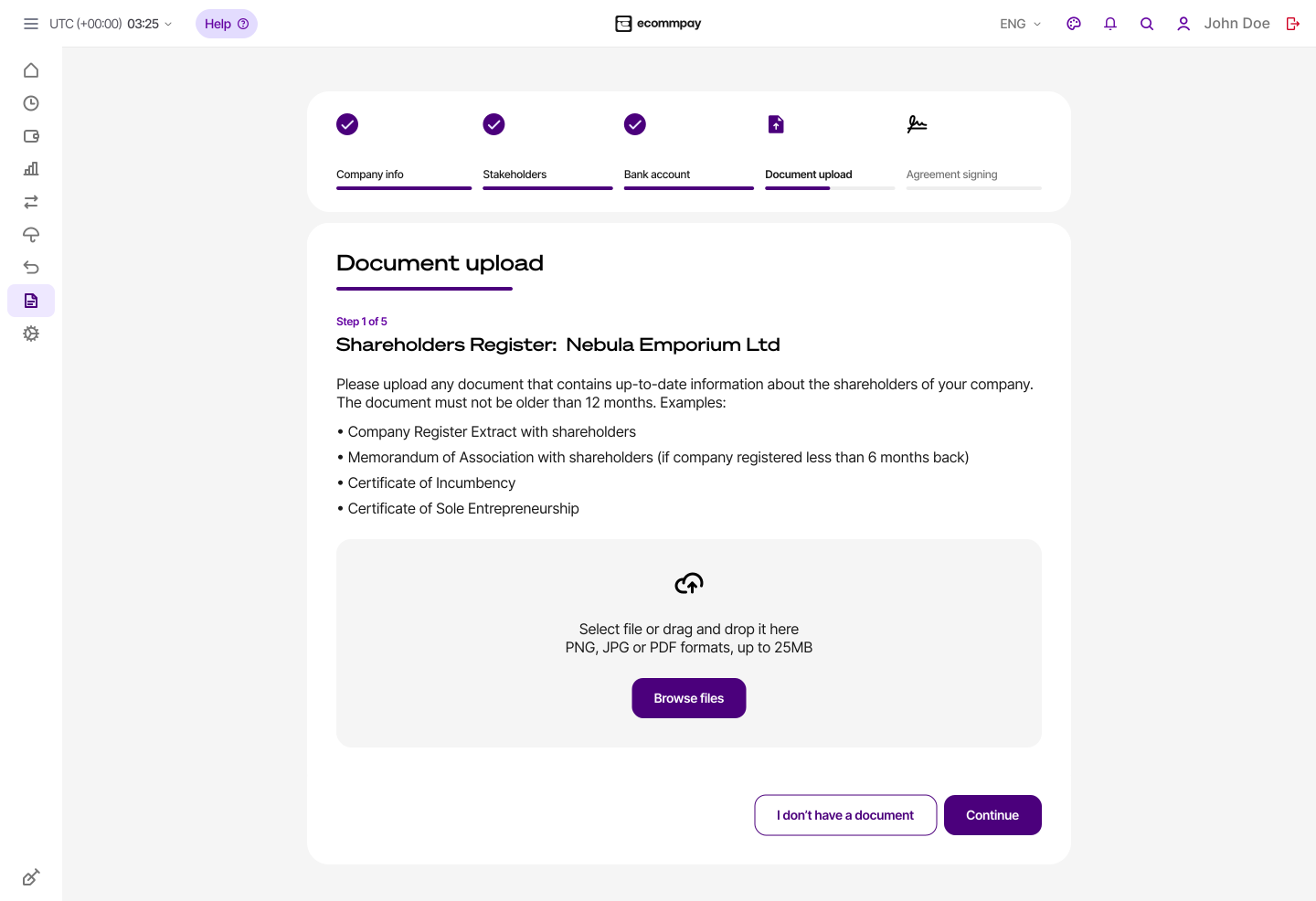
To do so, go to the homepage of the Dashboard interface and click Document upload on the registration navigation panel.
- Upload the documents and specify current informationby attaching documents for each category one by one and confirming the details are correct by clicking Next.
To do so, attach documents one by one or fill in necessary data for each category: the shareholder register, personal identification information and residential addresses of stakeholders, description of the company's nature of business, address of the company's registration and financial statements. Note that in case of each category you should proofread the automatically recognised data and, if needed, edit it or add more, following which confirm that the details provided are correct and navigate to the next category of documents by clicking Next.
In cases when you are unable to upload a document, you can skip its upload by clicking I don't have a document and specifying in the field that opens the reason for it: absence, damage, and so on.
Warning: Keep in mind that when you upload documents, you cannot return to previous pages even if you skipped a form by accident or continued to the next page without uploading anything. - Make sure that the documents have been sent for review by ecommpay by confirming that you are redirected to a page with a
Thank youmessage.You should be redirected to the page with a
Thank youmessage. - Make sure that you receive the result of the documents review from ecommpay on the homepage of the Dashboard interface. As a rule, this review takes about five
minutes.
As a rule, this review takes about five minutes. If the uploaded documentation is accepted, you can proceed to signing the agreement. If it is declined, you will be shown a message that you will not be able to continue onboarding via the Dashboard interface. Also, in some cases, ecommpay may contact you to discuss switching to the standard onboarding and integration process, with specialist consultations.
Uploading the shareholder register
To upload supporting documentation about the company's shareholders, you can use any of the following as long as the document contains the up-to-date shareholder list with percentages of shares held by each shareholder:
- Company Register Extract with shareholders
- Memorandum of Association with shareholders
- Certificate of Incumbency
- Certificate of Sole Entrepreneurship
Uploading stakeholder documents
To upload supporting documentation about the company's stakeholders, you can use any official documents issued by any country that include personal identification details (first name, last name, date of birth), a photo and the document's expiry date. Depending on the person, it can be the following:
- British passport or an international passport issued by any other country
- UK Driving License or International Driving License
- Citizen Card, Biometric Residence Permit, or National ID Card issued by an EU country
Uploading proof of address
To upload proof of address for each of the stakeholders in the role Ultimate
beneficial owner, Director, and Signatory,
you can use any official document that contains the full name and the residential address
of the person, as well as the document's expiry date. Depending on the person, it
can be the following:
- HMRC tax notification (not older than 3 months and excluding P45 or P60 documents that are not acceptable)
- Local authority tax bill (not older than 3 months)
- Utility Bill (not older than 3 months)
- Bank Statement, for 6 or 12 months (not older than 3 months)
- Lease Agreement (no restrictions to the document recency)
Describing nature of business
To submit the description of the company's nature of business and business risk level for review and approval, you should provide answers to a number of questions. The exact number of these questions varies and usually includes the following questions:These usually include the following:
- What does the company do, what products and services does it offer to the clients, and what are the company's main delivery channels?
- What specific products and services does the company offer and who is the company's target audience?
- How does the company find new customers and what are the main methods of customer acquisition?
- What websites does the company use to sell goods and services?
Enter each answer in plain text, as the text in the answer fields cannot be formatted and illustrations cannot be inserted. In addition, if you specify different websites, the URL for each should be provided in a new line.
Uploading the company's registration address
To upload proof of address where the company is registered, you can use any official document that contains the name and the address of the company, as well as the document's expiry date, including:
- HMRC tax notification (not older than 3 months and excluding P45 or P60 documents that are not acceptable)
- Local authority tax bill (not older than 3 months)
- Utility Bill (not older than 3 months)
- Bank Statement, for 6 or 12 months (not older than 3 months)
- Lease Agreement (no restrictions to the document recency)
Uploading financial supporting documents
To upload supporting documentation about the company's turnover, you can use recent financial statements or audit reports.
Signing the agreement
At the ultimate step of onboarding via Onboarding Pass, you need to sign the agreement with ecommpay in Dashboard. This agreement is legally binding and goes into effect once both parties confirm their intent to enter into a contract.
To sign the agreement:
- Open the tab for signing the agreement.
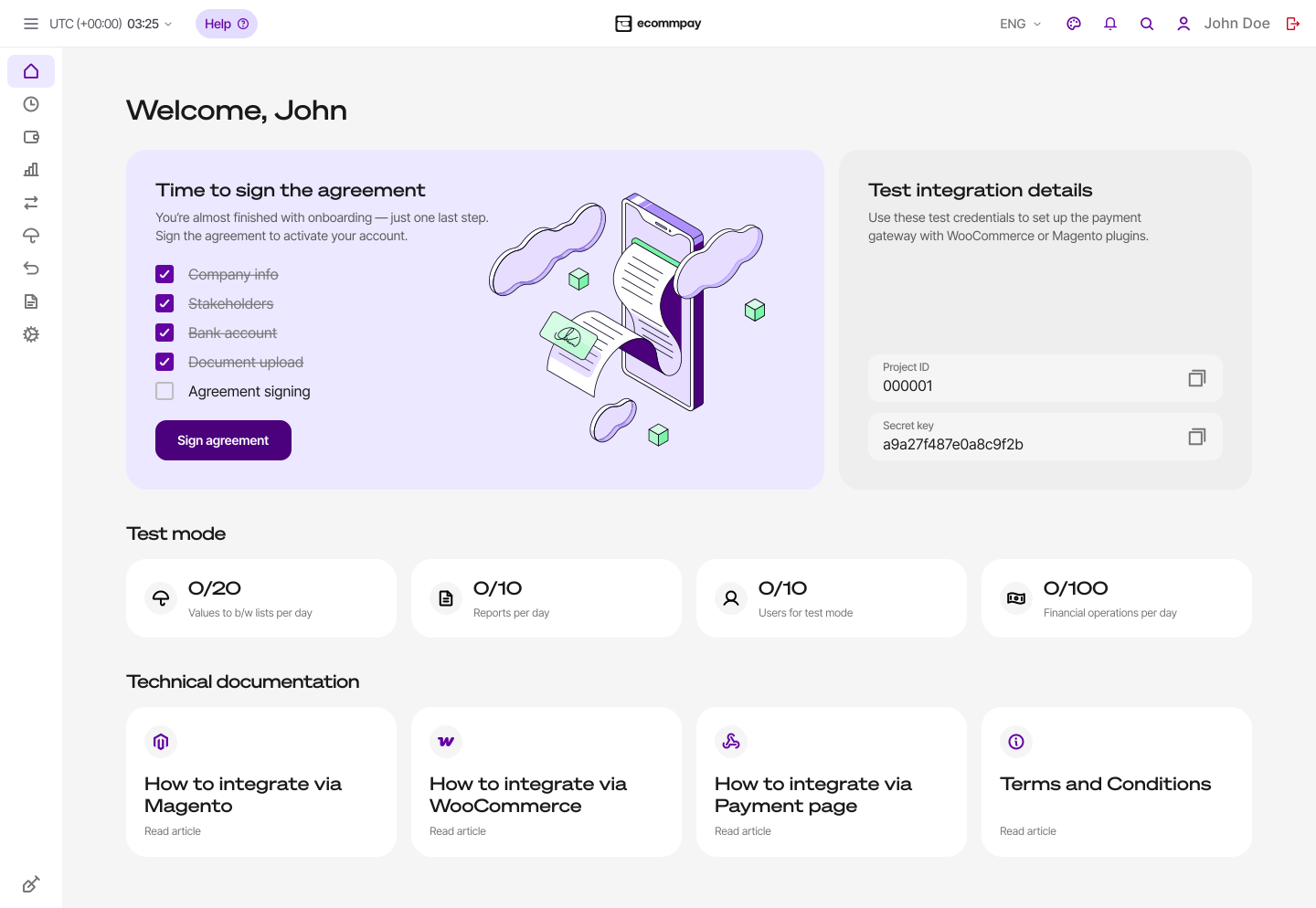
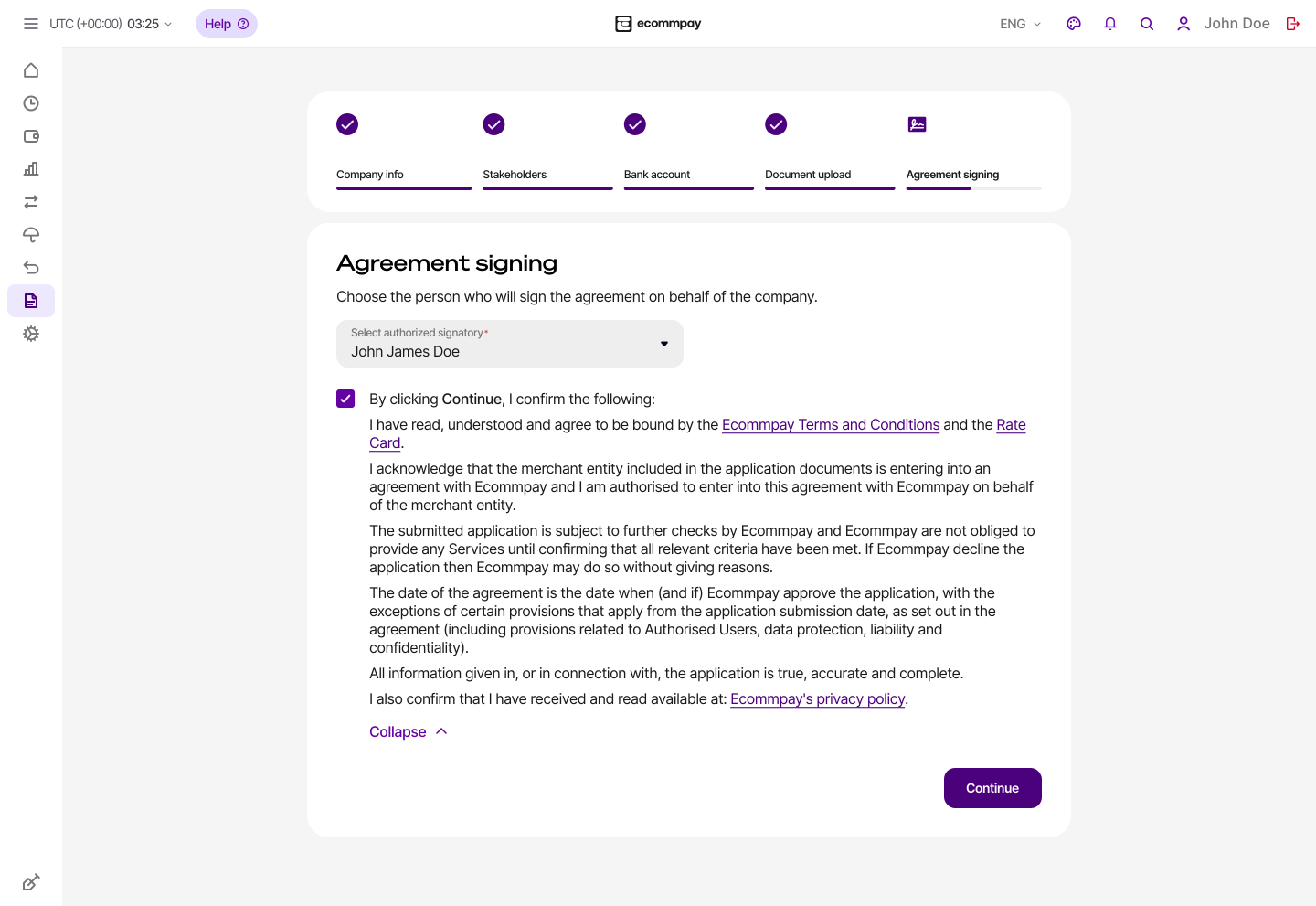
To do so, go to the homepage of the Dashboard interface and click Agreement signing on the registration navigation panel.
- Review the documents to be signedby reading the terms of the agreement and the ecommpay privacy policy.
To do so, read the terms of the ecommpay agreement displayed in the tab that opens and the privacy policy available on a separate page of the ecommpay website.
- Select a stakeholder authorised to sign a legally binding document and confirm the signingby checking the box to agree with the terms and clicking Continue.
To do so, select a stakeholder with the
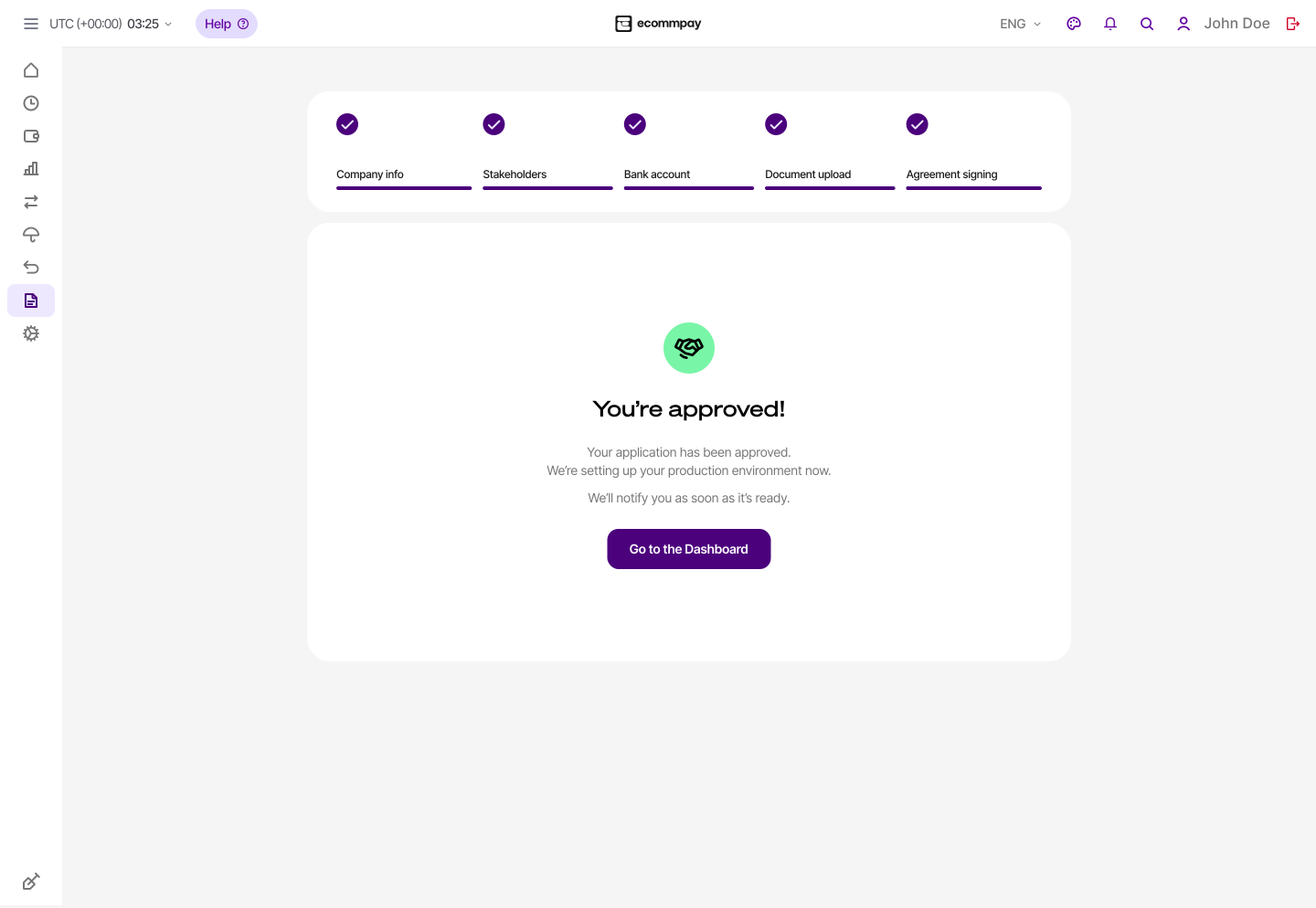
Signatoryrole from the Selected authorized signatory drop-down list, check the box to agree with the terms, click Continue, and confirm the action in the modal window that opens. - Make sure that the approval of the onboarding application is confirmed on the homepage of the Dashboard interface. As a rule, it takes about five minutes.
As a rule, it takes about five minutes. If the application is approved, you will be shown a message in Dashboard that the application process is complete and the technical integration can start at this point. If there are errors or disruptions at this step, you can refresh the page, clear the browser cache, and reopen the Dashboard interface. If difficulties or questions occur, contact the ecommpay specialists at help@ecommpay.com.
After signing the agreement, you can proceed to the technical integration with the platform and going live.
Technical integration
After you have signed the agreement with ecommpay, you can proceed to technical integration with the payment platform. Companies that are onboarded via Onboarding Pass have access to essential functionality of the platform with different options of payment processing. Within these options, you can choose and configure the following:
- Interfaces for payment processing that include:
- Standard edition of hosted Payment Page that can be embedded into any web service (details).
- Plug-ins for Magento CMS (details) and Wordpress CMS (details).
- Payment links that can be generated and sent to customers generated via Dashboard (details).
- The ecommpay web application for working with Xero (details).
- Payment methods that are most widely recognised and used around the globe:
- Essential capabilities for which all necessary auxiliary procedures are
supported automatically, for example, 3‑D Secure or the customer address verification:
- one-time one-step and two-step purchases (with different user scenarios depending on the specifics of the payment interface used)
- purchase refunds issued via Dashboard (details)
- Additional capabilities for working with Payment Page, available by default, for example, customisation of the payment form design (details) and configuring interface language (details).
- Dashboard, the interface to monitor payment processing, and the financial accounting tools of the Xero platform.
To solve any issues that arise in the process of technical integration, refer to this documentation, the AI assistant, and the technical support specialists (contact them at help@ecommpay.com). However, note that merchants onboarded via Onboarding Pass are not assigned account managers by ecommpay, so if it is suggested that you should refer to your account manager, use other available communication channels instead.