Using embedded buttons for Apple Pay and Google Pay payments
An article about using a specialised version of Payment Page that enables seamless, native-style integration of the Apple Pay and Google Pay services.
Overview
In certain processing scenarios merchants may need to use branded payment buttons that allow their customers to pay for orders with the Apple Pay and Google Pay payment methods. When working with the Ecommpay payment platform, you can use a specialised version of Payment Page embedded into the web service in the form of payment buttons with specific brand identities. These embedded buttons allow you to process express checkout payments, with the collection of all required information, including shipping details, in the services of the payment methods used to make the purchase.
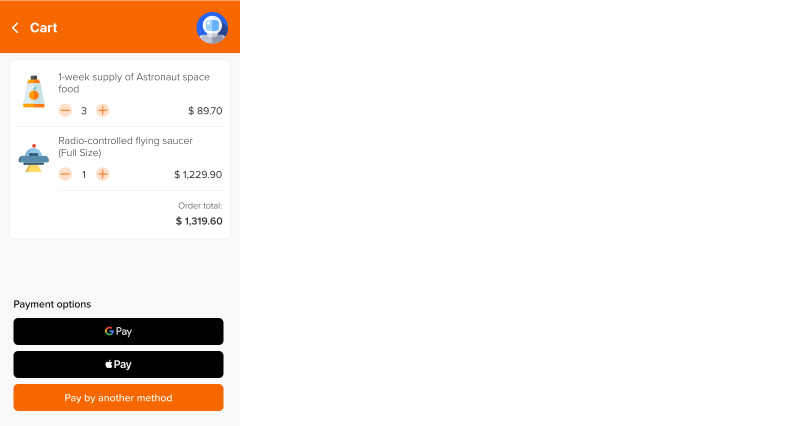
When this functionality is implemented, the interface of the web service displays branded buttons of specific payment methods clicking which redirects the customer to the relevant payment service without involvement of the Payment Page interface. However, if additional data is required for payment processing, the customer can be shown a modal window with the relevant pages of the payment form. To avoid such cases, you are recommended to ensure that all additional data is passed in the requests for invoking Payment Page as well as to use the capability to collect customer data in the Apple Pay and Google Pay services.
Embedded payment buttons functionality is supported for Apple Pay and Google Pay payments and can be combined with invoking Payment Page for other payment processing options including card payments with tokens, redirecting to other payment methods by preselection in the web service, and using all available payment methods on the form. The appearance of embedded buttons can be configured via parameters for invoking the payment form. As of now, it is not possible to use the Payment Page Designer in Dashboard to set up the design of these buttons; however, the designer tool can be useful if you need to customise those pages of the payment form that are shown to the customers if additional data is required.
Special aspects
When using embedded Apple Pay and Google Pay buttons from Ecommpay, consider the following special aspects:
- Embedding branded payment buttons directly into the web service of the merchant can improve user experience and increase conversion rates: firstly, the buttons of these global payment services are easily recognised and enhance customer trust, and, secondly, with the use of these buttons the number of steps in the standard user scenario is kept to a minimum, without any additional redirections and confirmations. To compare, opening Payment Page with the Apple Pay or Google Pay method preselected adds at least one more step to a similar user scenario.
- The design of the branded buttons is customised according to the guidelines of Apple and Google and can be configured by the merchant as long as the style is consistent with their recommendations.
- The minimalist design of the embedded buttons can be useful in different cases, namely, for interfaces with high information density or for mobile purchases.
- Processing a payment with the use of embedded buttons implies native collection of necessary additional customer data (including the customer's billing address, shipping address and shipping option, and other details) directly in the Apple Pay and Google Pay services, within the payment session. It spares merchants the effort of collecting these data on the side of the web service or in Payment Page, as well as prevents increasing the number of steps in user scenarios and eliminates the need to take more action in order to configure this functionality.
- When the customer has been authenticated in the Apple Pay or Google Pay service, and this service already has relevant information, the customer's payment can be processed according to the express checkout flow. This processing workflow implies that all necessary customer data (card details, billing address, and shipping information) is automatically collected and specified. In addition, the relevant shipping information and billing address can be available to the merchant through the payment session of this service. The express checkout flow can be useful for unregistered customers, as it enables guest checkout, without the need to create a user account in the web service.
- The Apple Pay and Google Pay buttons can be embedded into any page of the web service (for example, the product page or the section of the product catalogue) and into almost any structural element of the web page (including menus, various panels and containers), which ensures high level of flexibility and allows implementation of various ways to guide customers to payment.
Processing scenario
Below is a user scenario of making a purchase with embedded buttons.
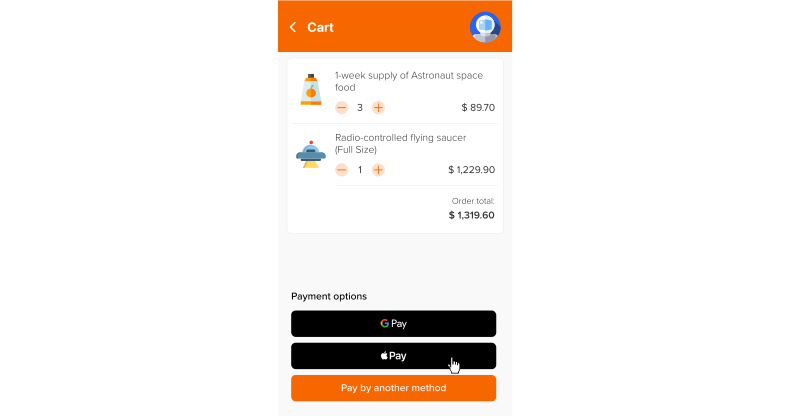
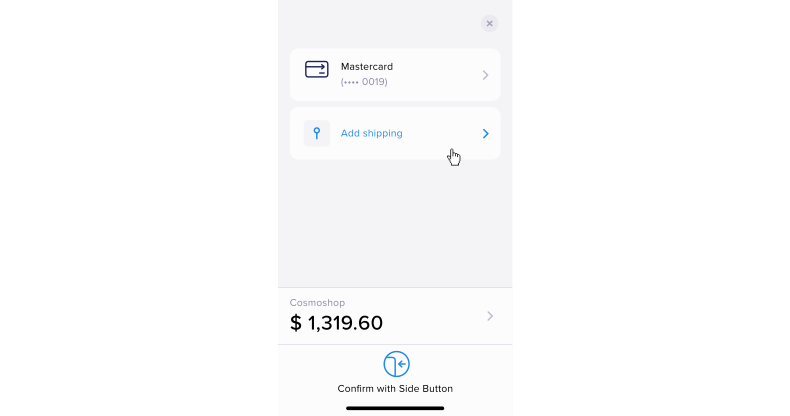

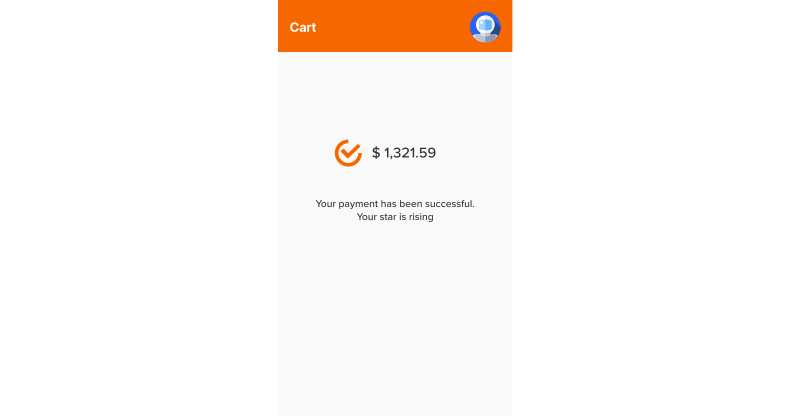
- The customer navigates to a page in the web service interface where embedded buttons are displayed and initiates a purchase using one of the payment methods.
- The customer is redirected to the service of the selected method.
- In the service, the customer provides a shipping address and selects the shipping option, if necessary, and performs other required actions.
- The customer is notified about the payment result (how this information is communicated depends on the configuration of the web service).
Button design styles
The merchant can customise different aspects of the branded button's appearance, including the button's colour, contents (i.e. the caption and the logo), placement, size, and corner radius, with the help of the following parameters for opening the payment form.
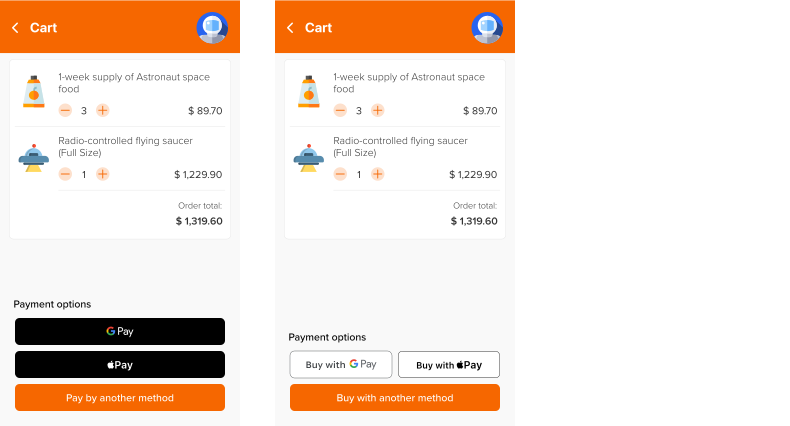
When working with the parameters for customising the appearance of branded buttons, consider the following:
- You must comply with the requirements and guidelines of Apple (details) and Google (details).
- Values that you specify for parameters determining the placement and the size of the buttons apply to all buttons used, whereas other parameters can be passed to customise each branded button individually.
- If you specify the layout option for the buttons, it will be applied only when the width of the element where the buttons are embedded exceeds 1047 pixels. In all other cases, the buttons will be vertically stacked.
- To resize the buttons, you can specify their height, but not their width. The width is determined automatically and is adjusted depending on the width of the element where the buttons are embedded and the number of buttons in one row. The minimum allowed width of each button is 160 pixels, and the maximum allowed corresponds to the width of the element where the buttons are embedded. The default height of the buttons is 44 pixels.
Workflow
The interaction between the web service and the payment platform when the branded buttons are embedded requires the use of specialised libraries provided by Ecommpay and includes the following steps.
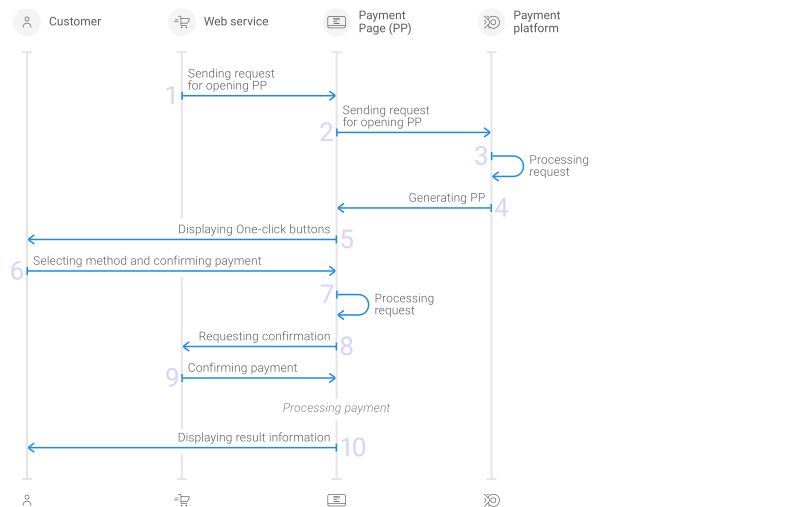
- The web service sends the request for processing a purchase via Payment Page to the specified Ecommpay URL.
- The request for processing a purchase via Payment Page is sent to the payment platform.
- The payment platform receives the request and validates the required parameters and signature.
- Payment Page is generated based on the project and request parameters.
- Embedded payment buttons are shown to the customer.
- The customer clicks the button of the payment method they need.
- The request is processed on the side of Payment Page.
- Payment Page sends a message that requires confirmation of the payment to the web service.
- The web service responds to Payment Page with a message that confirms the payment, following which the processing workflow for this specific method is invoked.
- Payment Page sends a message with the result information and the customer redirection URL to the web service.
The interaction between the web service and the payment platform when shipping information is provided in the service of the selected payment method (Google Pay or Apple Pay) includes the following steps.
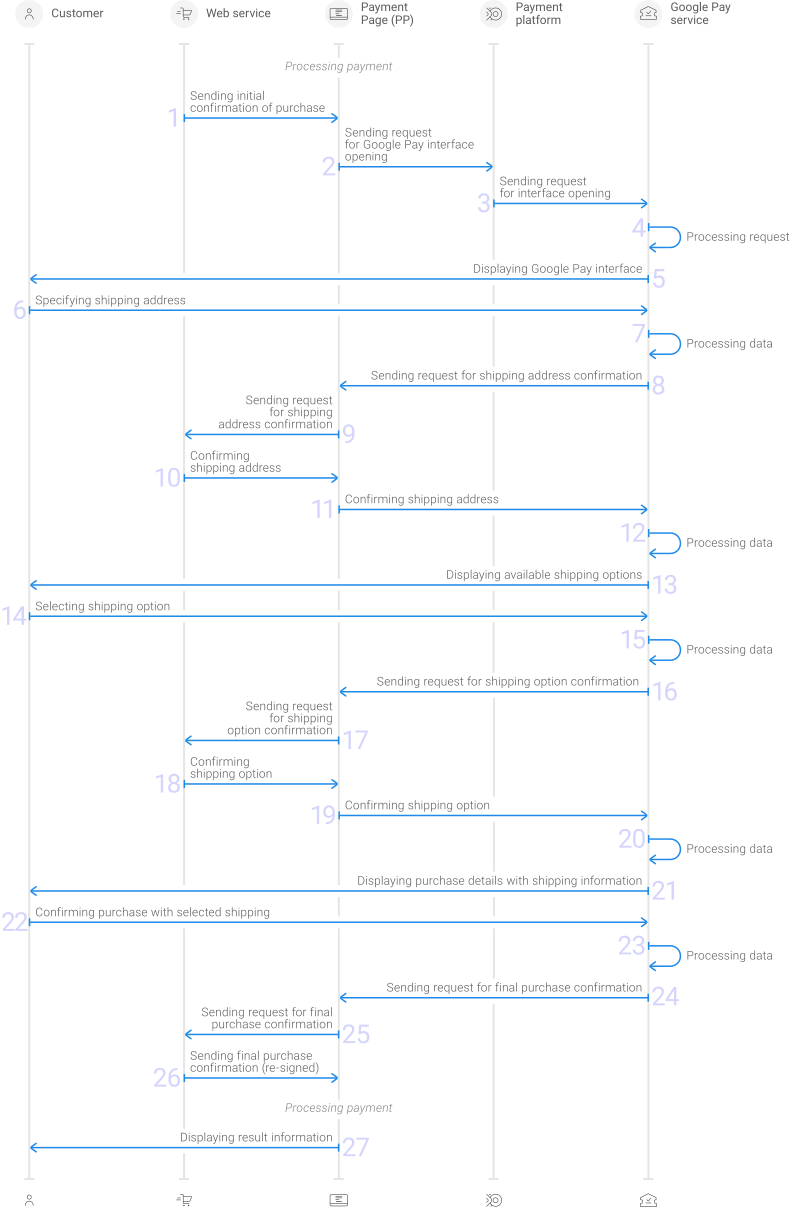
- The web service responds to Payment Page with a message that confirms the payment.
- The request for invoking the interface and the payment form of Google Pay is sent to the payment platform.
- The request for invoking the interface and the payment form of Google Pay and retrieving information about the customer's cards is sent to the Google Pay service.
- The Google Pay service processes the request and generates the payment form with the list of cards available to the customer.
- The customer is shown the interface of the Google Pay service with the list of cards with masked numbers and the fields to enter shipping details.
- The customer enters a shipping address.
- The Google Pay service processes the request.
- The Google Pay service sends the message with the shipping address to Payment Page.
- Payment Page sends the message with the shipping address to the web service.
- The web service responds to Payment Page with a message confirming shipping availability to this address.
- Payment Page sends the message confirming shipping availability to the Google Pay service.
- The Google Pay service processes the request.
- The customer is shown information about available shipping options.
- The customer selects a shipping option.
- The Google Pay service processes the request.
- The Google Pay service sends the message with the information about the selected shipping option to Payment Page.
- Payment Page sends the message with the information about the selected shipping option to the web service.
- The web service responds to Payment Page with a message confirming this shipping option availability.
- Payment Page sends the message confirming the shipping option availability to the Google Pay service.
- The Google Pay service processes the request.
- The customer is shown purchase details with shipping information (shipping address and option).
- The customer performs other actions, if necessary, and confirms payment.
- The Google Pay service processes the request.
- The Google Pay service sends the message with purchase details that include shipping information to Payment Page
- Payment Page sends the message with purchase details that include shipping information to the web service.
- The web service responds to Payment Page with a message that confirms the payment, following which the processing workflow for this specific method is invoked.
- Payment Page sends a message with the result information and the customer redirection URL to the web service.
Setup and configuration
To start working with the embedded payment buttons functionality:
- On the client side, add the Ecommpay CSS and JavaScript libraries available at
https://paymentpage.ecommpay.com/shared/merchant.cssandhttps://paymentpage.ecommpay.com/shared/merchant.js.Warning: Keep in mind that to ensure correct behaviour of the payment form, you must link the Ecommpay CSS library via the CDN (Content Delivery Network). Storing this library locally is not allowed.<link rel="stylesheet" href="https://paymentpage.ecommpay.com/shared/merchant.css" /> <script type="text/javascript" src="https://paymentpage.ecommpay.com/shared/merchant.js"></script>
- Configure the Content Security Policy by specifying the source URLs required for correct operation of the payment form in the
Content-Security-PolicyHTTP header (details).Figure 8. Example of the Content-Security-Policy HTTP header Content-Security-Policy: script-src https://paymentpage.ecommpay.com https://applepay.cdn-apple.com; style-src https://paymentpage.ecommpay.com; img-src https://applepay.cdn-apple.com; frame-src https://paymentpage.ecommpay.com https://applepay.cdn-apple.com - On the client side, add the element for displaying embedded payment buttons.
<!-- Displaying each embedded payment button in a separate iframe element -->
<div class="row">
  <div id="widget-container-google-pay"></div>
  <div id="widget-container-apple-pay"></div>
</div>

<!-- Displaying two embedded payment buttons in a single iframe element -->
<div id="widget-container-one-click-buttons"></div>
- On the server side, set up data signing and sending signed data to the client side of the web service (use one of the specialised SDKs).
- Implement invoking the payment form on the client side using the JavaScript library from Ecommpay and the
EPayWidget.runEmbeddedmethod. - On the client side, implement functions for handling interface events. In addition to the functions described in this article, you can use event handlers described here.
- If you plan to take Apple Pay payments, make sure to register production domains of your web service in the Apple Pay service.
Use
In general, to process a payment made with the use of embedded payment buttons, you need to:
- Generate requests to display the required buttons.
- Invoke the payment form displayed as branded buttons.
- Confirm the transition to payment when the customer clicks a specific button.
- Confirm the availability of the shipping option selected by the customer.
- Confirm processing the payment with the finalised set of parameters.
Here is a more detailed description of these steps:
-
Generate the required number of requests to open a payment form displayed as branded buttons.
It can be one request to display both buttons in a single iframe element, two separate requests to display each button in separate iframe elements, or one separate request to display just one of the buttons. Each of the requests must contain the
configObjJavaScript object with the parameters for invoking the payment form and the signature for them.When creating a request for opening the payment form, consider the following:
- The essential data set required for processing a payment in this case includes:
target_element—identifier of the iframe element in which the payment form should be openedpayment_id—payment identifier unique within the projectpayment_amount—payment amount in the smallest currency unitpayment_currency—payment currency code in the ISO-4217 alpha-3 formatproject_id—project identifier obtained from Ecommpay during integrationmerchant_domain—domain name of the web service in which the payment form should be openedforce_payment_groupto display buttons for both methods (with the valueone_click_buttons) orforce_payment_methodto display the button for only one of the methods (with the valueapple_pay_corefor the Apple Pay method orgoogle_pay_hostfor the Google Pay method)mode—Payment Page operation mode indicator with the valuepurchasesignature—request signature generated after all parameters have been specified
-
To initiate additional steps to be performed on the side of the Apple Pay and Google Pay services, use the
payment_methods_optionsparameter and specify the following:- a list of requested customer information in the
billing_contact_fieldsarray if collection of customer information is not configured for all payments within the project being used (details) - information about the available shipping options in the
shippingobject—so that the customer can select one
The detailed list of information that can be specified in the
payment_methods_optionsparameter can be found below. - a list of requested customer information in the
Figure 9. Example of data from a request to open the payment form { "target_element":"widget-container-one-click-buttons", "payment_id":"X03936", "payment_amount":131960, "payment_currency":"USD", "project_id":22, "merchant_domain":"cosmoshop.jupiter.example", "force_payment_group":"one_click_buttons", "mode":"purchase", "signature":"YWb6Z20ByxpQ30hfTIjaCCsVIwVynXV" }Figure 10. Example of data specified in the payment_methods_options parameter { "express_checkout":{ "billing_contact_fields":[ "email", "name", "phone", "billing_address", "postal_code" ], "shipping":{ "shipping_fields":[ "shipping_address", "name", "phone" ], "allowed_country_codes":[ "GB", "IE" ], "shipping_methods":[ { "label":"Speed of sound shipping", "detail":"Express shipping (1 hour)", "amount":199, "identifier":"cosmo-shipping-009" }, { "label":"Warp drive shipping", "detail":"Instant shipping", "amount":2999, "identifier":"cosmo-shipping-012" } ] }, "buttons":{ "max_column":1, "height": 40, "border_radius": 100 } }, "google_pay_host":{ "shipping":{ "allowed_country_codes":[ "GB", "IE" ] }, "button":{ "color":"black", "type":"checkout", "border_type":"no_border" } }, "apple_pay_core":{ "button":{ "theme":"black", "type":"buy" } } } - The essential data set required for processing a payment in this case includes:
-
Invoke the payment form using the
EPayWidget.runEmbeddedmethod.When invoking the form, specify the
configObjJavaScript object and declare necessary event handler functions, such asonCheckSubmit(used for handling button click information; more details below).Figure 11. Example of invoking the form with the use of the runEmbedded method const checkoutButtonsWidget = EPayWidget.runEmbedded({ ...configObj, onCheckSubmit: async function (data, resolve, reject) { if (!await merchantPage.validateCheckoutPage()) { return reject() // Decline of purchase } if (!await merchantAPI.validateCartAmount(checkoutButtonsWidget.configObj.payment_amount, checkoutButtonsWidget.configObj.payment_currency)) { return reject() // Decline of purchase }; return resolve(); // Purchase confirmation, with the option to specify the additional_parameters object as an argument }, }, 'POST'); -
When the customer confirms the payment (via the embedded button), check the payment details (including the amount and currency, as well as other important parameters) and call the relevant function:
resolveto confirm the purchase orrejectto decline it.At this stage, along with the payment confirmation, you can specify additional information if it was not specified when the payment form was invoked or if the information needs to be changed. You can pass:
- customer information and redirect URLs—in the
additional_parametersobject - the customer identifier, information about the purchased items, and extended purchase data to be used on the web service side—in the
payment_updateobject (in which you also specify the project identifier, the payment identifier, amount, and currency, as well as the signature for the parameters in this object)
If the payment is declined, the customer should be provided with information about the error on the web service side.
Figure 12. Example of data from the additional_parameters object { // General customer information customer_first_name:"Arthur", customer_last_name:"McDonald", customer_phone:"447700900123", customer_email:"mcdonald@space.com" // Customer's residential address customer_country:"GB", customer_city:"Belfast", customer_address:"14A Cosmos Crescent, Flat 25", customer_zip:"BT99 0ZZ", // Customer's billing address billing_country:"GB", billing_city:"Belfast", billing_address:"14A Cosmos Crescent, Flat 25", billing_postal:"BT99 0ZZ", // Customer's address used for the AVS check avs_street_address:"14A Cosmos Crescent, Flat 25", avs_post_code:"BT99 0ZZ", // Customer's redirection information redirect_success_url:"https://cosmoshop.jupiter.example/pages/success", redirect_success_mode:"parent_page", redirect_fail_url:"https://cosmoshop.jupiter.example/pages/failed", redirect_fail_mode:"parent_page", };Figure 13. Example of data from the payment_update object { "project_id":22, "payment_id":"X03936", "payment_amount":131960, "payment_currency":"USD", "customer_id":"customer_112", "receipt_data":"eyJwb3NpdGlvbnMiOiBbeyJxdWFudGl0eSI6IDMsICJhbW91bnQiOiAxMDAwMCwgInRheCI6IDE4LCAidGF4X2Ftb3VudCI6IDE4MDAsICJkZXNjcmlwdGlvbiI6ICJEZXNpZ24gZnJhbWUifV0sICJ0b3RhbF90YXhfYW1vdW50IjogMTgwMCwgImNvbW1vbl90YXgiOiAxOH0=", "merchant_data":"{\"items\":[{\"sku\":\"GM12-CC\", \"description\":\"10 Copper Coins\",\"count\":1}, {\"sku\":\"GM12-GC\",\"description\":\"Golden Coin\", \"count\":2}],\"total_count\":3,\"user_id\":\"122\"", "signature":"OoyvuCort6RIe8jofbUwZMWhkTaIIr7iIDFwry3bKc0iWGRMqPB1/8jVK4yJX+dv2AZDrNU7Ip4TMcqMG8AD8w==" } - customer information and redirect URLs—in the
-
If the request to open a payment form included information about available shipping options for goods or services in the
shippingobject, verify and confirm (or decline) the shipping availability.Use the
onCheckShippingAddressandonCheckShippingMethodfunctions of the merchant.js library to respond to the customer's input of a shipping address and shipping option, respectively. When using these functions, keep in mind that the order in which the shipping address and shipping option are specified may vary depending on the specifics of the service being used, and that checking the shipping availability is repeated whenever the customer's input changes. You are also recommended to ensure that the error messages related to shipping availability are structured to provide sufficient information and convenience to customers and prevent future errors.To check shipping availability, each time the customer changes shipping parameters, follow these steps:
- Regarding the shipping address, check the availability of shipping to the address specified by the customer and call the relevant function:
onCheckShippingAddress.resolve—to confirm shipping availability, with the mandatory passing of the payment amount with shipping included and, if applicable, with updated shipping parameters (specified in theshipping_methodsarray).onCheckShippingAddress.reject—to notify that shipping is unavailable, with the mandatory passing of the payment amount excluding shipping and, if applicable, with the messages to be displayed to the customer, including a general error message and specific clarifications for each of the shipping details.
Figure 14. Example of passing the shipping address provided by the customer { "region":"Belfast City", "city":"Belfast", "country_code":"GB", "postal_code":"BT99 0ZZ" }Figure 15. Example of the error information errors = { "fields": { "country_code": "Supported shipping countries: GB, DE, IT", "region": "This region is not supported", "city": "Only Dublin is available", "postal_code": "The range of postal address 10060 - 100150", }, "message": "Cannot ship to the provided address" } -
Regarding the shipping option, check the availability of the shipping option selected by the customer and call the relevant function:
onCheckShippingMethod.resolve—to confirm shipping availability, with the mandatory passing of the payment amount with shipping included.onCheckShippingMethod.reject—to notify that shipping is unavailable, with the mandatory passing of the payment amount excluding shipping and, if applicable, with the messages to be displayed to the customer.
Figure 16. Example of specifying the shipping option selected by the customer { "identifier":"cosmo-shipping-012" }Figure 17. Example of the error information errors = { "message": "This shipping option cannot be selected for this address", }
- Regarding the shipping address, check the availability of shipping to the address specified by the customer and call the relevant function:
-
If you need to confirm the payment (with the selected shipping address and shipping option, or other details provided by the customer), check whether the finalised payment information is accurate.
Use the
onConfirmationfunction of the merchant.js library to obtain this information. After verifying, call the relevant function:onConfirmation.resolve—to confirm the payment, with final details provided by the web service. This information includes:- the project identifier, the identifier, amount, and currency of the payment, and other relevant information (as needed, including information about the purchased items and extended purchase data for subsequent use on the web service side) and the signature for these parameters in the
payment_updateobject - customer information and redirect URLs (if such information needs to be specified or updated) in the
additional_parametersobject
- the project identifier, the identifier, amount, and currency of the payment, and other relevant information (as needed, including information about the purchased items and extended purchase data for subsequent use on the web service side) and the signature for these parameters in the
onConfirmation.reject—to decline the payment, with the mandatory passing of the payment amount and, if applicable, with the error message to be displayed to the customer.
Figure 18. Example of payment information for verification on the web service side { "customer":{ "email":"mcdonald@space.com", "first_name":"Arthur", "last_name":"McDonald", "phone":"447700900123" }, "billing_address":{ "address":"14A Cosmos Crescent, Flat 25", "city":"Belfast", "region":"Belfast City", "country_code":"GB", "postal_code":"BT99 0ZZ" }, "shipping_address":{ "address":"Dock 7, Innovation Hangar", "city":"Belfast", "region":"Belfast City", "country_code":"GB", "postal_code":"BT99 1XY", "first_name":"Arthur", "last_name":"McDonald", "phone":"447700900321" } }Figure 19. Example of payment confirmation information { "project_id":22, "payment_id":"X03936", "payment_amount":131960, "payment_currency":"USD", "customer_id":"customer_112", "receipt_data":"eyJwb3NpdGlvbnMiOiBbeyJxdWFudGl0eSI6IDMsICJhbW91bnQiOiAxMDAwMCwgInRheCI6IDE4LCAidGF4X2Ftb3VudCI6IDE4MDAsICJkZXNjcmlwdGlvbiI6ICJEZXNpZ24gZnJhbWUifV0sICJ0b3RhbF90YXhfYW1vdW50IjogMTgwMCwgImNvbW1vbl90YXgiOiAxOH0=", "merchant_data":"{\"items\":[{\"sku\":\"GM12-CC\", \"description\":\"10 Copper Coins\",\"count\":1}, {\"sku\":\"GM12-GC\",\"description\":\"Golden Coin\", \"count\":2}],\"total_count\":3,\"user_id\":\"122\"", "signature":"OoyvuCort6RIe8jofbUwZMWhkTaIIr7iIDFwry3bKc0iWGRMqPB1/8jVK4yJX+dv2AZDrNU7Ip4TMcqMG8AD8w==" }Figure 20. Example of data from the additional_parameters object {"billing_country": "GB", "customer_email": "mcdonald@space.com", "avs_post_code": "BR1 1AA", "redirect_success_url":"https://cosmoshop.jupiter.example/order?id=123"}Figure 21. Example of error information errors = { "fields": { "country_code": "Supported shipping countries: GB, DE, IT", "region": "This region is not supported", "city": "Only Dublin is available", "postal_code": "The range of postal address 10060 - 100150", }, "message": "Cannot ship to the provided address" }
Additionally, on the merchant's web service side, it is possible to manage the display of the preloader page and receive information about errors and payment processing results using the following functions for handling interface events:
onShowLoader—for displaying the web service preloaderonHideLoader—for hiding the web service preloader (if it is necessary to display the payment form pages to the customer)onPaymentSubmitResult—for receiving information about the request identifier (if it is necessary to check payment status information)onError—for receiving information about errors on the payment form side
You can also use callbacks to monitor payment processing results.
The following is an example of the HTML code for the web service front end that ensures the capability of performing purchases made with embedded payment buttons.
const expressButtons = EPayWidget.runEmbedded({
    payment_amount: 131960,
    payment_currency: "USD",
    project_id: "22",
    payment_id: "X03936",
    force_payment_group: "one_click_buttons",
    payment_methods_options: {"google_pay_host": {"billing_contact_fields": ["name", "email", "phone", "billing_address"]}},
    target_element: "widget-container-one-click-buttons",
    merchant_domain: cosmoshop.jupiter.example,
    signature: "abcYWb6Z30hfTIjaCCsVIDEF123",

    onShowLoader: merchantPage.showMerchantLoader,
    onHideLoader: merchantPage.hideMerchantLoader,
    onCheckSubmit: async function (data, resolve, reject) {
        if (await merchantAPI.canStartPayment(merchantPage.cart)) {
            return resolve();
        }
        return reject();
    },
    onCheckShippingAddress: async function (data, resolve, reject) {
        const {addressIsAvailable, newPaymentAmount, newShippingMethods, errors} = await merchantAPI.validateShippingAddress(data);
        if (addressIsAvailable) {
            return resolve({payment_amount: newPaymentAmount, shipping_methods: newShippingMethods});
        } else {
            return reject({payment_amount: newPaymentAmount, errors});
        }
    },
    onCheckShippingMethod: async function (data, resolve, reject) {
        const {addressIsAvailable, newPaymentAmount} = await merchantAPI.saveShippingMethod(orderId, data.identifier);
        if (addressIsAvailable) {
            return resolve({payment_amount: newPaymentAmount});
        } else {
            return reject({payment_amount: newPaymentAmount});
        }
    },
    onConfirmation: async function (data, resolve, reject) {
        const { orderId, paymentUpdate, additionalParameters, errors } = await merchantAPI.placeOrder(merchantPage.cart, merchantPage.customerInfo);

        if (orderId) {
            return resolve({payment_update: paymentUpdate, additional_parameters: additionalParameters});
        } else {
            return reject({errors})
        }
    },
    onPaymentSubmitResult: async function (data) {
        await merchantAPI.saveTransactionId(data.request_id)
    },
    onError: async function ({ messages }) {
        await merchantAPI.log("Payment error occurred " + messages)
        if (messages.includes("invalid payment_id")) {
            merchantPage.redirectToContactSupportPage();
        }
    },
});
Parameters
General parameters
The following parameters can be used when you work with the functionality of embedded payment buttons.
| Parameter | Description | |
|---|---|---|
|
|
The postal code of the customer to be used in the Address Verification Service check. Example: |
|
|
|
The address of the customer to be used in the Address Verification Service check. Consists of a house number and a street name. Example: |
|
|
|
The house number (including any additional parts of the address such as building and apartment numbers) and the name of the street in the customer's billing address. To collect customer billing address information on the Apple Pay and Google Pay service side, use the Example: |
|
|
|
The name of the city in the customer's billing address. To collect customer billing address information on the Apple Pay and Google Pay service side, use the Example: |
|
|
|
The country code in the customer's billing address. To collect customer billing address information on the Apple Pay and Google Pay service side, use the Example: |
|
|
|
The postal code in the customer's billing address. To collect customer billing address information on the Apple Pay and Google Pay service side, use the Example: |
|
|
|
The name of the region (i.e., state, province, or other administrative division type) in the customer's billing address. To collect customer billing address information on the Apple Pay and Google Pay service side, use the Example: |
|
|
|
The recipient's country subdivision code (state, province, region, or territory). The value of this parameter is the second element of a code for a subdivision (in ISO 3166-2), without the two-letter country code and the hyphen-minus used as a separator. This parameter should be specified in requests where the To collect customer billing address information on the Apple Pay and Google Pay service side, use the Example: |
|
|
|
The name of the street and the house number (including any additional parts of the address such as building and apartment numbers) in the customer's address, separated by a comma. The length of the string cannot be more than 255 characters. Example: |
|
|
|
The name of the customer's birthplace (e.g., town, city, or other settlement type). The length of the string cannot be more than 255 characters. Example: |
|
|
|
The name of the place of residence (e.g., town, city, or other settlement type) in the customer's address. The length of the string cannot be more than 255 characters. Example: |
|
|
|
The country code in the customer's address. Specified in ISO 3166-1 alpha-2 format. Example: |
|
|
|
The date of birth of the customer. Consists of a string specified in Example: |
|
|
|
The email address of the customer. The length of the string cannot be more than 255 characters. The string consists of a local-part and a domain name, separated by the To collect customer email address information on the Apple Pay and Google Pay service side, use the Example: |
|
|
|
The first name of the customer. The length of the string cannot be more than 255 characters. To collect customer first name information on the Apple Pay and Google Pay service side, use the Example: |
|
|
|
The identifier assigned to the customer within the scope of the project (specified in Each web service account should be linked to only one identifier and vice versa. This requirement is intended to address various risks and fraudulent operations. Example: |
|
|
|
The last name of the customer. The length of the string cannot be more than 255 characters. To collect customer last name information on the Apple Pay and Google Pay service side, use the Example: |
|
|
|
The middle, second, or patronymic name of the customer. The length of the string cannot be more than 255 characters. Example: |
|
|
|
The phone number of the customer. Generally, should include the country code; however, some cases do not require a country code to be specified. Should contain between four and 24 digits. If a particular project and payment method allow for the inclusion of punctuation marks and special characters in the phone number, the parameter can contain such characters in those cases; this is usually specially arranged beforehand. To collect customer phone number information on the Apple Pay and Google Pay service side, use the Example: |
|
|
|
The name of the region (state, province, or other administrative subdivision type) of the customer's address. The length of the string cannot be more than 255 characters. Example: |
|
|
|
The name of the street in the customer's address. The length of the string cannot be more than 255 characters. Example: |
|
|
|
The postal or zip code in the customer's address. The length of the string cannot be more than 10 characters. Example: |
|
|
|
For processing payments using embedded payment buttons; can take one of the following values:
Only one of the parameters, Example: |
|
|
|
For processing payments using embedded payment buttons; can take the value Only one of the parameters, Example: |
|
|
|
Additional information that needs to be tracked by the web service. The data that is passed in this parameter can vary. However, what data set is passed in this parameter should be communicated to the Ecommpay specialists and configured beforehand to ensure the data is processed and displayed correctly in callbacks and payment information tabs (see this article). In specific cases can contain a JSON object; then, the "merchant_data": "{\"items\":[{\"sku\":\"GM12-CC\", \"description\":\"10 Copper Coins\",\"count\":1}, {\"sku\":\"GM12-GC\",\"description\":\"Golden Coin\", \"count\":2}],\"total_count\":3,\"user_id\":\"122\"}" |
|
|
|
Domain name of the web service in which the payment form should be opened. Example: |
|
|
|
Indicator that specifies the Payment Page operation mode. For processing payments using One-click buttons, must take the value Example: |
|
|
|
The amount of the payment in the smallest currency unit. Specified in the smallest currency unit without a decimal separator. Example: |
|
|
|
Three-letter code of the payment currency. Specified in the ISO-4217 alpha-3 format, according to the currency codes reference. Example: |
|
|
|
The payment identifier. Must be assigned by the web service. Should consist of a string no longer than 255 characters, be case-insensitive, and correspond one-to-one with the relevant payment within that project. Example: |
|
|
|
Additional information relevant for specific payment methods and third-party services. Should include parameters listed in the table below. |
|
|
|
Identifier of the project intended to manage the interactions of the web service with the payment platform. This identifier is assigned by Ecommpay during the integration (details). Example: |
|
|
|
Information about line items in an order. Can be used to generate a proof of purchase document to be sent to the customer (see this article). Consists of a string obtained by encoding a JSON object using the Base64 encoding scheme. The JSON object can include various combinations of elements from the list of supported data.
{
   "receipt_data":{
      "positions":[
         {
            "quantity":3,
            "amount":10000,
            "tax":18,
            "tax_amount":1800,
            "description":"Design frame"
         }
      ],
      "total_tax_amount":1800,
      "common_tax":18
   }
}
|
|
|
|
URL for final redirection to the web service if the purchase is declined. Example: |
|
|
|
URL for final redirection to the web service by customer decision when a purchase is completed. Example: |
|
|
|
The digital signature used to sign the query parameters. Should be generated using the appropriate algorithm after all relevant parameters have been specified (see this article). |
|
|
|
The iframe element identifier (for the HTML page of the web service) of the element where the payment form should be opened. Example: |
Parameters specific to Apple Pay and Google Pay
When working with the functionality of embedded payment buttons, you can specify the following data relevant to Apple Pay and Google Pay payments in the payment_methods_options parameter.
| Parameter | Description | |
|---|---|---|
|
|
Additional information relevant for all payment methods. | 29-3 |
|
|
Parameters customising the appearance of the branded buttons. Example: |
29-3-129-3 |
|
|
Height of the button, in pixels. Will be applied to each embedded button. Can be between 40 and 55 pixels. The default value is 44 pixels. Example: |
29-3-1-129-3-1 |
|
|
Corner radius of the button, in pixels. Will be applied to each embedded button. Can be between 0 and 100 pixels. The default value is 4 pixels. Example: |
29-3-1-229-3-1 |
|
|
The indicator of the layout option for the buttons embedded in the iframe element. The specified option is applied only when the width of the element where the buttons are embedded exceeds 1047 pixels. In all other cases, the value of this parameter will be ignored and only one button is displayed in one row. Can take one of the following values:
Example: |
29-3-1-329-3-1 |
|
|
Shipping information. | 29-3-229-3 |
|
|
Shipping address information, to be collected on the Google Pay service side. An array with the list of required data, including:
Example: |
29-3-2-129-3-2 |
|
|
Information about available shipping options. The shipping option listed first is shown in the Google Pay service as a default one. | 29-3-2-329-3-2 |
|
|
The name of the shipping option to be shown to the customer. Must be specified when the Example: |
29-3-2-3-129-3-2-3 |
|
|
Description of the shipping option to be shown to the customer. Must be specified when the Example: |
29-3-2-3-229-3-2-3 |
|
|
The cost of the shipping. Specified in the smallest unit of currency passed in the Must be specified when the Example: |
29-3-2-3-329-3-2-3 |
|
|
The identifier of the shipping option, assigned on the side of the web service. Must be specified when the Example: |
29-3-2-3-429-3-2-3 |
|
|
Customer billing address information to be collected on the Apple Pay or Google Pay service side. Represents an array with a list of requested information, which can include:
Example: |
29-3-329-3 |
|
|
Additional information relevant for Google Pay payments. | 29-2 |
|
|
Shipping information. | 29-2-129-2 |
|
|
Information about the countries where the shipping is available. If this information is not specified, the shipping is deemed available in all countries. An array with the list of country codes in ISO 3166-1 alpha-2. Example: |
29-2-1-229-2-1 |
|
|
Parameters customising the appearance of the button. Example: |
29-2-329-2 |
|
|
Indicator specifying the border type of the button (details). Can take one of the following values:
The default value is Example: |
29-2-3-129-2-3 |
|
|
Indicator specifying the colour of the button (details). Can take one of the following values:
The default style is dark. Example: |
29-2-3-229-2-3 |
|
|
Indicator specifying the button's caption according to the Google Pay documentation (details). For example, if you pass Example: |
29-2-3-329-2-3 |
|
|
Additional information relevant for Apple Pay payments. | 29-1 |
|
|
Parameters customising the appearance of the button. Example: |
29-1-329-1 |
|
|
Indicator specifying the colour of the button (details). Can take one of the following values:
The default style is dark. Example: |
29-1-3-129-1-3 |
|
|
Indicator specifying the button's caption according to the Apple Pay documentation (details). For example, if you pass Example: |
29-1-3-229-1-3 |