Using Payment Page in embedded mode for card payments
An article about using Payment Page embedded mode edition to accept standard card payments.
Overview
In certain processing scenarios merchants may need to use a minimalist payment form embedded into the user interface of their web service which allows their customers to have a faster and optimised checkout experience as compared to standard solutions, at least in case of the most frequently used payments. When working with the Ecommpay payment platform, you can use a specialised embedded mode edition of Payment Page with the least number of input fields and without the payment confirmation button (the expectation being that the button or any other element is to be developed on the merchant web service side).
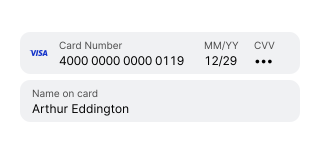
The embedded mode edition is intended for processing standard card payments with support of the most relevant procedures and capabilities. To work with augmented processing scenarios as well as to accept alternative payments, you can use other editions of Payment Page. You can implement and use several editions of the payment form at the same time and customise them to fit the needs of your web service. For example, you can use Payment Page in embedded mode to process card payments and implement a specialised edition with embedded buttons for Apple Pay and Google Pay payments (details), while relying on the standard edition of Payment Page for accepting payments with other payment methods.
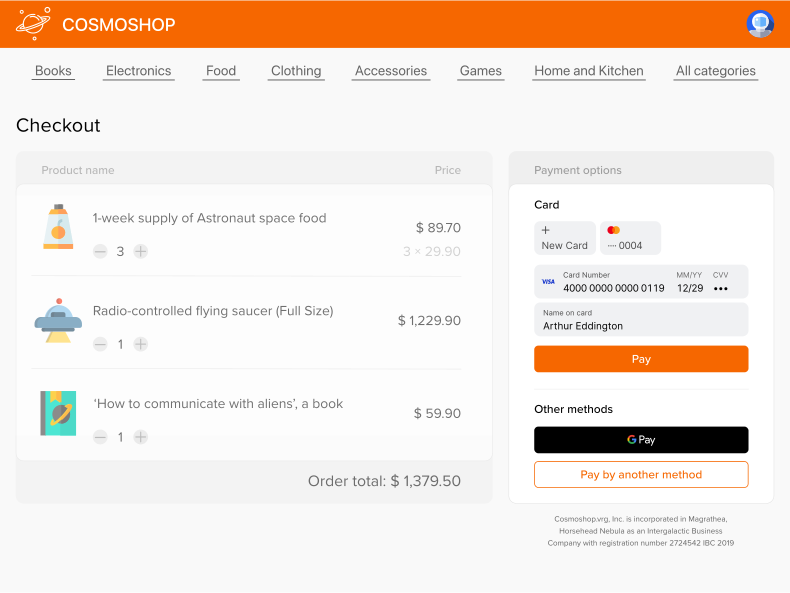
Capabilities
When working with Payment Page in embedded mode, you can:
- Customise the appearance of the payment form using the Payment Page Designer in Dashboard (details).
- Customise the fields to be displayed on the payment form. You can remove the field to enter the cardholder's name (if this option is enabled for the project) and add fields to collect additional customer data (details).
- Enable your customers to save card details, subsequently use them to pay, or remove them (this option is available by default, but it can be disabled upon agreement with the Ecommpay account manager).
- Accept one-time one-step and two-step card purchases and perform card verification, with the option to register COF purchases available in both cases and the capability to execute relevant auxiliary procedures such as 3‑D Secure authentication, AVS checks, and submitting additional payment information.
Processing scenario
The basic steps of the customer payment scenario with the use of Payment Page in embedded mode are the following:
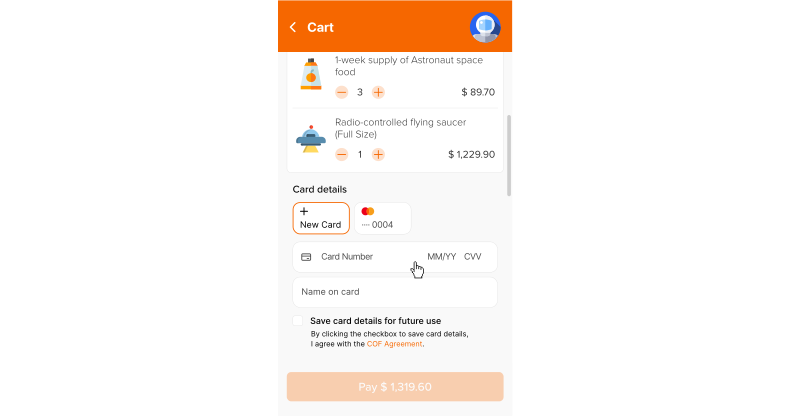
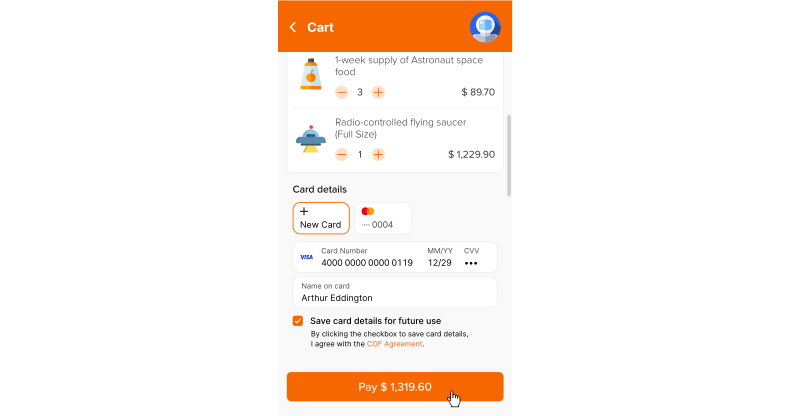
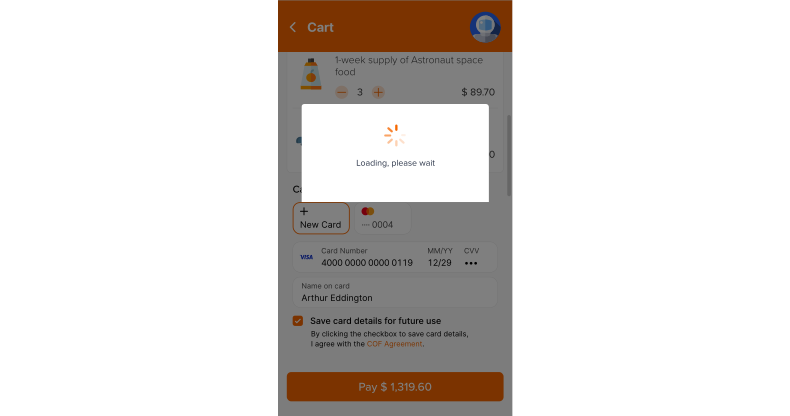
- The customer initiates the purchase in the web service following which the customer can provide the details of the card.
At this step, the payment form can contain the card selection tabs (if this customer saved any cards before) and fields to enter the card details to be used for payment as well as additional fields and the checkbox to consent to saving the card details (if this option is set up for the project).
- The customer provides necessary data and confirms the payment.
If the data is missing or entered incorrectly, the customer is shown notifications about it in the payment form.
- The customer is shown the preloader.
This can be done either in the interface of the payment form or in the interface of the web service, depending on the web service configuration. Note that the payment form remains open throughout.
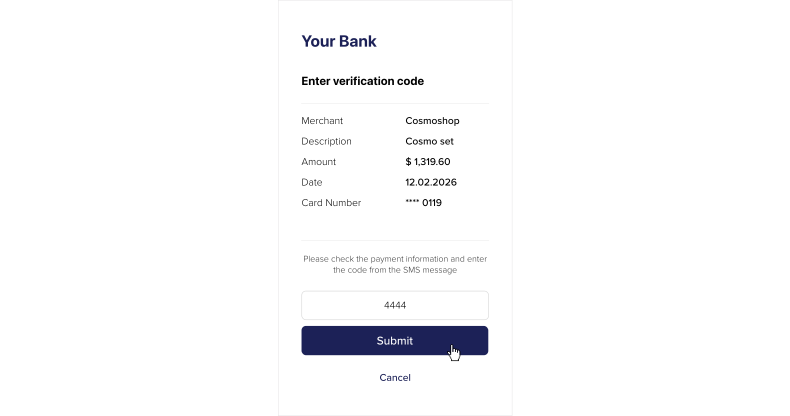
- If it is necessary for payment processing, the customer is shown the forms for performing additional actions which the customer then executes.
These additional forms include the modal window with the fields to enter additional data shown in the web service (over the payment form) and the page to perform the 3‑D Secure authentication, shown in the iframe element of the payment form instead of the payment form.
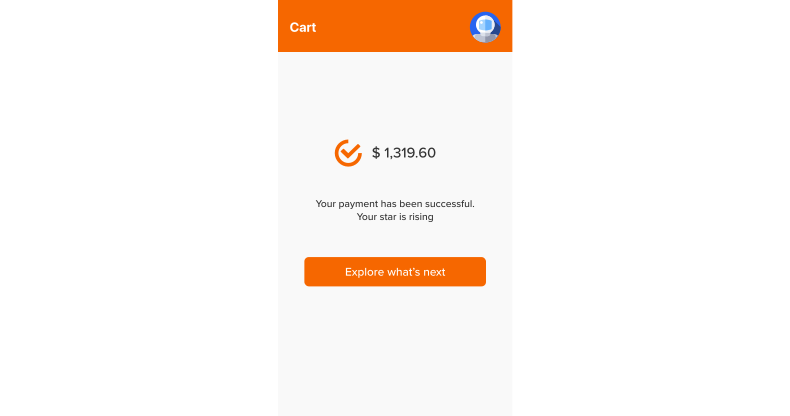
- The customer is shown the payment result information.
This involves the use of the payment form, and if it is configured in the web service, then the web service as well.
Workflow
Processing a purchase made via Payment Page in embedded mode requires the interaction between the web service and the payment form with the use of the specialised libraries from Ecommpay. In a standard case, when the web service displays its own preloader page (over the interface of the payment form), the interaction is carried out as follows.
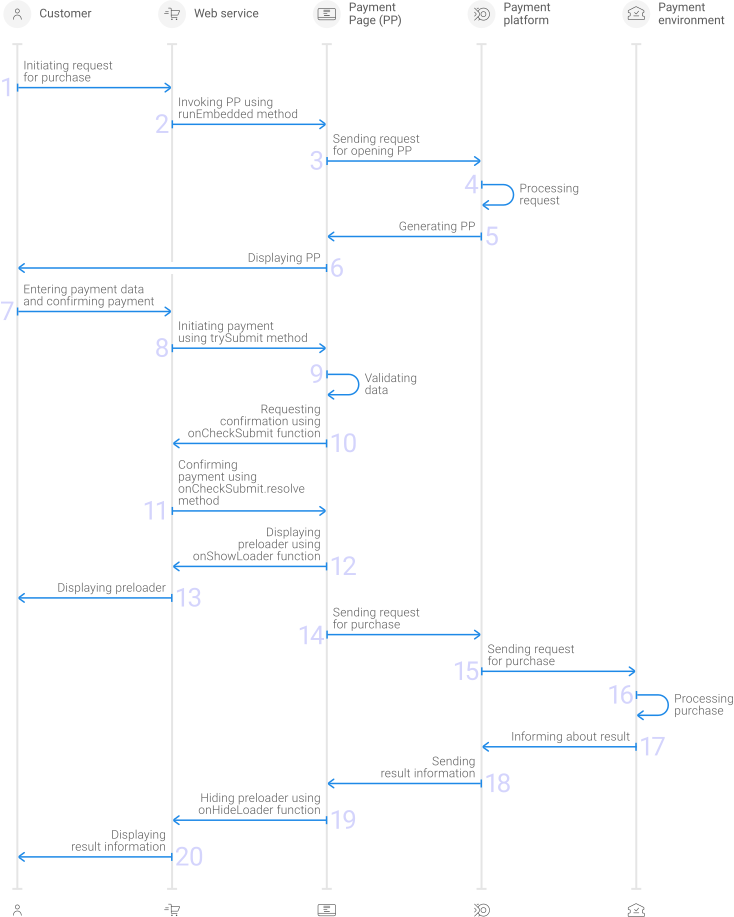
- A customer initiates a purchase in the web service.
- The web service invokes Payment Page with the use of the
EPayWidget.runEmbeddedmethod. - The request for opening Payment Page is sent to the payment platform.
- The payment platform receives the request and validates the required parameters and signature.
- Payment Page is generated based on the project and request parameters.
- The customer is shown Payment Page embedded in the page of the web service.
- The customer enters required data and confirms payment the way it is configured in the web service.
- The web service calls the
trySubmitmethod of theEPayWidgetobject for initial validation of entered data. - The data provided by the customer is validated on the side of Payment Page.
- Using the
onCheckSubmitfunction, Payment Page sends to the web service the confirmation that payment processing can be initiated and that the payment needs confirmation by the customer. - The web service calls the
resolvemethod of theonCheckSubmitfunction following which information about payment confirmation is sent to Payment Page. - The web service invokes the
onShowLoaderfunction to display the preloader to the customer. - The web service preloader page is displayed to the customer.
- The request for processing a payment is sent to the payment platform.
- The payment platform processes the request and sends it to the payment environment.
- The purchase is processed in the payment environment.
- The payment environment sends a notification about the result to the payment platform.
- The payment platform sends the result information to Payment Page.
- The web service invokes the
onHideLoaderfunction to hide the preloader and show the payment form to the customer. - The result information is displayed to the customer on Payment Page.
Setup and testing
To start working with Payment Page in embedded mode:
- If you have not yet finalised organisational steps that need to be taken towards integration with Ecommpay, take necessary action by signing up and providing required information (details).
- If you have not yet carried out the work for integrating Payment Page with the use of specialised libraries, do so by taking the following steps:
- On the client side, add the Ecommpay CSS and JavaScript libraries available at
https://paymentpage.ecommpay.com/shared/merchant.cssandhttps://paymentpage.ecommpay.com/shared/merchant.js.<link rel="stylesheet" href="https://paymentpage.ecommpay.com/shared/merchant.css" /> <script type="text/javascript" src="https://paymentpage.ecommpay.com/shared/merchant.js"></script>
Warning: Note that you must link the Ecommpay CSS and JavaScript libraries via the CDN (Content Delivery Network). Storing these libraries locally can lead to critical errors in the payment form's behaviour. - Configure the Content Security Policy by specifying the source URLs required for correct operation of the payment form in the
Content-Security-PolicyHTTP header (details).Figure 9. Example of the Content-Security-Policy HTTP header Content-Security-Policy: script-src https://paymentpage.ecommpay.com https://applepay.cdn-apple.com; style-src https://paymentpage.ecommpay.com; img-src https://applepay.cdn-apple.com; frame-src https://paymentpage.ecommpay.com https://applepay.cdn-apple.com - On the server side, set up collection and signing data passed in the requests for opening Payment Page (you can automate the following algorithms or use one of the specialised SDKs) and sending signed data to the client side of the web service.
- On the client side, add the Ecommpay CSS and JavaScript libraries available at
- On the client side, take all necessary steps to ensure the web service can work with the embedded mode of Payment Page:
- Implement the HTML element to display the form.
<div id="widget-container-card-embedded"></div>
- Implement invoking the payment form using the JavaScript library from Ecommpay and the
EPayWidget.runEmbeddedmethod (more below). - Implement declaring functions for handling interface events (more below).
- Implement the HTML element to display the form.
- If necessary, agree upon the fields displayed on the form and enabling the capabilities with your Ecommpay account manager. You can configure the following:
- Removing the field for entering the name of the cardholder, on the condition that each request for opening the payment form will contain parameters
customer_first_nameandcustomer_last_name(subsequently you can populate this field with the data passed in the requests for opening the payment form). Alternatively, you can avoid collecting cardholder data and accept the risk of possible decrease in payment acceptance rates. - Displaying additional fields for collecting customer data, for example, their emails and phone numbers, (details).
- Enabling your customers to save card details, subsequently use them to pay, or remove them when they use the payment form (this option is available by default, but it can be disabled).
- Removing the field for entering the name of the cardholder, on the condition that each request for opening the payment form will contain parameters
- If necessary, you can customise the appearance of the payment form using the Payment Page Designer in Dashboard (details).
- Once you have set up, you can test payment processing using test card details and test projects (details) and proceed to taking real payments.
If you have any questions about working with the platform using the Payment Page embedded mode, refer to this documentation as well as your account manager and the Ecommpay technical support.
Using callback functions
Using Payment Page in embedded mode involves using callback functions that are declared by the web service when invoking the form.
To ensure correct payment processing, invokeInvoke the onCheckSubmit function. In addition, you can use other functions:
onShowLoader—for displaying the web service preloaderonHideLoader—for hiding the web service preloader (if it is necessary to display the payment form pages to the customer)onPaymentSubmitResult—for receiving information about the request identifieronPaymentFail— for receiving information about the payment declineonPaymentSuccess—for receiving information about the payment completiononError—for receiving information about errors on the payment form side
onPaymentFail and onPaymentSuccess functions as the primary mechanism for handling payment results as well as for initiating redirection of a customer to a corresponding page of the web service if the redirect_success_url parameter is not used for this purpose (details).There is no need to redirect the customer to a separate preloader page or repeatedly check the payment status from your web service back end. Payment Page checks the status directly and executes the corresponding callback function once a final payment result is received.
In addition, other relevant functions can be used to handle interface events (details).
The following is the example of invoking necessary functions on the client side of the web service.
const checkoutButtonsWidget = EPayWidget.runEmbedded({
    ...configObj,

    // Declaring the function for showing the web service preloader
    onShowLoader: merchantPage.showMerchantLoader,

    // Declaring the function for hiding the web service preloader
    onHideLoader: merchantPage.hideMerchantLoader,

    // Declaring the function for receiving information about the payment completion
    // and for subsequent redirection of the customer
    onPaymentSuccess: function (data) {
        merchantPage.redirectToSuccessPage();
    },

    // Declaring the function for receiving information about the payment decline
    // and for displaying the corresponding message to the customer
    onPaymentFail: function (data) {
        merchantPage.showPaymentFailMessage();
    },

    // Declaring the function for validating the payment request
    onCheckSubmit: async function (data, resolve, reject) {
        try {
            // Validating the order
            if (!await merchantPage.validateCheckoutPage()) {
                return reject() // Rejecting due to incorrect order contents
            }

            if (!await merchantAPI.validateCartAmount(checkoutButtonsWidget.configObj.payment_amount, checkoutButtonsWidget.configObj.payment_currency)) {
                return reject() // Rejecting due to errors with the amount and currency of the payment
            }

            // Registering the order on the side of the web service
            const { orderId, additionalParameters } = await merchantAPI.placeOrder(merchantPage.cart, merchantPage.customerInfo);

            if (!orderId) {
                return reject() // Rejecting due to errors occurred in the process of registering the order
            }

            // Confirming payment by the web service with additional information
            return resolve({ additional_parameters: additionalParameters});

        } catch (error) {
            console.error('onCheckSubmit error:', error);
            return reject();
        }
    },

    // Declaring the function for receiving information about the request registration in the payment platform
    onPaymentSubmitResult: async function (data) {
        await merchantAPI.saveTransactionId(orderId, data.request_id)
    },

    // Declaring the function for displaying error messages to customers
    onError: async function ({ messages }) {
        await merchantAPI.log("Payment error occurred " + messages)
        if (messages.includes("invalid payment_id")) {
            merchantPage.redirectToContactSupportPage();
        }
    },
}, 'POST');

    // Invoking the trySubmit function when the customer confirms the payment (by clicking the button)
    document.getElementById('placeOrderBtn').addEventListener('click', function() {
        checkoutButtonsWidget.trySubmit();
    });
Use
In general, to process a payment using Payment Page in embedded mode, the following is required on the web service side.
- Generate a request to open the payment form. The request must contain the
configObjJavaScript object with the parameters for invoking the payment form and the signature for them. The essential data set required for processing a payment in this case includes:target_element—identifier of the iframe element used in which the payment form should be openedpayment_id—payment identifier unique within the projectpayment_amount—payment amount in the smallest currency unitpayment_currency—payment currency code in the ISO-4217 alpha-3 formatproject_id—project identifier obtained from Ecommpay during integrationmerchant_domain—domain name of the web service in which the payment form should be openedforce_payment_method—code of the payment method that will be shown as preselected, withcardpassed as a valuemode—Payment Page operation mode indicator with the valuepurchasefor any of the one-time purchases andcard_verifyfor card verificationsignature—request signature generated after all target parameters are specified
Figure 11. Example of data from a request to open the payment form const configObj = { target_element: "widget-container-card-embedded", payment_id: "X03937", payment_amount: 1960, payment_currency: "EUR", project_id: 22, merchant_domain: "cosmoshop.jupiter.example", force_payment_method : "card", signature: "0ByxpQ30hfTIjaCCsVIwVyabcDEF123" }; - Invoke the payment form using the
EPayWidget.runEmbeddedmethod, specifying theconfigObjJavaScript object and necessary functionsonCheckSubmit,onShowLoader, andonHideLoader. - When the customer confirms the intent to pay, for example by clicking the button, invoke the
trySubmitmethod ofEPayWidget. As a result, on the Payment Page side, the initial verification of payment information is performed following which one of the two functions is invoked automatically:onCheckSubmit—if there are no errors, without anything specified in thedataobjectonValidationError—if there are errors, with information about these errors specified in thedataobject
Figure 12. Example of information about errors "{\"message\":\"epframe.embedded_mode.validation_error\",\"data\":{\"pan\":\"Invalid card number.\",\"month_year\":\"Expiry date required.\",\"cvv\":\"CVV2/CVC2 required.\",\"card_holder\":\"Cardholder name required.\"},\"guid\":\"288d-f68c-e53d-3890\"}" - Verify payment information (such as the payment amount and currency as well as other required data) and call one of these functions:
resolve—to confirm the payment (if there are no errors)reject—to decline the payment (if there are errors)
Along with the payment confirmation, at this stage you can pass the customer information (if it was not passed when the payment form was initialised or if it needs to be changed) as well as specify URLs for automatic customer redirection once the payment is complete. For this, use the
additional_parametersobject.Figure 13. Example of data from the additional_parameters object { // General customer information customer_id:"customer_112", customer_first_name:"Arthur", customer_last_name:"McDonald", customer_phone:"447700900123", customer_email:"mcdonald@space.com" // Customer's address customer_country:"GB", customer_city:"Belfast", customer_address:"14A Cosmos Crescent, Flat 25", customer_zip:"BT99 0ZZ", // Customer's billing address billing_country:"GB", billing_city:"Belfast", billing_address:"14A Cosmos Crescent, Flat 25", billing_postal:"BT99 0ZZ", // Customer's address for the AVS check avs_street_address:"14A Cosmos Crescent, Flat 25", avs_post_code:"BT99 0ZZ", // Customer's redirection information redirect_success_url:"https://cosmoshop.jupiter.example/pages/success", redirect_success_mode:"parent_page", redirect_fail_url:"https://cosmoshop.jupiter.example/pages/failed", redirect_fail_mode:"parent_page" } - Ensure that you have received the information about the payment result (using the
onPaymentSuccessfunction) and, if necessary, proceed to performing other actions on the side of the web service.
If the customer does not confirm the intent to pay within the Payment Page session (the default duration of the session is 100 minutes), the information about the payment decline will be provided in the message parameter of the appropriate postMessage. Notify the customer that the payment form session has expired and, if the customer still intends to pay, generate and send a new request for invoking Payment Page, with a new payment identifier (payment_id).
{"message":"epframe.error","data":{"messages":["Session unavailable"]}
Parameters
The following parameters can be used for opening the payment form in embedded mode.
| Parameter | Description |
|---|---|
|
|
The postal code of the customer to be used in the Address Verification ServiceAVS check. Example: |
|
|
The address of the customer to be used in the Address Verification ServiceAVS check. Consists of a house number and a street name. Example: |
|
|
The name of the street and the house number (including any additional parts of the address such as building indicators) in the customer's billing address. Example: |
|
|
The name of the city in the customer's billing address. Example: |
|
|
The country code in the customer's billing address in the ISO 3166-1 alpha-2 format. Specified in the ISO 3166-1 alpha-2 format. Example: |
|
|
The postal code in the customer's billing address. Example: |
|
|
The name of the street and the house number (including any additional parts of the address such as building indicators) in the customer's address, separated by a comma. The length of the string cannot be more than 255 characters. Example: |
|
|
The name of the city (or other settlement type) in the customer's address. The length of the string cannot be more than 255 characters. Example: |
|
|
The country code in the customer's address (in the ISO 3166-1 alpha-2 format). Specified in the ISO 3166-1 alpha-2 format. Example: |
|
|
The email address of the customer. The length of the string cannot be more than 255 characters. The string consists of a local-part and a domain name, separated by the Example: |
|
|
The first name of the customer. The length of the string cannot be more than 255 characters. Example: |
|
|
The identifier assigned to the customer within the scope of the project (specified in Each web service account should be linked to only one identifier and vice versa. This requirement is intended to address various risks and fraudulent operations. Example: |
|
|
The last name of the customer. The length of the string cannot be more than 255 characters. Example: |
|
|
The phone number of the customer. Generally, should include the country code; however, some cases do not require a country code to be specified. Should contain between four and 24 digits. Generally, should include the country code and contain between 4 and 24 digits. Example: |
|
|
In case of processing payments via the Payment Page embedded mode, must be set to Example: |
|
|
Domain name of the web service in which the payment form should be opened. Example: |
|
|
Indicator that specifies the Payment Page operation mode. In case of processing payments with the use of buttons, must be set to Example: |
|
|
Indicator that specifies whether a the type of purchase is processed in one or two steps.: Should be specified in cases where the intended payment type is different from the one specified by default (with regard to the number of steps). Can have one of the following values:
Example: |
|
|
The amount of the payment in the smallest currency unit. Specified in the smallest currency unit without a decimal separator. Example: |
|
|
Three-letter code of the payment currency. Specified in the ISO-4217 alpha-3 format, according to the currency codes reference. The payment currency code (in the ISO-4217 alpha-3 format, according to the currency codes reference). Example: |
|
|
The payment identifier assigned within the project; at most 255 characters long, case-insensitive. Must be assigned by the web service. Should consist of a string no longer than 255 characters, be case-insensitive, and correspond one-to-one with the relevant payment within that project. Example: |
|
|
Identifier of the project intended to manage the interactions of the web service with the payment platform. This identifier is, assigned by Ecommpay during the integration (details). Example: |
|
|
Data of the COF purchase being registered (details). If the JavaScript library from Ecommpay is used, the data can be passed in the JSON object that can include any number of supported parameters. {
"register": true,
"type": "U"
}
|
|
|
Indicator that specifies the mode for the final redirection of the customer to the web service when the purchase is declined. Can have one of the following values:
Example: |
|
|
URL for final redirection to the web service if the purchase is declined. Example: |
|
|
Indicator that specifies the mode for the final redirection of the customer to the web service when the purchase is completed. Can have one of the following values:
Example: |
|
|
URL for final redirection to the web service by customer decision when a purchase is completed. Example: |
|
|
The digital signature used to sign the query parameters (details). Should be generated using the appropriate algorithm after all relevant parameters have been specified (details). |
|
|
The identifier of the payment form design style. Can be used for working with different Payment Page design styles (details). Example: |
|
|
The iframe element identifier (for the HTML page of the web service) of the element where the payment form should be opened for opening the payment form. Example: |
Useful links
When working with the payment platform via Payment Page in embedded mode, you can use the following articles:
- Customisation—an article about working with the Payment Page Designer.
- Collecting customer data—an article about the capability of collecting customer data.
- Payment retries—an article about the capability of payment retries.
- Signature generation and verification—an article about generating and verifying signatures in requests and callbacks for interaction with the payment platform.
- SDKs for data signing—information about using SDKs for data signing.
- Handling events in Payment Page—an article about the capability of handling interface events of the payment form and related customer actions.
- Handling payment processing information—a section on different ways to retrieve information that can be used for monitoring payment processing and analysing payment results.
- Test cards—an article with test card numbers that can be used for testing various payment processing scenarios.