Bizum
An article about the payment method which allows you to process payments in euros by using bank accounts in Spain and supports purchases and refunds.
Overview
Introduction
Bizum is a payment method which allows you to process payments in euros by using bank accounts in Spain. Bizum is one of the most widely used local payment methods in Spain. It is broadly recognised by Spanish customers and, due to its convenience and reliability, is actively used for everyday digital payments. This method supports one-step, two-step purchases and refunds.
This article provides information about working with the Bizum method: general insights are presented in the Overview section, while information about the actions required to process payments and perform other actions is presented in the sections that follow.
General information
| Payment method type | bank payments |
|---|---|
| Payment instruments | bank accounts |
| Countries and regions | ES |
| Payment currencies | EUR |
| Currency conversion | on the Ecommpay side |
| One-time purchases | + |
| Credential-on-file purchases | – |
| Full refunds | + |
| Partial refunds | + |
| Payouts | – |
| Chargebacks | – |
| Notes |
|
| Onboarding and access fee | refer to your Ecommpay account manager |
Interaction diagram
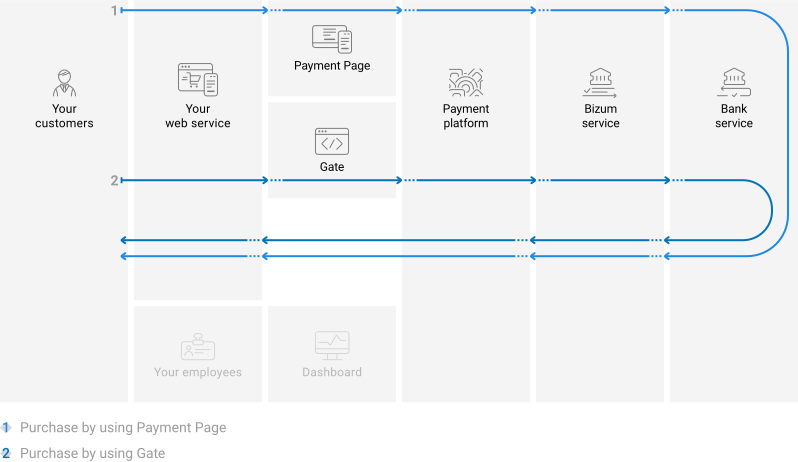
Payment processing by using the Bizum method involves the merchant's web service, one of Ecommpay interfaces, the Ecommpay payment platform, technical facilities of the Bizum service and the bank.
Operations support
Various platform interfaces can be used to process payments and perform operations using the Bizum method. Purchases can be processed by using Payment Page, Gate and Dashboard (using payment links), refunds—by using Gate and Dashboard. At the same time, regardless of the interfaces used, the following properties and limitations are applicable.
The following properties and limitations apply to the Bizum method.
| Amounts, EUR ¹ | Times ² | |||
|---|---|---|---|---|
| minimum | maximum | base | threshold | |
| Purchases | 0.05 | 1,000.00 | 2 minutes | 4 minutes |
| Refunds | – | 1,000.00 | – | – |
- Along with limits on individual payment amounts, limits imposed by specific banks on total payment amounts per customer (over the course of a day, month, or another period) may also apply.
- The base and threshold times are defined as follows:
- The base time is the average estimated time between the moment a payment is initiated in the payment platform to the moment the payment result is sent to the web service. The base time evaluation is made on the assumption of normal operation of all technical facilities and communication channels and typical customer behaviour (if any input from the customer is required). Use the base time to estimate when to react to the absence of payment result callbacks or when to check payment status (details).
- The threshold time is the maximum possible time between the moment a payment is initiated in the payment platform to the moment the web service receives the callback with the payment result. A payment is automatically assigned the
declinestatus if it wasn't processed within the threshold time. For individual customisation of the threshold time limit, contact Ecommpay technical support.
Processing scenarios
To perform a purchase by using the Bizum method, you need to display the payment instructions to the customer, while to make a refund, you need to receive a request from the customer and notify the customer about the result of the refund via the web service.
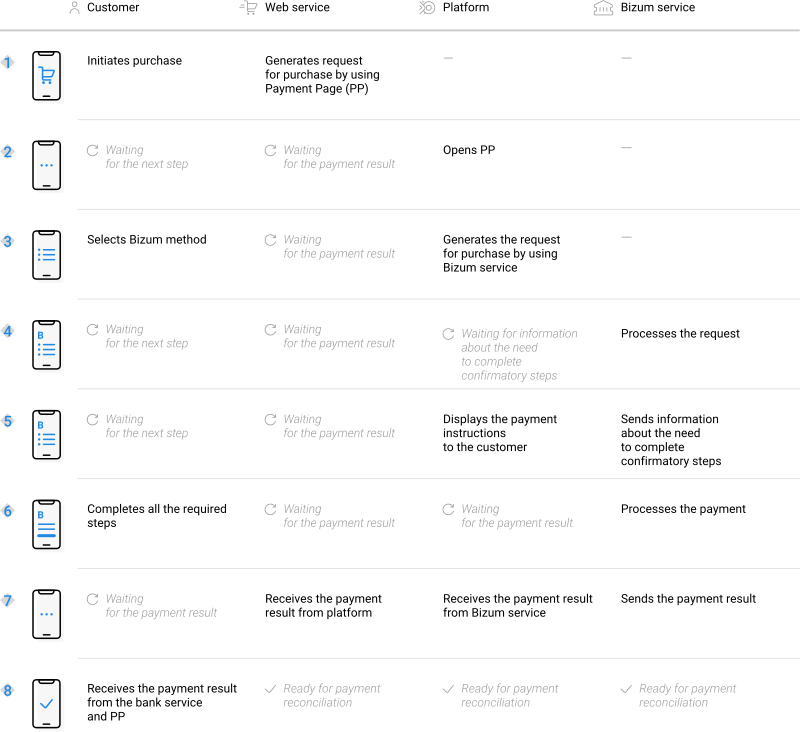
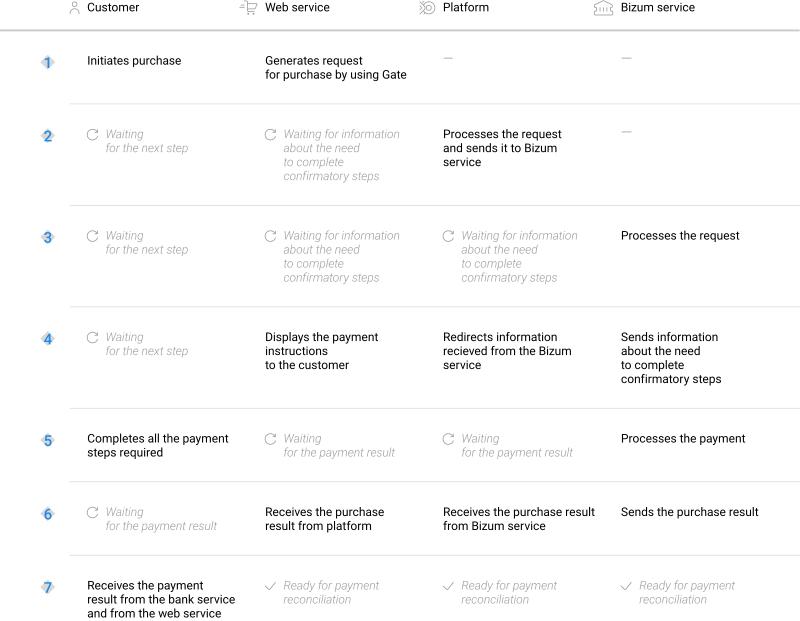
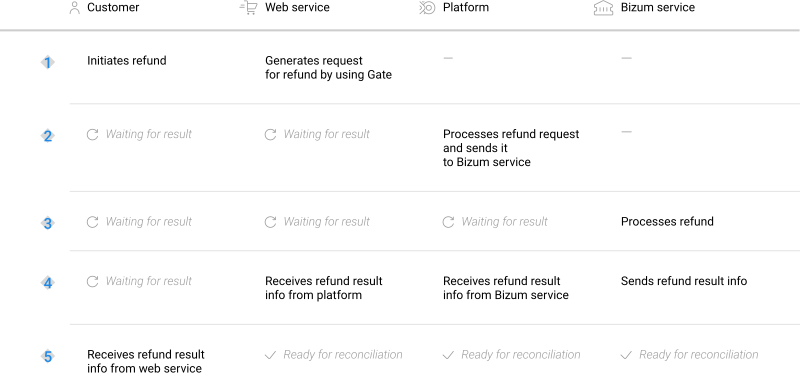
Scenarios for performing operations via the main interfaces of the payment platform correspond to those presented in the diagrams. Similarly, when additional features (such as payment links) are used, scenarios for performing operations also correspond to the specifics of those features.
Purchases by using Payment Page
General information
When using Payment Page for the Bizum method, one-step and two-step purchase processing is available. The specific option to be used is determined each time the payment form is opened:
- If the operation type (immediate purchase or an authorisation hold for subsequent debiting) is specified in the parameters for opening the form, the specified option is used.
- If the operation type is not specified in parameters for opening the form, the default option set for the specific project is used. This option can be set up by contacting Ecommpay technical support.
Note that with each time the payment form is opened, only the methods for which the corresponding operation type is supported can be available in the payment form.
To process a one-step or two-step purchase through Payment Page by using the Bizum method, the merchant's web service is required to send a corresponding request with all required parameters and signature to the Ecommpay URL and receive two callbacks: the intermediate callback containing information that the customer needs to complete confirmatory steps and the callback with the result. However, in the case of two-step purchase, it may subsequently be necessary to confirm the debiting of the held funds (details).
The full sequence and special aspects of purchase processing are provided below.
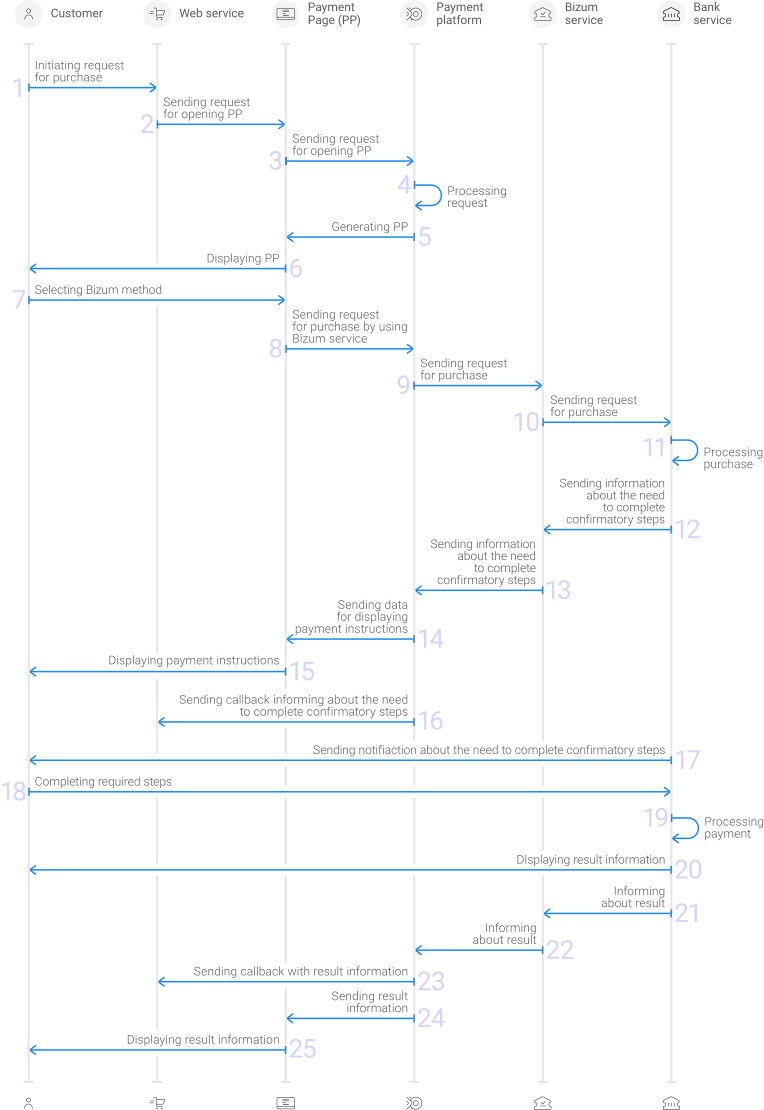
- A customer initiates a purchase in the web service.
- The web service sends the request for opening Payment Page to the specified Ecommpay URL.
- The request for opening Payment Page is sent to the payment platform.
- The payment platform receives the request and validates the required parameters and signature.
- Payment Page is generated based on the project and request parameters.
- Payment Page is displayed to the customer.
- The customer selects the Bizum method.
- The request for processing the payment by using the Bizum method is received by the payment platform.
- The payment platform processes the request and sends it to the Bizum service.
- The Bizum service processes the request and sends it to the bank service.
- The request is processed on the side of the bank service.
- The information about the need to complete confirmatory steps is sent from the bank service to the Bizum service.
- The information about the need to complete confirmatory steps is sent from the Bizum service to the payment platform.
- The notification containing information that the customer needs to complete confirmatory steps is sent to Payment Page.
- The notification containing information that the customer needs to complete confirmatory steps is displayed to the customer in the bank service.
- The payment platform sends a callback to the web service containing information that, the status of the
saleoperation is set toawaiting customer actionuntil the customer completes all required payment steps. A synchronous response (200 OK) needs to be sent from the web service side in order to confirm the receipt of the callback. - The notification indicating the need to complete confirmatory steps is sent from the bank service to the customer device.
- The customer completes all required payment steps on the bank service side.
- The purchase is processed in the bank service.
- The result is displayed to the customer on the bank service side.
- The bank service sends a notification about the result to the Bizum service.
- The Bizum service sends a notification about the result to the payment platform.
- The payment platform sends the payment result callback to the web service.
- The payment platform sends the result information to Payment Page.
- The result information is displayed to the customer on Payment Page.
In case of a two-step purchase, the process of placing the authorisation hold via Payment Page using the Bizum method is identical to the sequence of a one-step purchase, with the exception that instead of an immediate debiting of funds an authorisation hold is placed and processed.
Information about the formats of requests and callbacks used for processing payments by using the Bizum method via Payment Page is presented further in this section; general information about working with the Payment Page API is presented in Interaction concepts.
Request format
There are several things you need to consider when sending purchase requests by using the Bizum method:
- The following parameters required for any payment must be specified:
project_id—project identifier obtained from Ecommpay during integrationpayment_id—payment identifier unique within the project (only letters and digits in UTF-8 encoding are allowed, without using special characters and punctuation marks);payment_currency—payment currency code in the ISO-4217 alpha-3 formatpayment_amount—payment amount in the smallest currency unitcustomer_id—customer identifier unique within the project
- The following parameters required for any payment must be specified:
project_id,payment_id,payment_currency,payment_amount,customer_id. - To specify the type of purchase that is different from the default one set for the specific project, specify the
salevalue (for immediate purchase during one-step purchase processing)for one-step purchase processing or theauthvalue (to place an authorisation hold during two-step purchase processing)for two-step purchase processing in theoperation_typeparameter. - Additionally, it is required to specify the phone number of the customer in the
customer_phoneparameter (must be specified using the international format, including the country code, for example the number+34 91 338 8830must be specified as+34913388830or34913388830). If this parameter is missing, the payment form may display an input field for entering the missing value (details are available in Submission of additional payment information). - If you need to have the payment form displayed with the Bizum method selected, set the
force_payment_methodparameter tobizum. - Additionally, any other parameters available for working with Payment Page can be used (details).
- After all target parameters are specified, generate a signature (details).
Thus, a correct request for opening the payment form using the Bizum method must contain the project identifier, basic payment information (identifier, amount, and currency code), customer information, as well as possible additional parameters.
{
   "project_id": 120,
   "payment_id": "580",
   "payment_amount": 1000,
   "payment_currency": "EUR",
   "customer_id": "customer1",
   "customer_phone": "+34913388830",
   "signature": "kUi2x9dKHAVNU0FYldOcZzUCwX6R\/ekpZhkIQg=="
}
{
   "project_id": 120,
   "payment_id": "580",
   "payment_amount": 1000,
   "payment_currency": "EUR",
   "customer_id": "customer1",
   "customer_phone": "+34913388830",
   "signature": "kUi2x9dKHAVNU0FYldOcZzUCwX6R\/ekpZhkIQg=="
}
Formats of intermediate callbacks
Each payment made with the Bizum method requires receiving an intermediate callback from the payment platform containing information about the status of the sale operation being set to the intermediate awaiting customer action status until the customer completes the required steps (details). The format of such callbacks is standard (details). Upon receiving each such callback, the web service must verify its correctness, send a synchronous confirmation response (200 OK), and wait for the subsequent callback containing information about the payment result
        "customer": {
            "id": "id213"
        },
        "decision": {
            "message": "Transaction has been checked by RCS"
        },
        "operation": {
            "id": 7280000015348,
            "type": "sale",
            "status": "awaiting customer action",
            "date": "2025-11-19T06:46:13+0000",
            "created_date": "2025-11-19T06:46:02+0000",
            "request_id": "83f70191f842cbb1-00007281",
            "sum_initial": {
                "amount": 10000,
                "currency": "EUR"
            },
            "sum_converted": {
                "amount": 10000,
                "currency": "EUR"
            },
            "code": "9999",
            "message": "Awaiting processing",
            "provider": {
                "id": 21624,
                "payment_id": "",
                "auth_code": ""
            }
        },
        "signature": "n/UPMi4E+dqlU8bPP5dsoFyWPEufQ=="
    }
}
        "customer": {
            "id": "id213"
        },
        "decision": {
            "message": "Transaction has been checked by RCS"
        },
        "operation": {
            "id": 7280000015348,
            "type": "sale",
            "status": "awaiting customer action",
            "date": "2025-11-19T06:46:13+0000",
            "created_date": "2025-11-19T06:46:02+0000",
            "request_id": "83f70191f842cbb1-00007281",
            "sum_initial": {
                "amount": 10000,
                "currency": "EUR"
            },
            "sum_converted": {
                "amount": 10000,
                "currency": "EUR"
            },
            "code": "9999",
            "message": "Awaiting processing",
            "provider": {
                "id": 21624,
                "payment_id": "",
                "auth_code": ""
            }
        },
        "signature": "n/UPMi4E+dqlU8bPP5dsoFyWPEufQ=="
    }
}
Final callback format
The Bizum method uses the standard format for callbacks to deliver purchase results. For more information, see Handling callbacks (details).
The following is the example of a callback with information about a 10.00 EUR purchase made in the 442 project.
{
        "project_id": 442,
        "payment": {
            "id": "Bizum_SALE_42:05_IIx8U",
            "type": "purchase",
            "status": "success",
            "date": "2026-04-14T10:42:18+0000",
            "method": "Bizum",
            "sum": {
                "amount": 1000,
                "currency": "EUR"
            },
            "description": ""
        },
        "operation": {
            "id": 2882000012699,
            "type": "sale",
            "status": "success",
            "date": "2026-04-14T10:42:18+0000",
            "created_date": "2026-04-14T10:42:06+0000",
            "request_id": "f56c90e7c8d597fd77116313-00008328",
            "sum_initial": {
                "amount": 1000,
                "currency": "EUR"
            },
            "sum_converted": {
                "amount": 1000,
                "currency": "EUR"
            },
            "code": "0",
            "message": "Success",
            "provider": {
                "id": 21460,
                "payment_id": "1747996932112",
                "auth_code": ""
            }
        },
        "signature": "6RUL34SFfqATQ3jKtzdoUfXMebAEajM5ktBziSsqaNHQQ14A=="
    }
The following is the example of a callback with information about a declined purchase.
 {
        "sum_request": {
            "amount": 150000,
            "currency": "EUR"
        },
        "request_id": "5f15df63d-00000651",
        "transaction": {
            "id": 655000012161,
            "date": "2026-04-14T10:42:30+0000",
            "type": "purchase"
        },
        "payment": {
            "method": "Bizum",
            "date": "2026-04-14T10:42:30+0000",
            "result_code": "20000",
            "result_message": "General decline",
            "status": "decline",
            "is_new_attempts_available": false,
            "attempts_timeout": 0,
            "id": "Bizum_SALE_cDR7O",
            "cascading_with_redirect": false,
            "is_cascading": false,
            "split_with_redirect": false,
            "method_id": 1824,
            "provider_id": 21460
        },
        "sum_real": {
            "amount": 150000,
            "currency": "EUR"
        },
        "rrn": "",
        "company": {
            "id": 1,
            "title": "QA Company"
        },
        "general": {
            "project_id": 442,
            "payment_id": "Bizum_cDR7O",
            "signature": "7rmkfAJsjl/kklkKMy/n1YuCiHZQwbYCfJd1vp0SjXJt7LQ=="
        },
        "description": "",
        "operations": [
            {
                "id": 655000012671,
                "type": "sale",
                "status": "decline",
                "date": "2026-04-14T10:42:30+0000",
                "processing_time": null,
                "request_id": "5f140c1cb3e54832a4edc7f3606420000651",
                "sum": {
                    "amount": 150000,
                    "currency": "EUR"
                },
                "code": "20000",
                "message": "General decline",
                "provider": {
                    "id": 21460,
                    "payment_id": "1747996944360"
                }
            }
        ]
    }
Useful links
The following articles can be useful when you implement one-time purchases via Payment Page:
- Quickstart—a quickstart guide on how to implement payment processing via Payment Page with the use of SDKs and source code examples.
- Interaction concepts—an article about organising the work with Payment Page on the web service side based on the principles of the payment platform operation.
- Signature generation and verification—an article about signing data in API requests, responses, and callbacks and verifying signatures in order to ensure secure data exchange with the payment platform.
- Payment processing—articles about payment types that can be processed via the platform, workflows and possible statuses of these payments and operations performed within them.
- Purchase processing—an article about processing via Payment Page one-time one-step purchases with immediate debiting of funds.
- Authorisation hold—an article about placing a hold on funds via Payment Page as part of processing one-time two-step purchases with subsequent debitings.
- Handling operation processing information—an article about statuses and codes that are used in the platform to communicate the statuses of operations and the reasons for declines.
Purchases by using Gate
General information
To process a one-step or two-step purchase through Gate by using the Bizum method, in general, the merchant's web service is required to do the following:
- Send the corresponding request (for a purchase or for placing an authorization hold) containing all required parameters and signature to the Ecommpay URL.
- Receive an intermediate callback from the payment platform and notify the customer about the need to complete the necessary steps.
- In case of a two-step payment, send a request for debiting of the held funds, containing all required parameters and signature, to the Ecommpay URL.
- Receive the final callback from the payment platform.
The full sequence and special aspects of one-step purchase processing are provided below.
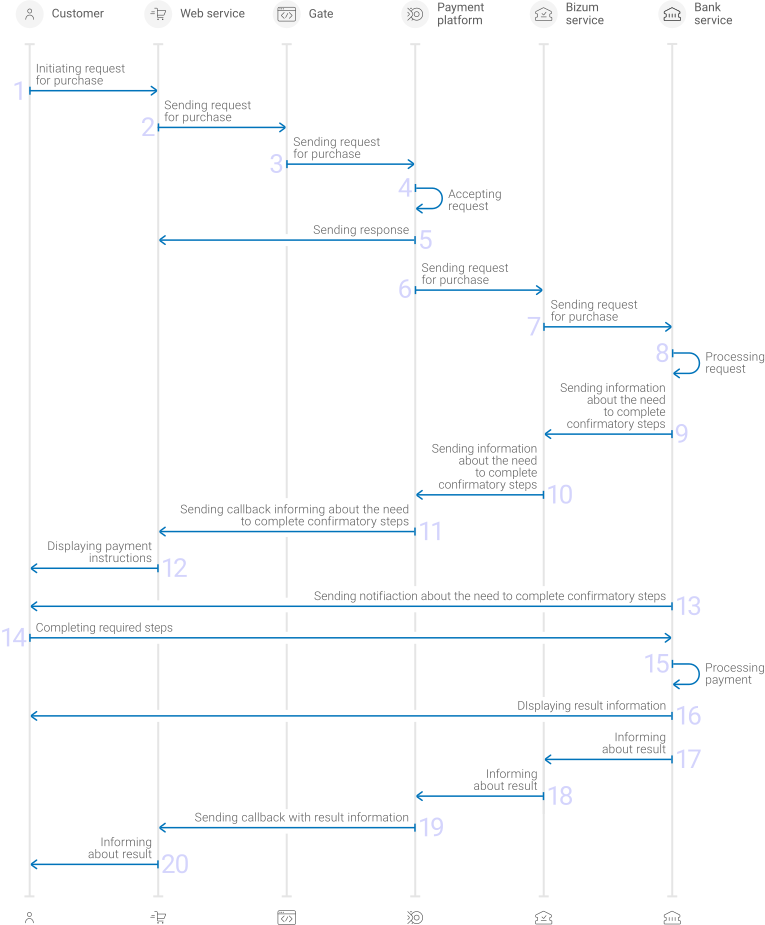
- A customer initiates a purchase by using the Bizum method in the web service.
- The web service sends the request for processing the purchase by using Gate to the specified Ecommpay URL.
- The payment platform receives the request.
- The payment platform validates the required parameters and signature in the request.
- The payment platform sends the response to the web service with information about the receipt of the request and its validity (details).
- The payment platform performs further processing of the request (with parameter consistency check) and sends it to the Bizum service.
- The Bizum service processes the request and sends it to the bank service.
- The request is processed on the side of the bank service.
- The information about the need to complete confirmatory steps is sent from the bank service to the Bizum service.
- The information about the need to complete confirmatory steps is sent from the Bizum service to the payment platform.
- The payment platform sends a callback to the web service containing information that, the status of the
saleoperation is set toawaiting customer actionuntil the customer completes all required payment steps. A synchronous response (200 OK) needs to be sent from the web service side in order to confirm the receipt of the callback. - The notification containing information that the customer needs to complete confirmatory steps in the bank service is displayed to the customer on the web service side.
- The notification indicating the need to complete confirmatory steps is sent from the bank service to the customer device.
- The customer completes all required payment steps on the bank service side.
- The purchase is processed in the bank service.
- The result is displayed to the customer on the bank service side.
- The bank service sends a notification about the result to the Bizum service.
- The Bizum service sends the payment result notification to the payment platform.
- The payment platform sends the payment result callback to the web service.
- The customer receives the payment result information from the web service.
In case of a two-step purchase, the process of placing the authorisation hold via Gate using the Bizum method is identical to the sequence of a one-step purchase, with the exception that instead of an immediate debiting of funds an authorisation hold is placed and processed.
Information about the formats of requests and callbacks used for processing payments by using the Bizum method via Gate is presented further in this section. General information about working with the Gate API is presented in Interaction concepts.
Request format for one-step and two-step purchases
There are several things you need to consider when sending purchase requests by using the Bizum method:
- To initiate each purchase, send a separate POST request to one of the following endpoints:
/v2/payment/banks/bizum/sale, which belongs to the group /v2/payment/banks/{payment_method}/sale and is used for one-step purchase processing/v2/payment/banks/bizum/auth, which belongs to the group /v2/payment/banks/{payment_method}/auth is used for two-step purchase processing
- Each request must include the following objects and parameters:
- Object
general—general purchase information:project_id—project identifier obtained from Ecommpay during integrationpayment_id—payment identifier unique within the project (only letters and digits in UTF-8 encoding are allowed, without using special characters and punctuation marks)signature—request signature generated after all required parameters are specified (details—in the Signature generation and verification) (details)
- Object
payment—payment information:amount—payment amount in the smallest currency unitcurrency—payment currency code in the ISO-4217 alpha-3 format
- Object
customer—customer information:id—customer identifier unique within the projectip_address—customer IP address relevant for the initiated payment
- Object
- Additionally it is recommended to specify the customer phone number (using the international format, including the country code, for example the number
+34 91 338 8830must be specified as+34913388830or34913388830) in thephoneparameter of thecustomerobject . If this parameter is missing, the payment platform may send the missing parameter in a callback requesting additional information submission (details are available in Submission of additional payment information). - Additionally, any other parameters included in the specification can be used.
Thus, a correct one-step purchase request by using the Bizum method must contain the project identifier, basic payment information (identifier, amount, and currency code), customer information, signature, as well as possible additional parameters.
{
  "general": {
    "project_id": 210,
    "payment_id": "test_payment",
    "signature": "PJkV8ej\/UG0Di8hTng6JvipTv+AWoXW\/9MTO8yJA=="
  },
  "payment": {
    "amount": 1000,
    "currency": "EUR"
  },
  "customer": {
    "id": "customer123",
    "ip_address": "192.0.2.0",
    "phone": "+34913388830"
  }
}
{
  "general": {
    "project_id": 210,
    "payment_id": "test_payment",
    "signature": "PJkV8ej\/UG0Di8hTng6JvipTv+AWoXW\/9MTO8yJA=="
  },
  "payment": {
    "amount": 1000,
    "currency": "EUR"
  },
  "customer": {
    "id": "customer123",
    "ip_address": "192.0.2.0",
    "phone": "+34913388830"
  }
}
Request format for debiting of authorised amount
There are several things you need to consider when sending debiting requests by using the Bizum method:
- To initiate each debiting, send a separate POST request to the /v2/payment/capture endpoint.
- Each request must include the following objects and parameters:
- Object
general—general purchase information:project_id—project identifier obtained from Ecommpay during integrationpayment_id—payment identifier unique within the projectsignature—request signature generated after all required parameters are specified (details—in the Signature generation and verification) (details)
- Object
payment—payment information:amount—payment amount in the smallest currency unit, equal to the amount heldcurrency—payment currency code in the ISO-4217 alpha-3 format, matching the authorization hold currency.
- Object
- Additionally, any other parameters included in the specification can be used.
Thus, a correct purchase request by using the Bizum method must contain the project identifier, basic payment information (identifier, amount, and currency code), as well as signature.
{
  "general": {
    "project_id": 210,
    "payment_id": "test_payment",
    "signature": "9jceterqweXZw7jew6owgghghGYv4U...=="
  },
  "payment": {
    "amount": 1000,
    "currency": "EUR"
  }
{
  "general": {
    "project_id": 210,
    "payment_id": "test_payment",
    "signature": "9jceterqweXZw7jew6owgghghGYv4U...=="
  },
  "payment": {
    "amount": 1000,
    "currency": "EUR"
  }
Formats of intermediate callbacks
Each payment made with the Bizum method requires receiving an intermediate callback from the payment platform containing information about the status of the sale operation being set to the intermediate awaiting customer action status until the customer completes the required steps (details). The format of such callbacks is standard (details). Upon receiving each such callback, the web service must verify its correctness, send a synchronous confirmation response (200 OK), and wait for the subsequent callback containing information about the payment result
        "customer": {
            "id": "id213"
        },
        "decision": {
            "message": "Transaction has been checked by RCS"
        },
        "operation": {
            "id": 7280000015348,
            "type": "sale",
            "status": "awaiting customer action",
            "date": "2025-11-19T06:46:13+0000",
            "created_date": "2025-11-19T06:46:02+0000",
            "request_id": "83f70191f842cbb1-00007281",
            "sum_initial": {
                "amount": 10000,
                "currency": "EUR"
            },
            "sum_converted": {
                "amount": 10000,
                "currency": "EUR"
            },
            "code": "9999",
            "message": "Awaiting processing",
            "provider": {
                "id": 21624,
                "payment_id": "",
                "auth_code": ""
            }
        },
        "signature": "n/UPMi4E+dqlU8bPP5dsoFyWPEufQ=="
    }
}
        "customer": {
            "id": "id213"
        },
        "decision": {
            "message": "Transaction has been checked by RCS"
        },
        "operation": {
            "id": 7280000015348,
            "type": "sale",
            "status": "awaiting customer action",
            "date": "2025-11-19T06:46:13+0000",
            "created_date": "2025-11-19T06:46:02+0000",
            "request_id": "83f70191f842cbb1-00007281",
            "sum_initial": {
                "amount": 10000,
                "currency": "EUR"
            },
            "sum_converted": {
                "amount": 10000,
                "currency": "EUR"
            },
            "code": "9999",
            "message": "Awaiting processing",
            "provider": {
                "id": 21624,
                "payment_id": "",
                "auth_code": ""
            }
        },
        "signature": "n/UPMi4E+dqlU8bPP5dsoFyWPEufQ=="
    }
}
Final callback format
The Bizum method uses the standard format for callbacks to deliver purchase results. For more information, see Handling callbacks (details).
The following is the example of a callback with information about a 10.00 EUR purchase made in the 442 project.
{
        "project_id": 442,
        "payment": {
            "id": "Bizum_SALE_42:05_IIx8U",
            "type": "purchase",
            "status": "success",
            "date": "2026-04-14T10:42:18+0000",
            "method": "Bizum",
            "sum": {
                "amount": 1000,
                "currency": "EUR"
            },
            "description": ""
        },
        "operation": {
            "id": 2882000012699,
            "type": "sale",
            "status": "success",
            "date": "2026-04-14T10:42:18+0000",
            "created_date": "2026-04-14T10:42:06+0000",
            "request_id": "f56c90e7c8d597fd77116313-00008328",
            "sum_initial": {
                "amount": 1000,
                "currency": "EUR"
            },
            "sum_converted": {
                "amount": 1000,
                "currency": "EUR"
            },
            "code": "0",
            "message": "Success",
            "provider": {
                "id": 21460,
                "payment_id": "1747996932112",
                "auth_code": ""
            }
        },
        "signature": "6RUL34SFfqATQ3jKtzdoUfXMebAEajM5ktBziSsqaNHQQ14A=="
    }
The following is the example of a callback with information about a declined purchase.
 {
        "sum_request": {
            "amount": 150000,
            "currency": "EUR"
        },
        "request_id": "5f15df63d-00000651",
        "transaction": {
            "id": 655000012161,
            "date": "2026-04-14T10:42:30+0000",
            "type": "purchase"
        },
        "payment": {
            "method": "Bizum",
            "date": "2026-04-14T10:42:30+0000",
            "result_code": "20000",
            "result_message": "General decline",
            "status": "decline",
            "is_new_attempts_available": false,
            "attempts_timeout": 0,
            "id": "Bizum_SALE_cDR7O",
            "cascading_with_redirect": false,
            "is_cascading": false,
            "split_with_redirect": false,
            "method_id": 1824,
            "provider_id": 21460
        },
        "sum_real": {
            "amount": 150000,
            "currency": "EUR"
        },
        "rrn": "",
        "company": {
            "id": 1,
            "title": "QA Company"
        },
        "general": {
            "project_id": 442,
            "payment_id": "Bizum_cDR7O",
            "signature": "7rmkfAJsjl/kklkKMy/n1YuCiHZQwbYCfJd1vp0SjXJt7LQ=="
        },
        "description": "",
        "operations": [
            {
                "id": 655000012671,
                "type": "sale",
                "status": "decline",
                "date": "2026-04-14T10:42:30+0000",
                "processing_time": null,
                "request_id": "5f140c1cb3e54832a4edc7f3606420000651",
                "sum": {
                    "amount": 150000,
                    "currency": "EUR"
                },
                "code": "20000",
                "message": "General decline",
                "provider": {
                    "id": 21460,
                    "payment_id": "1747996944360"
                }
            }
        ]
    }
Useful links
The following articles can be useful when you implement one-time purchases via Gate:
- Quickstart—a quickstart guide on how to implement payment processing via Gate with the use of source code examples in PHP and Go.
- Interaction concepts—an article about organising the work with Gate on the web service side based on the principles of the payment platform operation and the utilised interaction flows and formats.
- Signature generation and verification—an article about signing data in API requests, responses, and callbacks and verifying signatures in order to ensure secure data exchange with the payment platform.
- Payment processing—articles about payment types that can be processed via the platform, workflows and possible statuses of these payments and operations performed within them.
- One-step purchase—an article about processing via Gate one-time one-time one-step purchases with immediate debiting of funds.
- Two-step purchase—an article about processing via Gate one-time one-time two-step purchases that comprise placing an authorization hold and subsequent debiting of funds.
- Handling operation processing information—an article about statuses and codes that are used in the platform to communicate the statuses of operations and the reasons for declines.
Refunds by using Gate
General information
To perform a refund through Gate by using the Bizum method, send a request with all required parameters and signature to the Ecommpay URL and receive a callback with the result. The full sequence and special aspects of refund performing are provided below.
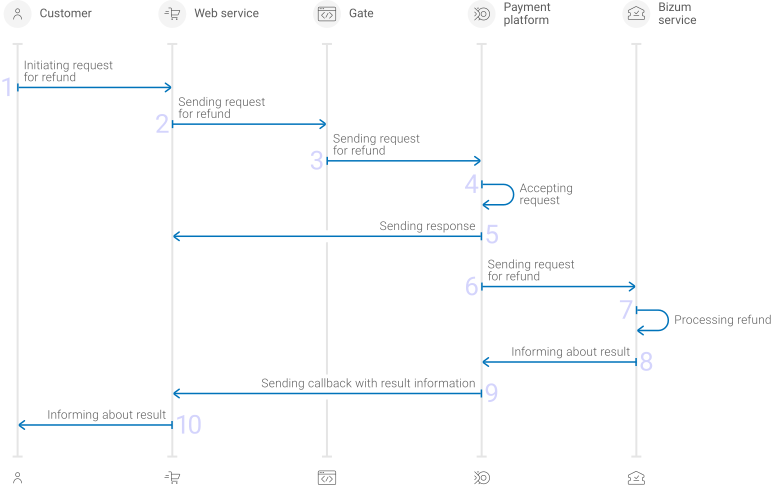
- A customer initiates a refund.
- The web service sends the request for performing the refund by using Gate to the specified Ecommpay URL.
- The payment platform receives the request.
- The payment platform validates the required parameters and signature in the request.
- The payment platform sends the response to the web service with information about the receipt of the request and its validity (details).
- The payment platform performs further processing of the request (with parameter consistency check) and sends it to the Bizum service.
- The refund is processed on the side of the Bizum service.
- The Bizum service sends the result notification to the payment platform.
- The payment platform sends the result callback to the web service.
- The customer receives the refund result information from the web service.
Information about the formats of requests and callbacks used for performing refunds by using the Bizum method via Gate is presented further in this section. General information about working with the Gate API is presented in Interaction concepts.
Request format
There are several things you need to consider when sending refund requests by using the Bizum method:
- To initiate each refund, send a separate POST request to the /v2/payment/refund endpoint.
- Each request must include the following objects and parameters:
- Object
general—general refund information:project_id—project identifier obtained from Ecommpay during integrationpayment_id—identifier of the payment that needs to be refundedpayment identifiersignature—request signature generated after all required parameters are specified (details—in the Signature generation and verification)
- Object
payment—refund information:description—refund description or commentamount—refund amount in the smallest currency unit (required for a partial refund)currency—refund currency code in the ISO-4217 alpha-3 format (required for a partial refund)
- Object
- Additionally, any other parameters included in the specification can be used.
Thus, a correct refund request by using the Bizum method must contain the project and payment identifiers, description of the refund, signature, and, if necessary, currency code and refund amount.
{
  "general": {
    "project_id": 210,
    "payment_id": "test_payment",
    "signature": "PJkV8ej\/UG0Di8hTng6JvipTv+AWoXW\/9MTO8yJA=="
  },
  "payment": {
    "description": "test refund",
    "amount": 1000,
    "currency": "EUR"
  }
}
{
  "general": {
    "project_id": 210,
    "payment_id": "test_payment",
    "signature": "PJkV8ej\/UG0Di8hTng6JvipTv+AWoXW\/9MTO8yJA=="
  },
  "payment": {
    "description": "test refund",
    "amount": 1000,
    "currency": "EUR"
  }
}
Callback format
The Bizum method uses the standard format for callbacks to deliver refund results. For more information, see Handling callbacks.
The following is the example of a callback with information about a 400.00 partial refund made in the 442 project.
{
        "project_id": 442,
        "payment": {
            "id": "Bizum_SA_r5raf",
            "type": "purchase",
            "status": "refunded",
            "date": "2026-04-14T10:41:49+0000",
            "method": "Bizum",
            "sum": {
                "amount": 0,
                "currency": "EUR"
            },
            "description": ""
        },
        "operation": {
            "id": 1315000012748,
            "type": "refund",
            "status": "success",
            "date": "2026-04-14T10:41:49+0000",
            "created_date": "2026-04-14T10:41:37+0000",
            "request_id": "0e241237b73aee5fd263edcff230eb77e38-00001316",
            "sum_initial": {
                "amount": 40000,
                "currency": "EUR"
            },
            "sum_converted": {
                "amount": 40000,
                "currency": "EUR"
            },
            "code": "0",
            "message": "Success",
            "provider": {
                "id": 21460,
                "payment_id": "1747996908248",
                "auth_code": ""
            }
        },
        "signature": "n7SrAOilMAiKTSYjSWZs3IJrg61Z80oT6KX6hNd2A+nXXQ=="
    }
The following is the example of a callback with information about a declined refund.
 {
        "project_id": 433772,
        "payment": {
            "id": "TEST_PAYMENT_832327",
            "type": "purchase",
            "status": "success",
            "date": "2026-04-14T06:44:10+0000",
            "method": "Bizum",
            "sum": {
                "amount": 1000,
                "currency": "EUR"
            },
            "description": "TEST_PAYMENT_832327"
        },
        "customer": {
            "id": "1"
        },
        "errors": [
            {
                "code": "2701",
                "message": "Rules Failed Code",
                "description": "fatal: RULES_FAILED_CODE"
            },
            {
                "code": "3358",
                "message": "Operation amount is less than limit",
                "description": "Operation amount is less than limit"
            }
        ],
        "operation": {
            "id": 2764000012860,
            "type": "refund",
            "status": "decline",
            "date": "2026-04-14T06:44:10+0000",
            "created_date": "2026-04-14T06:44:09+0000",
            "request_id": "bf5881904060b767f36d20001711",
            "sum_initial": {
                "amount": 100,
                "currency": "MXN"
            },
            "sum_converted": {
                "amount": 18,
                "currency": "USD"
            },
            "code": "2701",
            "message": "Rules Failed Code",
            "provider": {
                "id": 21460,
                "payment_id": ""
            }
        },
        "signature": "zAmT6dAKwcgu07ZNvA2q+kt53WDPRIRv/yBak0GA=="
    }
Useful links
The following articles can be useful when implementing refunds via Gate:
- Interaction concepts—an article about organising the work with Gate on the web service side based on the principles of the payment platform operation and the utilised interaction flows and formats.
- Signature generation and verification—an article about signing data in API requests, responses, and callbacks and verifying signatures in order to ensure secure data exchange with the payment platform.
- Payment processing—articles about payment types that can be processed via the platform, workflows and possible statuses of these payments and operations performed within them.
- Purchase refunds—an article about refunding different types of purchases via Gate.
- Handling operation processing information—an article about statuses and codes that are used in the platform to communicate the statuses of operations and the reasons for declines.
Refunds by using Dashboard
When working with Dashboard, you can perform single and mass refunds by using the Bizum method.
- To perform a single refund, select the target purchase, open its information tab, specify the amount of the refund, send a request and verify that the refund has been performed.
-
To perform a mass refund, prepare and upload a file with information about all target refunds, send a batch request, and verify that the refunds have been performed.
Use a CSV file structured according to the requirements presented in the Mass payments data section. The refund parameters must comply with the requirements (you do not have to generate a signature because it is specified by Dashboard).
More information Information about performing refunds by using Dashboard is presented in a separate section.
Analysis of payments results
To analyse information about payments made with the Bizum method, as well as other methods, you can use:
- Dashboard interface toolkit with various lists and analytic panels.
- Reports in CSV file format, available via the Reports section (one-time and periodically).
- Data in JSON format, sent by program requests to a specified URL available by using the Data API interface.
If you have any further questions regarding payment data analysis, refer to the documentation (Dashboard and Using Data API) and Ecommpay technical support.