Currency choice in Payment Page
An article about the capability of letting customers choose payment currency that fits their needs in the payment form.
Overview
In certain cases you may find it useful to give your customers a possibility to choose the payment currency that fits their needs directly in the payment form. When accepting payments via Payment Page, you can set up payment processing workflows where this capability is integrated seamlessly, with support for a wide range of available currencies, flexible configuration, and automatic currency conversion when necessary.
When accepting payments via Payment Page, you can provide your customers with a possibility to select their payment currency in the payment form.
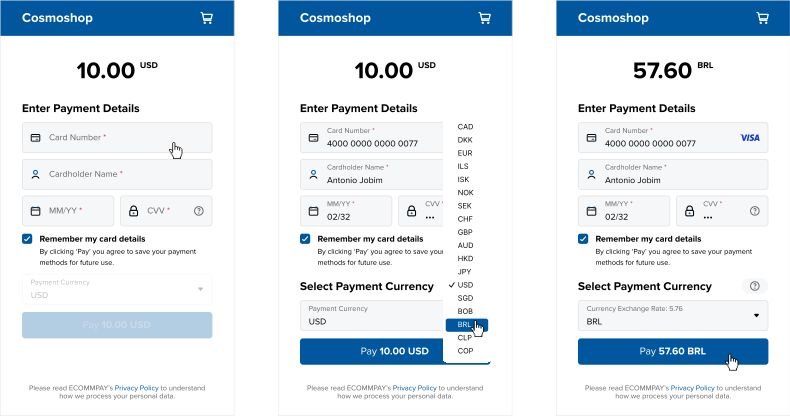
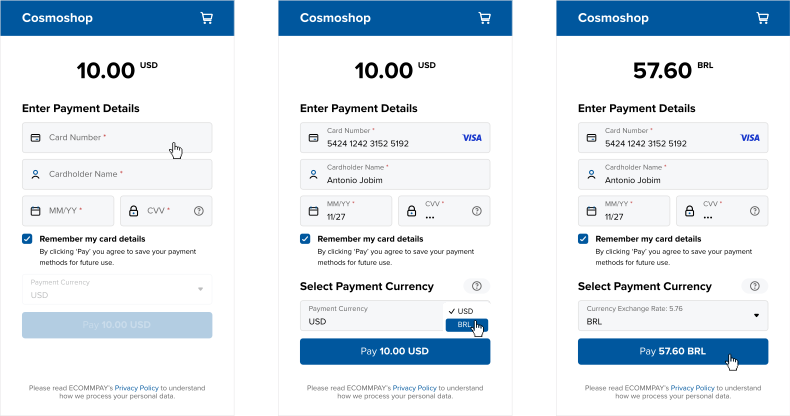
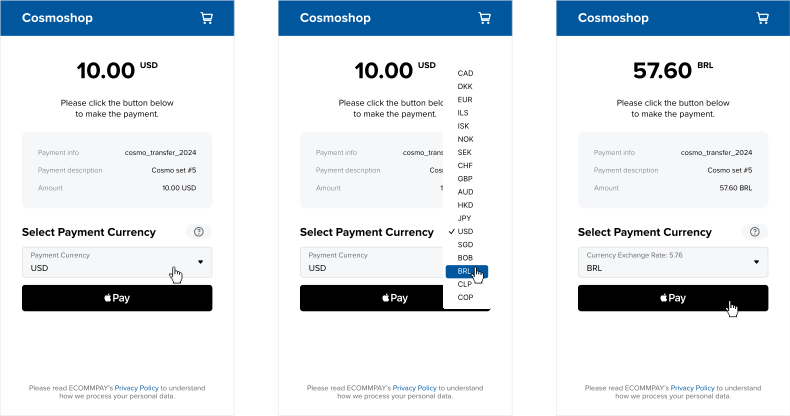
With this capability, the currency that was specified in the request to open Payment Page is always shown as preselected. However, the customer can choose to pay in one of the other available currencies, in which case the customer is then shown the recalculated payment amount in the currency they selected and are able to confirm the payment in the selected currency.
Choosing the currency in the payment form is supported, first and foremost, for the globally accepted payment methods: Apple Pay, Google Pay and standard card payments. If you have any questions regarding the integration, setup, and use of this functionality, refer to your Ecommpay account manager.
Special aspects and limitations
When integrating and using the functionality of choosing the currency in the payment form, consider the following special aspects and limitations:
- Payment methods that support currency choice must be available for selection by button on the payment method selection page.
For instance, in case of the Apple Pay and Google Pay payments, this option is supported if the buttons to select these methods are shown on the payment method selection page. Then the payment method can be either preselected, by your specifying its code in the payment request, or selected directly in the payment form by the customer, following which the customer can select the currency. If these buttons are shown on the page to enter card details, it means these methods serve in the interface as complementary options to a standard card purchase and cannot be selected separately from card payments, and this currency selection option is not available.
- The customer selects the currency only out of those that are available. You can manage the availability of currencies for selection.
In general, available currencies encompass all currencies supported as operation currencies for the merchant's project in question and also available for performing conversion within the initiated payment session. For card payments, the currency availability can be limited by filtering all available currencies. The options are as follows:
- Selecting currency out of all available.
This option is supported for Apple Pay, Google Pay, and standard card payments.
- Selecting currency out of those relevant for the country where the card was issued (determined by the card number) or, if relevant currencies are not available, out of the remaining available currencies.
For example, if the customer uses the card issued in Brazil, and the Brazilian real is supported as an operation currency for the project in question, the available currencies can be the initial currency specified in the request and the Brazilian real.
This option is supported only for standard card payments, and when it is used, the list of available currencies is shown to the customer only after the card number has been entered.
- Selecting currency out of those relevant for the country where the card was issued (determined by the card number) or, if relevant currencies are not available, the option to choose the currency can be removed and the payment request currency can be used instead.
For example, if the customer uses the card issued in Brazil, and the Brazilian real is not supported as an operation currency for the project in question, only the payment request currency can be shown for selection.
This option is supported only for standard card payments, and when it is used, the list of available currencies is shown to the customer only after the card number has been entered.
You can compile lists of available currencies for each project and can also decide on the option of filtering the available currencies for card payments. Thus, the list of available currencies can differ depending on the project, payment method, and payment instrument.
- Selecting currency out of all available.
- Dollars, euros, or pounds sterling can be used as balance currencies.
If the customer selects to pay in euros, US dollars, or pounds sterling, and the payment is processed in the selected currency and the balances in the relevant currencies have been configured, the merchant receives the funds in this currency. In all other cases, the merchant receives the funds in US dollars.
- Currency conversion is performed with the use of exchange rates set by Ecommpay.
These rates are calculated by Ecommpay according to the market data provided by the speciliased partner services. To monitor payments with conversion, you can use different interfaces of the payment platform (details). You can also contact your account manager to learn more about exchange rates and the specifics of how they are applied.
Workflow
You do not need to update your web service to support payment currency selection by the customer (as far as standard processing workflows for payments of a specific type are concerned). The following is a workflow of a one-step purchase that requires conversion to the currency selected by the customer.
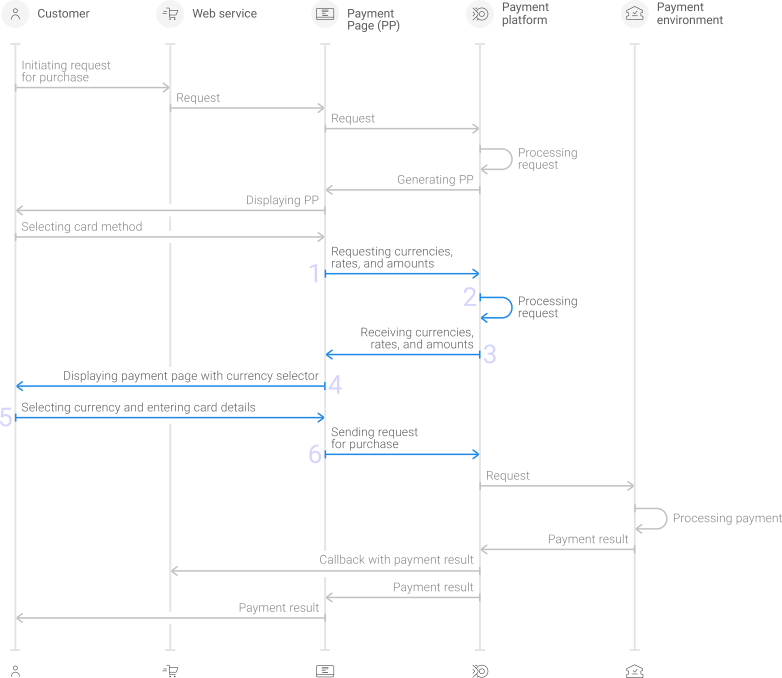
- Payment Page sends to the payment platform the request to obtain information about available currencies and exchange rates required for currency conversion.
- The payment platform processes the request.
- The payment platform sends the information required for currency conversion to Payment Page.
- Payment Page displays the list of available currencies.
- The customer selects the currency and enters necessary details.
- Payment Page sends to the payment platform the request for payment denominated in the currency that the customer selected.
When the currency selected by the customer differs from the one specified in the payment request, payment result callbacks can contain (if it has been configured) the sum_customer object with the following parameters:with the information about the payment amount and the currency selected by the customer in the amount and currency parameters.
amount—the operation amount in the smallest units of the currency selected by the customercurrency—the code of the currency selected by the customer in ISO-4217 alpha-3
This information is used as complementary to the data about the amount and currency passed in the operation object:
sum_initial—the initial amount and currency of the requestsum_converted—the converted amount and currency that were actually used to perform the operation
The following is an example of the payment with a conversion operation in which 10.00 USD are converted into 57.60 BRL as the customer selected to pay in BRL, and the amount the customer actually paid is equal to 57.60 BRL.
{
    "payment":{
        "method":"card",
        "sum":{
            "amount":1000, // payment amount in the requested payment currency
            "currency":"USD" // code of the requested payment currency
        },
        "id":"11006",
        "type":"purchase",
        "status":"success",
        "date":"2022-06-23T13:32:09+0000",
        "description":""
    },
    "customer":{
        "id":"12"
    },
    "sum_customer":{
        "amount":5760, // amount in the customer selected currency
        "currency":"BRL" // code of the customer selected currency
    },
    "account":{
        "number":"541333******0019"
    },
    "project_id":42,
    "operation":{
        "created_date":"2022-06-23T13:32:02+0000",
        "request_id":"a23962a836e8e4-db4f1981d9-0006",
        "sum_initial":{
            "amount":1000, // operation amount in the requested payment currency
            "currency":"USD" // code of the requested payment currency
        },
        "sum_converted":{
            "amount":5760, // operation amount in the actual operational currency
            "currency":"BRL" // code of the actual operational currency
        },
        "code":"0",
        "message":"Success",
        "eci":"05",
        "provider":{
            "id":6,
            "payment_id":"1629803",
            "auth_code":"563253",
            "endpoint_id":6,
            "date":"2022-06-23T10:32:09+0000"
        },
        "id":682400942,
        "type":"sale",
        "status":"success",
        "date":"2022-06-23T13:32:09+0000"
    },
    "signature":"BsGd0vcBQjd+aFl8ehEPRjf/eQUABow+VO+/xSG+lqKo6xHQ=="
}
Setup
To set up the functionality of currency conversion when the customer chooses the currency:
- With your Ecommpay account manager, discuss and agree upon adding and setting up this functionality. Agree upon:
- which projects, payment methods, and relevant currencies are required.
- Whether you need the option to filter available currencies by the customer's card country.
- Whether testing is necessary.
- If you need testing, once you get notified by the Ecommpay specialists that the payment form is ready for being used in test mode, test this functionality, and inform Ecommpay that everything is ready to launch.
- Get notified by the Ecommpay specialists that the functionality has been added and fully set up.